Mouse-only study users
If an accessible port for a wired mouse is all you need, a compact data hub may suit the desk better than a hub with display and charging connections you will not use.


Match the hub’s computer-side connector to an available port, then check that it has a data port for your wired mouse. A compact data hub is a sensible starting point for a mouse-only desk; consider a multiport USB-C hub or external power when other devices make those features useful. Check cable reach and power requirements before choosing.
If an accessible port for a wired mouse is all you need, a compact data hub may suit the desk better than a hub with display and charging connections you will not use.
If your laptop offers USB-C but your mouse has a USB-A plug, check both the hub’s computer-side connector and its mouse-facing data ports.
If a keyboard, storage device or other peripherals may share the hub later, consider the port count and how those devices will be powered.
Start with the two connectors needed for the mouse connection. Then decide how much desk space and capacity to allow for other devices.
| Concern | What to check | Who this matters to |
|---|---|---|
| Connector compatibility | Match the hub’s upstream connector to an available computer port, and its downstream data port to the mouse plug. | If my computer and mouse use different USB connectors, I need a hub that joins them without another adapter. Around 50% of consumers put that connector match first. |
| Desk space and port count | Check how many ports you will use and whether the hub’s cable can reach a convenient position. | I want the mouse cable within reach without filling my study desk with unused connections. For around 30% of consumers, a compact arrangement is the primary concern. |
| Power for shared peripherals | If other devices will share the hub, check its external-power provision and the requirements of those devices. | My mouse may share the hub with storage or other peripherals, so I need to account for their power needs. Around 20% of consumers prioritise that shared-use concern. |
A USB-A-input hub does not plug directly into a USB-C-only computer. The hub also needs a data port that fits the mouse plug.
Identify the available computer port and the mouse connector before comparing port counts.
Display, card-reader and pass-through charging connections do not help connect a wired mouse unless you also need those functions.
For a USB-A computer and a mouse-led setup, consider a straightforward data hub. Choose a multiport USB-C hub when its additional connections meet a separate need.
Power becomes a more important check when other devices share the hub. Microsoft Support advises checking that a hub has power when troubleshooting a mouse connected through one.
If you plan to attach higher-demand devices, check the hub’s power arrangement. If the mouse stops working through a hub, test it directly in the computer as part of troubleshooting.
A stated USB transfer rate describes a connection capability, not the speed every connected computer and peripheral will achieve. It need not drive a mouse-only decision.
Check connector types first; compare transfer specifications if you also intend to use the hub for data transfers.
The UH400 is an example of compact USB-A expansion for a computer with a USB-A port.
The Ultra Slim 4-Port USB 3.0 Data Hub A7516 is another example of a compact data-hub format.
The Revodok range includes USB-C hubs for desks that need USB-A connections alongside other ports.
These choices include a four-port USB hub and models with additional connections for a broader desk set-up. Check each product’s computer-side and mouse-facing connectors before choosing it for a wired mouse.
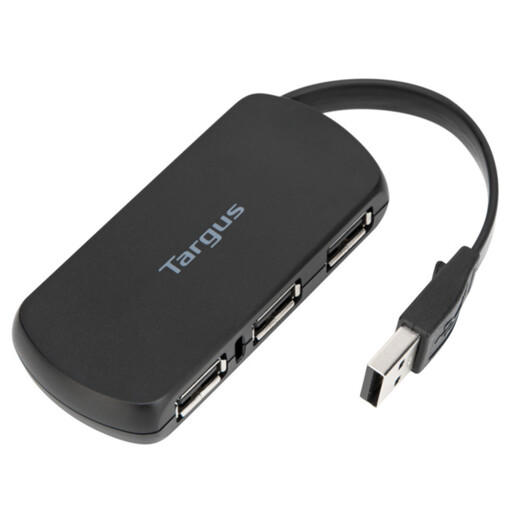 No image available
For a mouse-led study setup, this four-port hub keeps the choice focused on extra USB connections.
Confirm its computer-side connector and the type of port available for your mouse before buying.
 No image available
Consider this USB-C dock if the mouse will be part of a desk set-up that also needs other connections.
The product title lists USB-A connections, 4K 60Hz HDMI, SD/TF and 3.5mm audio. Check the mouse-facing port and your computer’s support for the docking functions you intend to use.
 No image available
This Type-C-input hub is worth considering when a USB-A mouse will share the desk with other connections.
The product title lists USB-A ports, two HDMI connections, RJ45, SD/TF and USB-C PD. If you intend to use HDMI, check that your computer’s USB-C port supports DisplayPort Alt Mode; video support is not needed for the mouse.
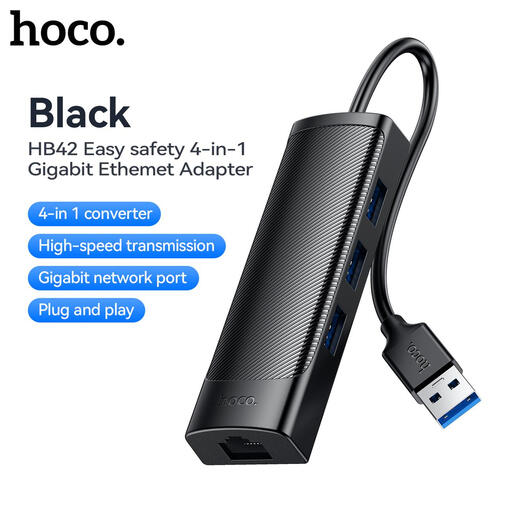 No image available
Consider this adapter if the desk needs USB expansion and a wired-network connection.
Its product title lists three USB 3.0 connections, RJ45 LAN and a 0.2M cable. Check the connector at each end of the mouse connection before buying.
A simple data hub is generally enough to consider for a mouse-only connection. Check external-power options if other, higher-demand peripherals will share it. If the mouse has connection problems, Microsoft Support advises checking that an intervening hub has power and testing the mouse directly in the computer.
Choose the upstream connector that fits an available port on your computer, then check for a data port matching the mouse plug. TP-Link’s UH400 is a USB-A-input example; UGREEN’s Revodok 1071 is a USB-C hub with USB-A data ports.
That depends on the exact hub and operating system. TP-Link states that its UH400 needs no driver for its listed operating systems, but check the support information for the product and computer you plan to use.
Check your local council’s electrical recycling arrangements or ask a retailer about take-back options. The available route may depend on where you live and the retailer.