What matters when choosing?
Choose the printer's connection path first. Then decide whether charging and a wider desk setup justify putting more functions on the same laptop connection.
Compact USB hub
Choose it when: The printer and perhaps a small number of other USB devices need data ports.
Bear in mind: A matching port does not guarantee that every printer will work reliably through a hub.
Desktop dock
Choose it when: Printing is one part of a fixed setup that also needs several peripherals, charging, Ethernet or displays.
Bear in mind: Its extra connections take desk space and are of little use if only the printer needs connecting.
Direct USB connection
Choose it when: The printer maker calls for direct connection, or print jobs are unreliable through a hub or dock.
Bear in mind: It does not provide the extra ports or one-connection desk setup of a dock.
| Concern |
What to check |
Who this matters to |
| Dependable printer connection |
Match the printer cable to a downstream USB data port, then check printer software and the maker's connection guidance. |
If printing is my only task, I want the printer recognised without relying on display or network features. Around 50% of consumers put a dependable printer connection first. |
| Charging alongside printing |
Compare the dock's stated laptop-facing Power Delivery output with the laptop's requirement, and check whether a suitable charger is included. |
When the printer stays plugged in at my desk, I also want to keep the laptop charged through that connection. Around 30% of consumers make charging alongside printing their primary concern. |
| Wider desk connections |
Count the USB and network connections needed together; check the exact laptop's capabilities before relying on video output. |
If a monitor and other peripherals will stay beside my printer, I need ports for the whole workspace. Around 20% of consumers put wider desk connections first. |
Joybuy products for different desk setups
These options range from USB expansion for a printer-first desk to multiport connections for a wider study setup. Match the printer cable and laptop connection before considering their other ports.
 No image available
Targus USB-C Universal Dual HDMI 4K Docking Station with 100W Power Delivery Pass-Thru
Consider this for a fixed desk where the printer will share a connection with other peripherals. The product title specifies dual HDMI 4K connections and 100W Power Delivery pass-through; confirm that its data ports match the printer cable, whether a suitable charger is included and what charging output reaches the laptop.
Joybuy
 No image available
Baseus Metal Gleam Series II 10-in-1 USB Hub, Cosmic Black
Consider this when a printer will share the desk with other USB devices, Ethernet and displays. Its title lists one USB-A and one USB-C connection at 10Gbps, two USB-A connections at 480Mbps, two HDMI outputs, RJ45, SD/TF and a USB-C Power Delivery connection. Check which data port matches the printer cable; video output also depends on a laptop USB-C port supporting DisplayPort Alt Mode.
Joybuy
 No image available
USB-C multiport adapter with 2 HDMI, DP, USB and RJ45
Consider this for a desk needing printer access as well as several other connections. The title lists two USB 3.0 ports, two USB 2.0 ports, two HDMI ports, DisplayPort, RJ45, Power Delivery, SD/TF and audio. Check the printer cable and laptop host-port capabilities; if charging matters, confirm the laptop-facing output and charger requirements.
Joybuy
 No image available
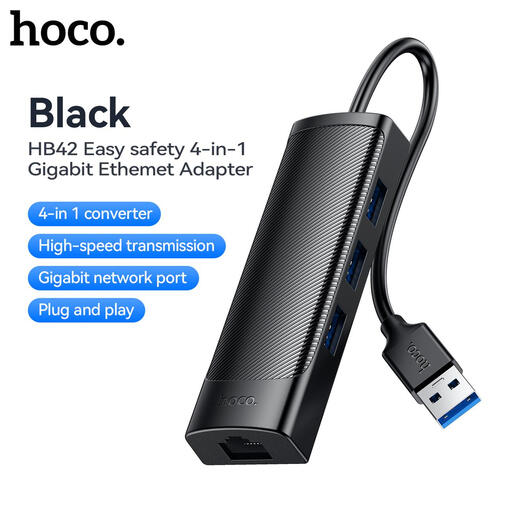
HOCO HB42 4-in-1 USB Gigabit Ethernet Adapter, black
Consider this if USB-A expansion and a wired-network connection cover your desk needs. The title specifies three USB 3.0 ports, RJ45 LAN and a 0.2m cable. Check the laptop's host connection and the printer cable; do not treat this adapter as a laptop-charging dock.
Joybuy
 No image available
Mokin 2USBC to TB adapter with 2 USB-A 3.0 and USB-C 3.0
Consider this if the printer cable matches one of its listed USB data connections. The title also lists SD/TF and HDMI 4K60Hz. Confirm the adapter's laptop-facing connector and your laptop's compatibility before choosing it; do not assume charging support from the listed ports.
Joybuy
Frequently asked questions
Will any USB-C dock work with my USB printer?
No: the dock needs a downstream data port matching the printer cable, and the laptop still needs to recognise the printer. Check the exact printer's software and connection guidance. Microsoft Support says Windows usually installs a wired printer after it is connected and switched on; Brady Support advises direct connection for its affected printers when a hub or dock interferes.
Do I need a powered dock just to print?
Usually not if a compact hub or adapter provides the required USB data port and works with the printer. A dock becomes more relevant when charging or several permanent desk connections are needed; check its laptop-facing Power Delivery output and whether a charger is included.
What should I check when connecting a printer to a Mac?
Check the printer's cable, any required adapter and its software support for your Mac. Apple Support also notes that an Apple-silicon Mac laptop may ask you to approve a new USB accessory after unlocking the Mac.
What if my laptop runs Windows on ARM?
Check the printer maker's Windows on ARM instructions and try adding the printer through Windows Settings rather than relying solely on its installer. Microsoft Support notes that some ARM PCs can have problems adding a printer through a manufacturer-provided installer.
Can I use a mains-powered dock in student accommodation?
Check the rules for your own accommodation before setting one up. Requirements vary by provider: the University of St Andrews, for example, requires electrical equipment used in its residences to be safe, in good condition and not to overload circuits.


