Use a hub for port expansion if your USB printer already works reliably through one; choose the hub’s host connector and data ports to match your computer and printer cable. If printing or status monitoring is unreliable, connect the printer directly first: Epson United Kingdom advises removing hubs and switches when troubleshooting USB communication problems. In a quiet study, consider cable reach and desk placement rather than assuming a hub will improve printer reliability.
Who needs a hub?
Printer users short of USB-A ports
If your printer works reliably and you also want to leave a keyboard or mouse connected, a four-port USB-A hub is a starting point. Check that the printer still prints and reports the status information you use when connected through the hub.
USB-C laptop users
If your laptop has USB-C but your printer cable needs USB-A at the computer end, look for a USB-C hub with USB-A data ports. Consider charging or display connections only if your study setup needs them.
Users troubleshooting printer dropouts
If the printer disappears, jobs fail or status information is unreliable, connect it directly to the computer before considering a hub. This follows Epson United Kingdom’s guidance for diagnosing USB communication problems.
What matters when choosing a connection?
Establish a stable direct printer connection first, then check the computer port and printer cable before choosing a hub. Power needs and cable placement matter when other devices will share the hub.
| Concern |
What to check |
Who this matters to |
| Printer communication |
Test printing and any status functions you use through the hub. If problems occur, reconnect the printer directly, as Epson United Kingdom advises during USB troubleshooting. |
If my printer drops out or stops reporting its status, I need a dependable connection before extra ports. Around 40% of consumers put printer communication first. |
| Connector and data ports |
Match the hub’s host connector to the computer’s USB-A or USB-C port, then check for a USB-A data port that fits the printer cable. |
With a USB-C laptop or several desk peripherals, I need the right connections before extra features. For around 30% of consumers, connector and port fit is the primary concern. |
| Shared USB power |
Consider every USB-powered device sharing the hub. For higher-draw peripherals, check the hub’s stated power arrangement and whether an additional power source is needed. |
If I also connect portable storage, I need to account for its power demand rather than just count ports. Around 20% of consumers prioritise shared-power capacity. |
| Desk placement |
Check cable reach, hub size and port orientation so the printer cable can connect without strain. Do not assume that a quiet-study setting establishes an acoustic advantage for a hub. |
When my printer connection is stable, I want cables routed neatly around a small desk. Compact placement comes first for around 10% of consumers. |
Mistakes to avoid
-
Buying a hub to fix an unreliable printer
A hub adds another connection point when the printer’s USB communication is already failing. Epson United Kingdom advises connecting the printer directly and removing hubs or switches during troubleshooting.
Test the printer with its existing cable directly at the computer first. Consider a hub for extra ports once the connection is stable.
-
Assuming one successful print job proves every function works
Epson United Kingdom notes that printing may work even when its Status Monitor reports an error or fails to respond.
After adding a hub, test printing and the functions you rely on, including status monitoring or scanning where applicable.
-
Counting ports without checking their connectors
A hub’s USB-C connection, charging capability or display output does not take the place of a suitable data port for the printer cable.
Identify the computer’s available port and both ends of the printer cable, then check the hub’s host connector and downstream data ports.
-
Expecting bus power to cover every connected device
StarTech.com specifies that the 5G4AB-USB-A-HUB shares 4.5W of bus power across its downstream ports. Its optional auxiliary input adds up to 4.5W, but additional power does not resolve a printer communication fault.
Consider the power needs of all devices sharing the hub, particularly portable storage, and check the selected model’s power arrangements.
Using the StarTech.com model’s auxiliary input requires a separately sold Micro-USB cable and a suitable power source.
Brands to consider
TP-Link
The UH400 V5 is a USB-A option for expanding a study-desk computer port.
- TP-Link United Kingdom lists four USB 3.0 ports and a foldable integrated cable for this model.
- A USB-C-only laptop needs a suitable way to connect a USB-A-host hub. The hub’s specifications do not establish whether a particular printer’s status software will work through it.
StarTech.com
The 5G4AB-USB-A-HUB is relevant when four USB-A ports may also serve USB-powered desk peripherals.
- StarTech.com specifies 4.5W of shared bus power and an optional Micro-USB input that can add up to 4.5W.
- The auxiliary cable is sold separately, and extra hub power does not establish printer communication compatibility.
UGREEN
UGREEN’s 7-in-1 USB-C hub is a workstation option for a USB-C laptop that also needs USB-A data connections.
- UGREEN UK lists two USB-A data ports, alongside display and laptop-charging connections, for the cited hub.
- Those additional connections may be unnecessary for a printer-only setup and do not establish compatibility with every printer or status utility.
Joybuy hubs for study-desk port expansion
These hubs offer different approaches to adding desk connections: a four-port hub and a USB-C multiport model. Check the computer connector, the printer cable’s required data port and the printer functions you use before choosing either.
 No image available
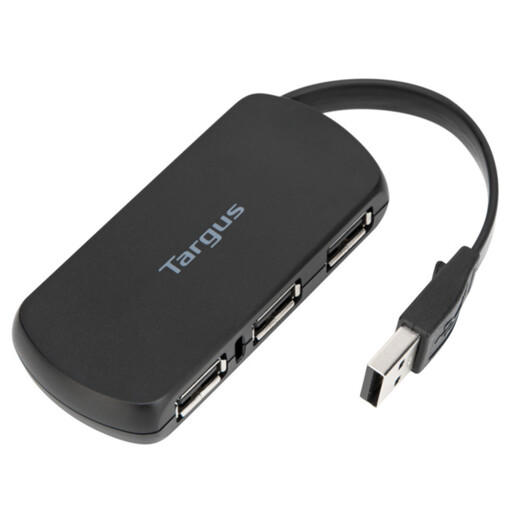
Targus 4-Port USB Hub
Consider this four-port hub when your printer already works through a hub and you need additional desk connections.
Check its host connector, the data port needed for your printer cable and cable reach. Test printing and any status functions you use.
Joybuy
 No image available
Baseus Metal Gleam Series USB-C 7-Port Hub, Grey
Consider this USB-C hub if your laptop needs additional connections as well as a port for the printer cable.
The named variant has seven ports. Confirm that a suitable port carries data for your printer, and test printing and status functions after connection.
Joybuy
USB printer hub questions
Will a USB printer work through a hub?
It may work in a stable setup, but check printing and any status functions you use with your particular printer. Epson United Kingdom advises connecting directly to the computer and removing hubs or switches when diagnosing USB communication problems.
Does a 5Gbps hub improve printer compatibility?
A 5Gbps port rating does not establish whether your printer or its status software will work through a hub. Match the computer connector and printer cable to suitable data ports, then test the connection.
What if the printer does not work after I add a hub?
Reconnect the printer directly to the computer to help isolate the connection problem. Follow the printer maker’s setup and troubleshooting instructions before changing the hub or printer configuration; Epson United Kingdom specifically advises removing hubs when investigating USB communication issues.
Do I need an externally powered hub for a study printer?
Consider additional hub power when other connected devices, such as portable storage, need it—not as a fix for printer communication. Check the selected hub’s shared-power limit and whether its auxiliary input requires a separate cable or power source.


