What should you check before choosing?
Start with the ports on every computer, then size the drive for the files you move and check the conditions behind its speed figures.
| Priority | What to check | Your needs |
|---|
| Connector fit |
Identify the ports on every computer. A USB-A-only or USB-C-only stick needs a matching port; a dual-connector model needs both connector types confirmed for the exact drive. |
I move files between USB-A and USB-C machines and would rather carry one drive than rely on an adaptor. |
| Copy speed |
Look for read and write figures for the exact model, including what they measure. Check the host ports too: Joybuy Insights notes that results depend on the computer, port, file size, operating system and whether the drive is reading or writing. |
Large folders go onto my drive regularly, so write performance matters as well as the speed of reading files back. |
| Capacity and size |
Compare capacity with the largest set of files you expect to carry. If large transfers are frequent, weigh a compact stick against the greater capacity available in an external SSD and the need to carry its cable. |
I want the folders for a transfer to fit on one drive, without carrying a cable-connected device unless the file load calls for it. |
| Windows and Mac use |
Check the file format required by both computers before changing it. Apple Support identifies ExFAT as Windows-compatible and recommends it for Windows volumes over 32 GB; reformatting erases existing files. |
My files need to move between Windows and Mac computers, and I need to preserve anything already on the drive. |
| Carrying and safekeeping |
Check how the connector is protected during travel. Keep another copy of important files rather than using a portable transfer drive as the sole archive. |
I carry the drive between locations and cannot afford to lose my only copy of coursework, work or photos. |
Joybuy product options
These options include dual-interface USB sticks for mixed-port transfers, a USB-C stick for matching ports, and an external SSD to consider for larger or more frequent transfers. Check each exact drive against the computers and files you use.
 No image available
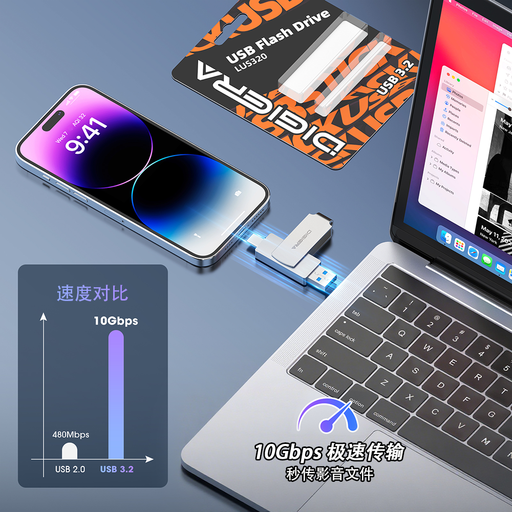
DigiEra LUS320 128GB USB-A and USB-C flash drive
Its two connectors suit transfers between computers with USB-A and USB-C ports. The product name specifies USB 3.2, up to 500MB/s read speed and a 360° swivel design; check write performance and the computers’ port capabilities for your copying needs.
View on Joybuy
 No image available
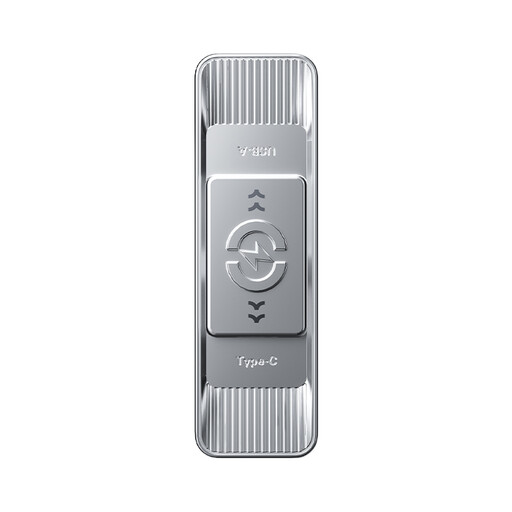
MOVESPEED YSUSP05-512GSR 512GB dual-interface USB drive
The 512GB capacity is worth considering if the folders you carry need more room. Its product name states USB 3.2 Gen 1, Type-C and up to 570MB/s read speed; confirm the connectors, file format and expected write performance for your computers.
View on Joybuy
 No image available
Samsung T7 Shield 1 TB portable SSD, blue
Consider this external SSD if you repeatedly move large folders and can use a cable-connected drive. The product name specifies USB 3.2 Gen.2; check the ports, cable setup and file format needed across your computers before judging transfer speed.
View on Joybuy
 No image available
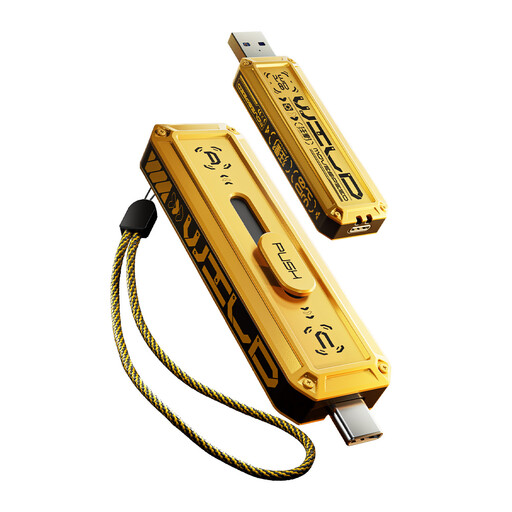
MOVESPEED YSUWD10-1TSY 1TB dual-interface USB drive
The 1TB capacity and dual-interface design may suit a large collection carried between computers. Its interface descriptions give conflicting speed information, so confirm the mode and performance of each connector rather than relying on the advertised maximum.
View on Joybuy
 No image available
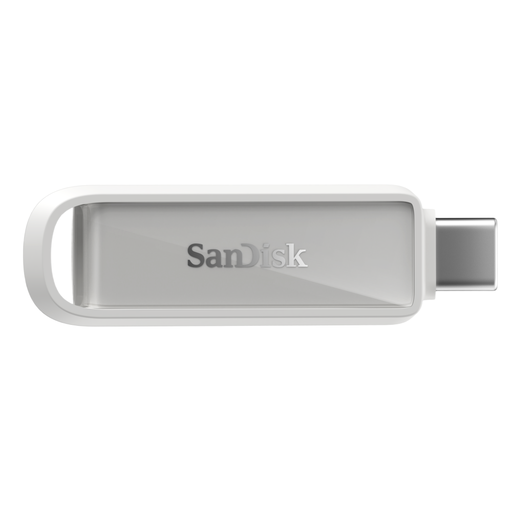
SanDisk Phone Drive with USB-C, Arctic White, 128GB
This USB-C drive is an option when each transfer computer has a compatible USB-C port and 128GB fits the files you carry. If you often copy large folders onto a drive, check its write performance before choosing it.
View on Joybuy
Common questions
Should I choose USB-A, USB-C or a dual-connector stick?
Choose a single-connector stick only if every computer involved has the matching port; choose a dual USB-A/USB-C stick for regular transfers between those port types. Check the exact drive’s specifications too, because a USB-C connector does not establish its transfer speed.
When should I consider an external SSD instead of a USB stick?
Consider an external SSD when you frequently move large media or project folders and a cable-connected device suits your setup. Compare capacity and relevant write performance, then check your computer ports and cable: a stated maximum speed is not a guaranteed copy speed.
What format should I use between Windows and Mac?
ExFAT is an option for ordinary Windows and Mac file exchange: Apple Support lists it as Windows-compatible and recommends it for Windows volumes over 32 GB. Check the requirements of both computers, and copy needed files elsewhere before reformatting because erasing a drive deletes its contents.
Can a USB stick be my only copy of important files?
Do not rely on a transfer stick as the only copy of important coursework, work or photos. Portable drives can be lost or damaged, so keep a separate backup and let transfers finish before removing the drive.


