Choose a USB switch if only the keyboard and mouse need to move between laptops; choose a KVM switch if the monitor should change with them. A dock can consolidate connections for one laptop at a time, while a monitor with built-in KVM may handle both display and peripherals if its documented connections suit both laptops. Check video output, display limits and charging requirements before relying on any USB-C connection.
Who these setups suit
Two-laptop desk switchers
If your employer and personal laptops use the same desk, sharing a monitor, keyboard and mouse can spare you repeated cable changes. Home-working questions on the MoneySavingExpert Forum describe this problem with two or more laptops.
One-cable workstation seekers
A dock may suit you if you mainly want to connect one laptop to the desk through a single host cable. Check its compatibility with each laptop and expect to move that cable unless the device explicitly supports switching between two hosts.
Multi-display and high-resolution users
If you use two external screens or need a particular resolution and refresh rate, check both laptops’ display capabilities as well as the switch or dock. Microsoft notes that a computer’s display adapter may limit how many external monitors it supports.
What to check before buying
Decide whether you need to switch USB peripherals, the display, or the whole workstation; then check the connections on both laptops.
| Concern |
What to check |
Who this matters to |
| Switching the whole workstation |
Match the KVM’s computer inputs, monitor outputs and switching method to both laptops and the display. |
If I move between laptops often, I want the monitor, keyboard and mouse to change together. About 31% of consumers put whole-workstation switching first. |
| Fewer cables and charging |
Check whether each laptop accepts charging through the proposed connection, the power delivered to each host and any required adapters. |
When separate chargers and display leads crowd my desk, keeping both laptops charged while simplifying connections is my priority. That is the primary need for about 31% of consumers. |
| Display requirements |
Confirm monitor count, resolution and refresh rate against each laptop and the exact dock or KVM. |
If my work needs two external screens or a particular display mode, I cannot choose by connector shape alone. Preserving the required display setup comes first for about 23% of consumers. |
| Sharing peripherals only |
Check the USB host connections and peripheral ports; confirm that the monitor can accept the laptops’ video connections separately. |
My monitor connections already work, so I mainly want one keyboard and mouse for both laptops. About 15% of consumers make peripheral sharing their primary concern. |
Common buying mistakes
-
Assuming every USB-C port carries video
A matching connector does not establish that a laptop supports the display mode a USB-C dock or KVM requires. StarTech.com specifies DisplayPort Alt Mode for its cited USB-C KVM models.
Check each laptop’s port capabilities, the device’s host requirements and the cable needed for the intended display connection.
-
Choosing a dock when you need two-host switching
A dock can simplify one laptop’s workstation connection without switching between two laptops that remain plugged in.
If one control must move the display, keyboard and mouse together, look for explicit two-host KVM support. Otherwise, decide whether moving one dock cable is acceptable.
-
Checking only the advertised display mode
The laptop, cable, dock or KVM and monitor all affect the usable display setup. Microsoft also notes that a splitter duplicates a signal rather than creating a separate extended desktop.
Check the required number of screens, resolution and refresh rate against both laptops and the exact device before buying.
-
Assuming multiple monitor inputs include a KVM
Video inputs let you select a picture source; they do not, by themselves, make a keyboard and mouse follow that source. LG lists built-in KVM as a distinct feature of its 34BA75QE monitor.
Look for an explicit KVM specification on the exact monitor, or plan to switch USB peripherals separately.
Brands to consider by product type
StarTech.com
Its cited two-laptop USB-C KVMs illustrate different approaches to a shared display and peripherals.
- StarTech.com specifies a single 4K 60 Hz display and USB-C DisplayPort Alt Mode requirements for the cited models.
- Its charging-capable cited model requires separate USB-C power adapters that are not included; the compact cited model is bus-powered. Check the arrangement for the exact model.
Dell
The Dell Pro Dock WD25Z is a docking option for connecting a compatible laptop to displays and peripherals, rather than an identified two-host switch.
- Dell lists USB-C connectivity and support for up to four displays for this model, subject to the connected system’s capabilities.
- Dell lists power delivery of 130 W for Dell systems and 96 W for non-Dell systems; check compatibility with your particular laptop.
LG
The LG 34BA75QE illustrates a monitor route with documented built-in KVM functionality.
- LG says the 34BA75QE can use one keyboard and mouse to control two computers and offers picture-by-picture viewing.
- Those functions belong to the named model; multiple inputs or USB-C on another LG monitor do not establish the same arrangement.
TESmart
TESmart offers KVM categories for differing computer, monitor and port arrangements.
- TESmart’s selection guidance starts with computer count, monitor count and device port types.
- Check the exact KVM’s video requirements and cables; a category description does not confirm compatibility with both laptops.
Joybuy products for this setup
These dock and monitor options suit different parts of a work-and-personal-laptop desk: a dock can consolidate one laptop’s connections, while a monitor can provide a display connection for the setup. Check how you will change laptops and share peripherals separately.
 No image available
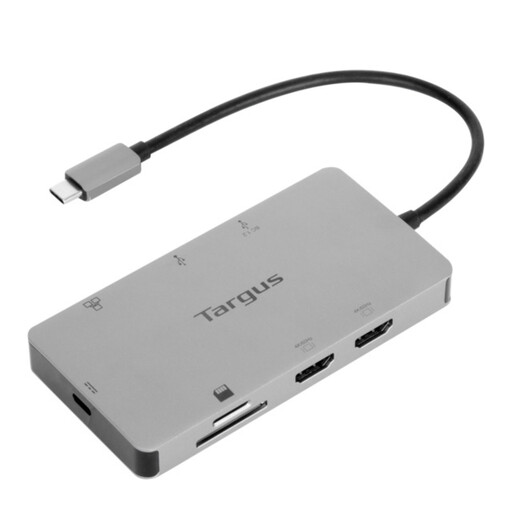
Targus USB-C Universal Dual HDMI 4K Dock with 100 W Power Delivery Pass-Thru
Consider this dock if moving one USB-C host connection between laptops is acceptable. Its named configuration has dual HDMI outputs and 100 W Power Delivery pass-through; confirm that each laptop supports your intended displays and charging arrangement, and whether the required power adapter is included. It is not specified as a switch for two connected hosts.
Joybuy
 No image available
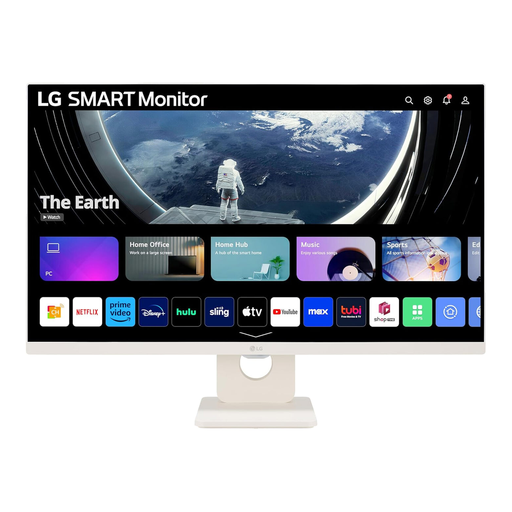
LG Smart Monitor 27U511SA-W, 27-inch Full HD
Consider this monitor if you are content to handle display selection and peripheral sharing as separate tasks. The named model has a Full HD IPS display with a stated 100 Hz refresh rate. Check how both laptops would connect and how the monitor’s USB ports work before planning to share a keyboard and mouse; built-in KVM switching is not established for this model.
Joybuy
 No image available
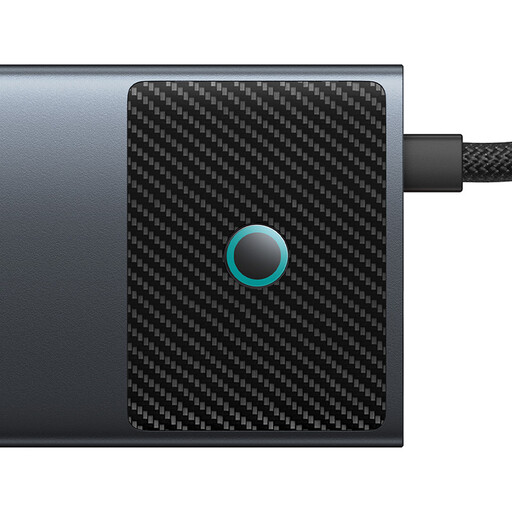
Baseus Metal Gleam Series II 10-in-1 USB-C Hub, Cosmic Black
Consider this hub if you want more connections for the active laptop and are willing to move the host cable when changing computers. The named configuration includes two HDMI connections, USB ports, RJ45 and SD/TF card slots. Video requires a laptop USB-C port with DisplayPort Alt Mode; confirm simultaneous display modes and delivered charging power for your laptop rather than assuming both HDMI ratings apply at once.
Joybuy
Frequently asked questions
What should I check on each laptop before buying a USB-C dock or KVM?
Check its video-capable ports, supported external-monitor count and display modes, and charging requirements against the exact dock or KVM. Microsoft advises checking the computer’s display capability rather than assuming a USB-C connector or an additional monitor will work in every configuration.
Can a monitor with two video inputs replace a KVM?
It can replace a separate video switch if both laptops connect and you are happy to change the monitor input manually. Sharing a keyboard and mouse also requires documented built-in KVM functionality or a separate USB switch; video inputs alone do not establish it.
Can one dock charge and switch both laptops?
Only choose that arrangement when the exact device explicitly supports two connected hosts and charging for both. StarTech.com specifies up to 90 W charging per host for its cited charging-capable USB-C KVM when the required separate power adapters are connected. An ordinary one-host dock should not be treated as a two-host switch.
What if a dock or KVM does not work with my laptop?
The reason matters: GOV.UK says a seller must offer a full refund for goods that are faulty, not as described or do not do what they are supposed to do. A mismatch with a laptop’s requirements is not automatically the same as a fault, so check stated compatibility before ordering and distinguish a defect claim from a change-of-mind return.


