Remote workers checking an existing camera
If you already have a work laptop or approved tablet, preview a call from your usual desk before adding another device. Check the picture, camera angle and sound in the meeting app you actually use.


Keep your work laptop or approved tablet camera if it gives you a usable view and colleagues can hear you clearly in your usual meeting app. Consider an external USB webcam when you need a different camera position, more control over framing or a physical lens cover; if sound is the problem, assess a separate audio device instead. Check work-device approval and compatibility before buying.
If you already have a work laptop or approved tablet, preview a call from your usual desk before adding another device. Check the picture, camera angle and sound in the meeting app you actually use.
A low screen, backlit desk or fixed camera position may make a separately mounted webcam useful. Judge any change from a preview in your normal room lighting, not from a resolution figure alone.
A physical shutter gives you a way to block the lens between calls, while a microphone addresses a different need. If people struggle to hear you in a shared or noisy room, compare the audio options separately from the camera.
Choose it when: Your approved work laptop gives you an acceptable picture and angle in the meeting app.
Trade-off: Its position follows the screen, so improving the camera angle may also change how you sit or view your work.
Choose it when: Your workplace permits calls on the tablet and you can support it securely at a useful height.
Trade-off: You may need a stand and a charging arrangement; camera features and app support depend on the exact tablet.
Choose it when: A separately positioned camera or a particular framing or lens-cover feature solves a problem you can see in your current setup.
Trade-off: It adds a connection, a mounting position and another camera to select in the meeting app.
| Concern | What to check | Who this matters to |
|---|---|---|
| Existing camera | Preview a call at your usual desk height and in your normal lighting; check the selected camera before treating a blank picture as a hardware fault. | If my current camera already frames me adequately, I would rather keep using it than add another device. About 25% of consumers put checking the existing camera first. |
| Work compatibility | Confirm the connector, operating-system support, workplace device rules and camera selection in your meeting app. | I need to join work calls without discovering that my managed computer will not accept the camera. Reliable compatibility is the primary concern for about 31% of consumers. |
| Picture and sound | Identify whether the recurring issue is lighting, microphone pickup or the connection; test in the room where you take calls. | When colleagues cannot see or hear me clearly from my usual room, I want to address that particular problem. About 25% of consumers prioritise picture or sound clarity. |
| Privacy and placement | Check how a lens cover works, where the camera can sit, and how much of the room appears in frame. | I want control over the lens between meetings and over what colleagues can see behind me. That is the main concern for about 19% of consumers. |
A blank preview can result from camera permissions, a privacy setting or a closed physical shutter. A different webcam will not resolve a setting that also prevents the meeting app from accessing it.
Test the camera in the actual app. For Teams on Windows or in a browser, check the applicable Windows and browser permissions as well as the camera selected for the call, as described by Microsoft Support.
More pixels do not address a poorly placed microphone or household connection congestion. Ofcom notes that more devices using the same Wi-Fi can reduce the speed available to each.
Work out whether the difficulty is picture, sound or connection stability. If the connection is the issue, try reducing simultaneous network demand or using Ethernet where practical before changing the camera.
A wider field of view can include useful desk material, but it can also show more of your home than intended.
Preview the room before joining and use a narrower framing option, if available, when you only need to show yourself.
A physical cover blocks the lens when closed; it does not determine which camera the app selects or replace operating-system and browser permissions.
Close the cover between calls if you want the lens blocked. Before a meeting, open it and check the app preview and selected camera.
Logitech offers external webcams with different combinations of meeting features. Compare the exact model rather than treating the brand name as a specification.
The PowerConf C200 is a relevant option when changing the amount of room shown on a call matters.
An approved iPad belongs in the existing-device decision, rather than being a reason to buy an external webcam.
These external webcams are options to consider if a separate camera would solve a framing or setup problem in your home meetings. Keep the existing laptop or approved tablet camera if it already meets your needs.
 No image available
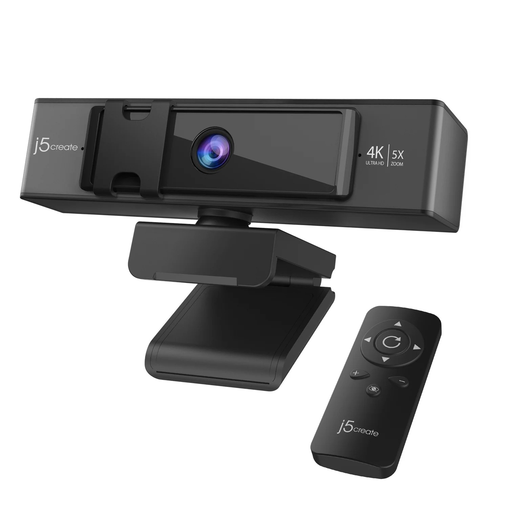
Consider this model if adjusting the view from your desk is a priority. Its named features include a remote control and 5x digital zoom; preview the resulting framing in your meeting app rather than assuming zoom will improve picture quality.
Check the connection against your work device and confirm whether its mounting and lens-cover arrangements meet your needs.
 No image available
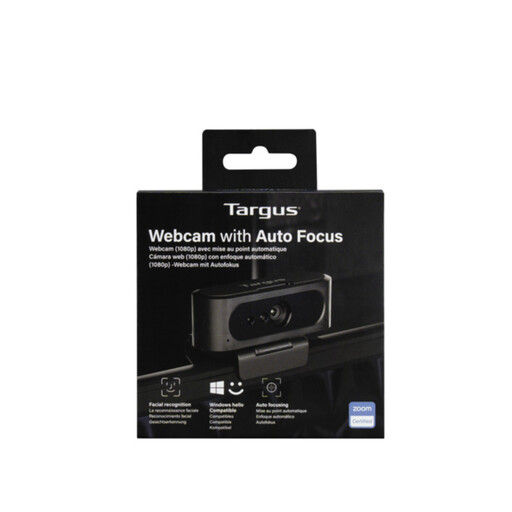
Consider this desk webcam if autofocus and an integrated camera-and-audio arrangement suit your calls. Its title says 2K, while the supplied product description also describes the video as Full HD 1080p, so confirm the resolution before choosing it for that specification.
Check that its connection and microphone selection work on your managed computer and meeting app.
 No image available
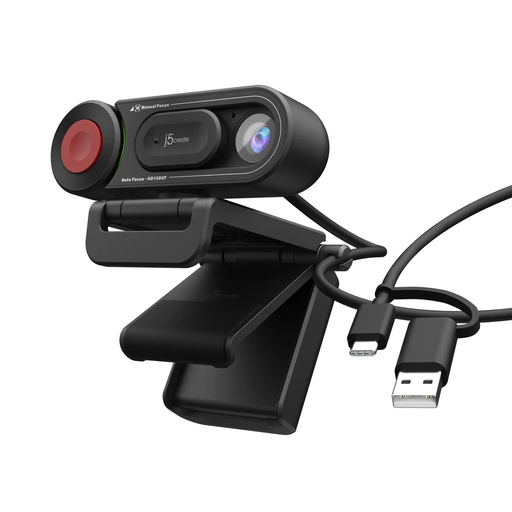
This model is worth considering when the ability to switch between automatic and manual focus matters more than choosing a camera by resolution alone. Check its picture in your normal call position and confirm that its connection suits your work device.
If you need to block the lens physically between calls, confirm whether this variant has a suitable cover.
 No image available
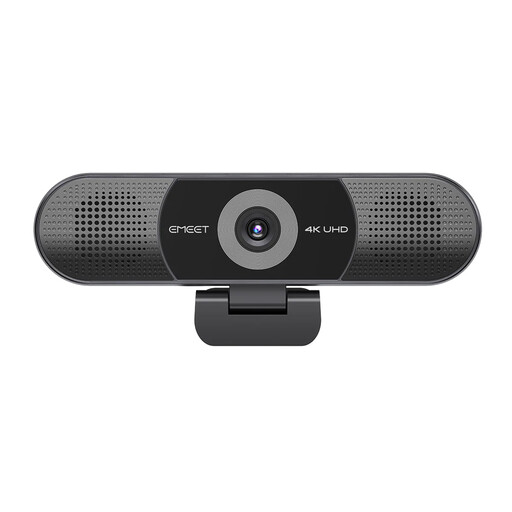
Consider this all-in-one model when you want camera, microphones and speakers in one unit, particularly for a wider view. The product name specifies fixed focus and an adjustable 98° field of view; preview what that view reveals behind you.
Confirm the exact USB connector, operating-system compatibility and privacy mechanism for your work setup before buying.
Test the laptop camera in your usual meeting app, room and lighting first. Consider an external webcam if you can identify a problem it would address, such as an awkward screen-height angle or unsuitable framing; check permissions and camera selection before replacing a camera that shows no picture.
Not in every work setup. Confirm the webcam’s stated support for your operating system and connection, check workplace device rules, then select the camera and microphone in Teams. Microsoft’s device certification is a compatibility signal, not a substitute for your organisation’s permissions or settings.
Check the physical shutter, the camera selected in Teams and the applicable camera permissions. Microsoft Support notes that Teams used in a browser may need both Windows and browser permission to access the camera.
It may meet your needs if colleagues can hear you clearly from your normal seat. If sound remains the recurring problem in a noisy or echo-prone room, test a separate headset, microphone or speakerphone rather than choosing a camera solely for its built-in audio.
Check the connection before changing the webcam. Ofcom advises that more devices using Wi-Fi can reduce available speed; reducing simultaneous demand or using Ethernet where practical can help you assess whether the connection is the limitation.