Home-office organisers with few sockets
If you keep maintenance calendars, bills and household records on a laptop, a compatible charging monitor could let you leave the laptop’s separate charger unplugged at the desk.


A USB-C monitor can free up the socket used by a laptop charger, but only if the laptop supports USB-C video and charging and the monitor supplies enough power; the monitor still needs its own mains connection. For maintenance calendars, records and manuals, choose screen space, adjustment and ports around the way you work, then check the load on any extension lead.
If you keep maintenance calendars, bills and household records on a laptop, a compatible charging monitor could let you leave the laptop’s separate charger unplugged at the desk.
If you read manuals while comparing quotes or updating task lists, consider the space available for two windows and whether you can position the screen comfortably.
If the monitor must share an extension lead with other equipment, check the lead’s marked rating and the combined load rather than adding another extension lead.
Start with the laptop’s video and charging capabilities: they determine whether a USB-C monitor can replace its charger. Then choose the workspace and connections you need, without overlooking the electrical setup.
| Concern | What to check | Who this matters to |
|---|---|---|
| One-cable setup | Confirm laptop USB-C video and charging support, then compare its charging requirement with the monitor’s Power Delivery rating. | If I have one socket for my desk equipment, I want the monitor to power my laptop as well as show my records. Around 40% of consumers would put that single-cable need first. |
| Readable workspace | Match screen size, resolution and stand adjustment to your desk and the windows you use together. | When I compare a manual with a maintenance spreadsheet, I need both to remain readable without constant switching. That workspace need would come first for around 30% of consumers. |
| Peripheral connections | List the devices you want connected and check the exact monitor variant’s downstream ports. | If my keyboard, mouse or storage device stays at the desk, I want to know whether it can connect through the monitor. Around 20% of consumers would prioritise those connections. |
| Power arrangements | Compare the display’s energy information and check the marked rating and combined load of any extension lead. | With several devices sharing limited sockets, I need to avoid an overloaded or chained extension lead. Safe power arrangements would be the primary concern for around 10% of consumers. |
A matching connector does not establish that the laptop can send an image or accept charging through it. BenQ’s USB-C guidance distinguishes ports that support video from those with other functions.
Check the laptop’s video-output and USB-C charging specifications, then compare its charging requirement with the monitor’s stated Power Delivery output.
An overloaded or chained lead can overheat. Electrical Safety First advises using only one socket extension device per wall socket and not plugging one extension lead into another.
Check the lead’s marked current rating against the combined connected load. If extension leads have become a permanent workaround, consider asking a registered electrician about additional wall sockets.
Even when a monitor can charge the laptop, its screen, connections or stand may not suit maintenance spreadsheets, manuals and other desk equipment.
Check the exact variant’s ports and supplied cable, measure the desk, and choose screen size and resolution for the windows you need open.
Charging capability alone does not describe a monitor’s energy use. UK government energy-information guidance includes electronic displays among the product categories it covers.
Compare the available energy label and product information sheet alongside screen and connectivity requirements, and switch off equipment when it is not needed.
Dell’s P2425E is a reference point for a compact, document-focused USB-C hub monitor.
LG’s 27BA650 illustrates a 27-inch display with USB-C charging and several display inputs.
HP’s 527pu is a reference for a 27-inch QHD USB-C monitor with hub connections.
BenQ’s USB-C guidance is useful when checking laptop compatibility before choosing a monitor.
These monitors offer different ways to set up a desk for maintenance records and reference documents. If replacing the laptop charger is essential, confirm video support and charging power for your laptop before choosing any USB-C model.
 No image available
Consider this for viewing maintenance documents on a compact desk. Check the exact variant’s hub ports and supplied USB-C cable, and confirm laptop video and charging compatibility before relying on one cable.
IPS QHD display.
 No image available
Consider the large screen if you have room for multiple maintenance windows; measure your desk first. Its stated 65W USB-C charging still needs to be checked against your laptop’s video and power requirements.
3840 × 2160 OLED display, 165Hz, USB hub and 65W USB-C charging.
 No image available
Consider this when positioning the display on a constrained desk matters. Confirm the exact package, mounting arrangement and ports, as well as whether your laptop can use its USB-C connection for video and charging.
IPS display and USB-C connection.
 No image available
Consider its QHD screen for manuals and spreadsheets. If freeing a laptop-charger socket is the deciding factor, check the exact variant’s USB-C connections and Power Delivery capability before buying.
IPS QHD display and 100Hz refresh rate.
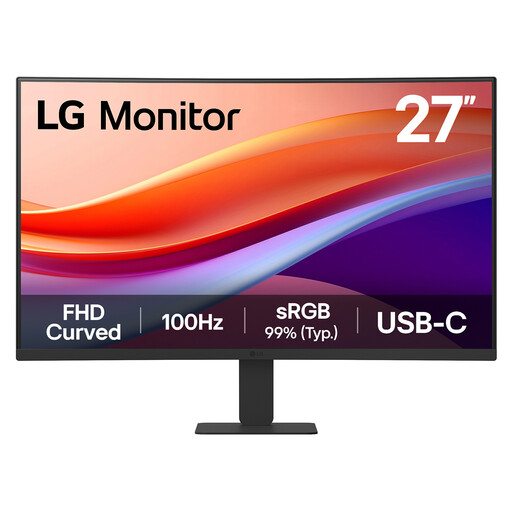 No image available
Consider this for a 27-inch maintenance display if FHD resolution suits the documents you read. Check USB-C charging power against your laptop’s requirement before treating it as a charger replacement.
1080p VA display, 100Hz, USB-C and HDMI.
Yes, if it can supply enough USB-C power for a laptop that supports charging and video through the connection. You could then leave the laptop’s separate charger unplugged at that desk, although the monitor still needs mains power.
No. USB-C ports do not all provide the same functions, as BenQ’s compatibility guidance explains. Check the laptop’s video-output specification and whether it accepts charging through that port.
Choose a monitor whose stated Power Delivery output meets your laptop manufacturer’s charging requirement, and confirm that the relevant ports support charging. A higher wattage alone does not establish that the laptop and monitor will work together.
Check that the combined connected load stays within the lead’s marked rating and that the lead is in good condition. Electrical Safety First advises against plugging one extension lead into another and recommends only one socket extension device per wall socket.
Compare the available energy label and product information sheet for monitors alongside the display features you need. UK government energy-information guidance includes electronic displays among the product categories it covers.