People moving files between old and new computers
If one computer has USB-A and another has USB-C, a dual-connector flash drive can connect to both without carrying an adapter. Check the ports on every device in the usual hand-off.


Choose the connection your devices can actually use: a USB-A or USB-C flash drive suits a workflow with one port type, while a dual-connector drive makes regular transfers between both types simpler. For large or repeated transfers, compare portable SSDs as well, but check capacity, the host port and the connection before relying on a stated maximum speed.
The devices receiving your files determine the connector choice; the files themselves help determine whether a flash drive or portable SSD is worth comparing.
If one computer has USB-A and another has USB-C, a dual-connector flash drive can connect to both without carrying an adapter. Check the ports on every device in the usual hand-off.
For documents, photos and occasional media transfers, start with a flash drive that fits the receiving devices. Then compare its capacity, stated transfer performance and construction for how often it will be carried.
If you repeatedly move large video, photo or project collections, compare portable SSD capacity and transfer specifications with those of flash drives. Check the host connection, cable and required file format before choosing.
Check the complete transfer path first, then weigh capacity and copying demands against how you will carry and handle the drive.
| Priority | What to check | Your needs |
|---|---|---|
| Connector fit | Identify the ports on every sending and receiving device. A USB-A or USB-C drive connects directly only where its connector fits; a dual-connector drive covers both port types. For phones and tablets, also confirm external-storage support. | I regularly pass files between USB-A and USB-C devices and would rather connect the same drive directly to each. |
| Transfer speed | Compare stated read and write speeds, the host port and any cable, hub or adapter. The USB Implementers Forum identifies 5Gbps, 10Gbps and 20Gbps as distinct USB 3.2 rates; the connection operates at its lowest common capability. | Large copies interrupt my work, so the speed my devices can use matters more than a connector shape or a headline figure alone. |
| Capacity and repeated copies | Estimate the files you normally carry together and how often you replace or add them. Compare a portable SSD when large, frequent transfers make copying time important; check the conditions attached to any stated maximum speed. | My video or project files need room to travel together, and I copy them often enough to notice the wait. |
| Carrying and handling | Check how the exact model protects its connector and whether any resistance claim has stated test conditions. For sensitive files, follow the relevant workplace or school rules: the UK National Cyber Security Centre identifies data-loss and data-theft risks with removable media. | The drive travels between places, so I need to consider physical handling and what could happen if it is lost. |
A single-ended drive may not connect directly to the device receiving the files if that device uses the other USB connector type.
List the ports at both ends of a normal transfer. If USB-A and USB-C are both regular destinations, consider a dual-connector drive.
USB-C describes a connector, while USB 3.2 includes different transfer rates. A slower part of the connection can limit the rate available to the drive.
Check the drive, host port and any cable or hub together. Treat a manufacturer’s maximum speed as conditional on a suitable setup.
A drive can hold a large media collection yet still leave you waiting when you regularly write or replace those files. Stated read speed alone does not describe that whole task.
Consider the size and frequency of your usual transfers. If copying time is disruptive, compare the relevant write specifications and host requirements of flash drives and portable SSDs.
The UK National Cyber Security Centre identifies data theft and data loss as risks associated with removable media. Physical possession of a drive is not, by itself, a safeguard for its contents.
Use trusted media, keep track of the drive and follow your employer’s or school’s rules before moving confidential files.
These product lines illustrate different connector and storage routes; check the exact model and variant rather than applying a range-wide specification to every drive.
Kingston’s DataTraveler Max line offers separate USB-A and USB-C flash-drive variants for buyers who already know which connector they need.
The Ultra Dual Drive Go is a flash-drive line for transfers between USB-C and USB-A devices.
Samsung’s T7 and T7 Shield are portable SSD lines to compare for larger or repeated file transfers.
Crucial’s X9 is a USB-C portable SSD line for buyers comparing capacity and transfers across compatible devices.
These options cover a USB-A flash drive, a USB-C flash drive, dual-connector flash drives and a portable SSD. Start with the route that fits your devices and transfer pattern, then check the individual model.
 No image available
Consider this portable SSD if you carry a large file collection or repeatedly move sizeable projects. This variant is listed with 4 TB capacity and a USB Type-C 3.2 Gen 2 connection; check the host port and connection path before relying on a maximum transfer-speed claim.
 No image available
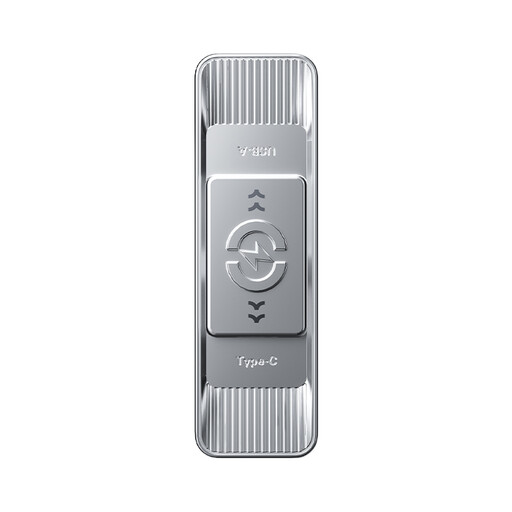
For regular hand-offs between USB-A and USB-C ports, this dual-interface flash drive provides 512GB capacity. Its listed USB 3.2 Gen 1 specification and up to 570MB/s read figure are product claims; check device compatibility and write performance if long transfers are important. The named variant has a zinc-alloy housing.
 No image available
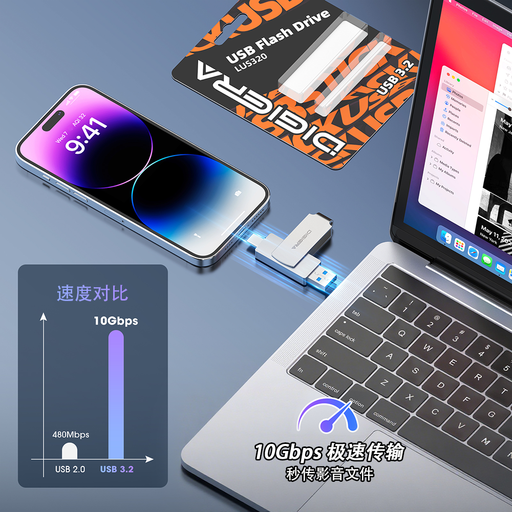
This USB-A and USB-C flash drive is an option for moving everyday files between the two port types. The named variant has a 360° swivel metal body and a stated read speed up to 500MB/s; confirm that each intended device supports the drive and its file format.
 No image available
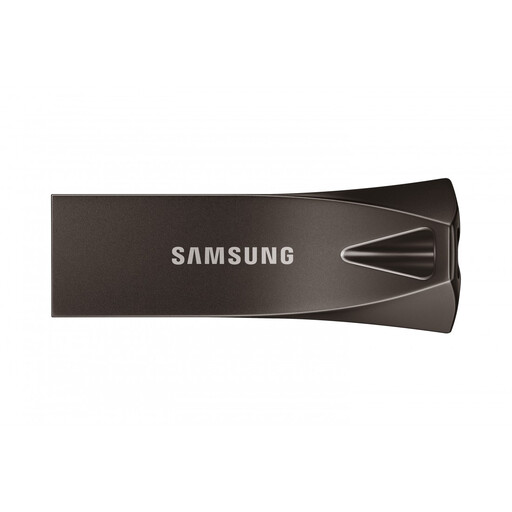
For transfers between devices with USB-A ports, this flash drive offers 256GB capacity and a listed USB 3.2 Gen 1 connection. It will not plug directly into a USB-C-only port; check every receiving device before choosing this connector.
 No image available
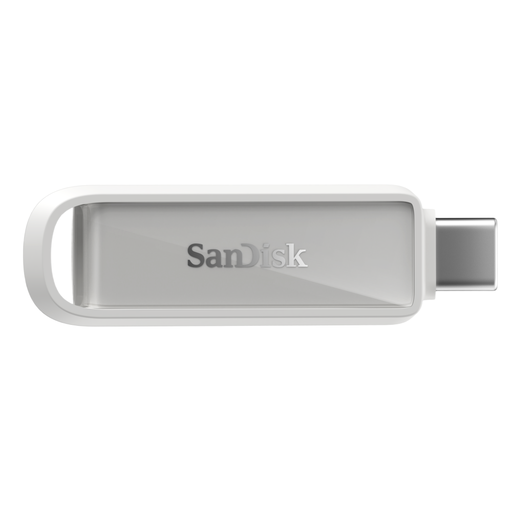
This USB-C flash drive is an option for carrying files between devices that support external USB-C storage. Confirm support on each phone, tablet or computer you intend to use; a USB-A-only device needs a suitable adapter. If you frequently copy large files onto the drive, check its write-speed specification for that task.
Choose for every device in the transfer path, not just the device you use most. A single-connector drive suits a workflow where that port type is available throughout; a dual-connector drive connects directly to both USB-A and USB-C ports. Also confirm that any phone or tablet supports external USB storage.
No. USB-C describes the connector, not one transfer rate. The USB Implementers Forum identifies 5Gbps, 10Gbps and 20Gbps USB 3.2 rates and says a connection operates at its lowest common speed capability, so check the drive, host port and anything between them.
Compare a portable SSD when you repeatedly move large files, need the capacity offered by the SSD models you are considering, or find copying time disruptive. Use your typical transfer set and the time you can tolerate to make that judgement; a stated peak speed still requires a compatible host and connection.
Check that both computers can connect to the drive and use its file format. Apple Support says Macs can use external USB storage; the format still matters for a cross-device workflow. If changing a drive’s format is necessary, move any files you need to keep before reformatting it.
Follow your organisation’s removable-media rules and use only approved, trusted drives. The UK National Cyber Security Centre warns that removable media can create data-loss and data-theft risks, so do not assume that keeping the drive in your possession is enough to protect its files.