What matters when choosing a drive?
Measure the folders you need to back up, check the ports and file access needed for recovery, then consider how you will keep the copy separate and protected. Compare transfer specifications only after those requirements are clear.
| Concern |
What to check |
Who this matters to |
| Capacity |
Measure the folders, allow for growth and any versions you intend to retain, and check usable capacity after formatting. |
If I keep several terms of resources or large media folders, I need room for the whole intended copy rather than a selection of files. Around 27% of consumers put capacity first. |
| Device compatibility |
Check USB-A and USB-C ports on backup and recovery devices; test whether each device can read and write the chosen file system. |
Moving files between my desktop and another device is only useful if I can open them when recovery is needed. For around 20% of consumers, compatibility is the primary concern. |
| Backup protection |
Plan a separate copy, disconnect the drive between uses and follow school policy for any personal information. |
I do not want a connected drive or a lost stick to put my only recoverable copy or personal information at risk. Protection comes first for around 33% of consumers. |
| Transfers and handling |
For frequent large copies, compare stated write speeds for the exact variant and test a representative backup; consider how the drive will be carried and stored. |
Repeatedly copying video or other large files makes backup time and a practical portable design important to me. Around 20% of consumers prioritise this need. |
Joybuy drives for these setups
These drives cover USB-A and USB-C mixed-device setups and one USB-C-only option. Match the connector and usable capacity to your own backup and recovery devices; none replaces a separate backup plan.
 No image available
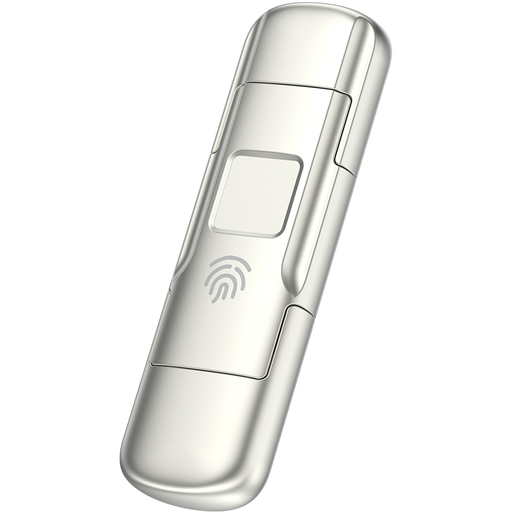
MOVESPEED YSUYC-256GSN 256GB USB-A and USB-C Drive, Silver
Consider this for moving resource copies between USB-A and USB-C devices if 256GB accommodates the full backup.
- The title lists USB 3.2 Gen 1, up to 550MB/s read and 500MB/s write, and a zinc-alloy body; the speed figures are product claims, not backup-time guarantees.
- Fingerprint encryption is advertised. If files contain personal information, check the school’s approved security method and how authorised users would recover access.
View on Joybuy
 No image available
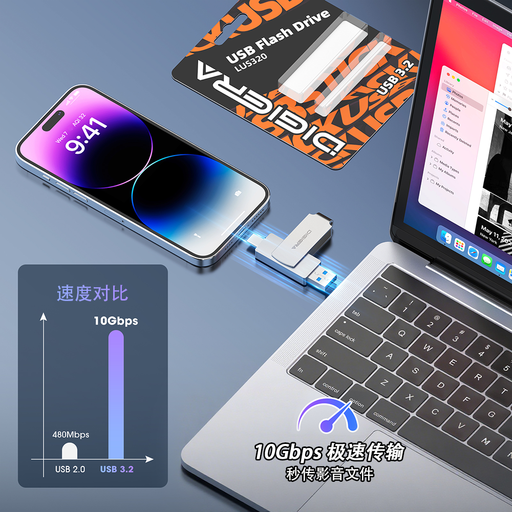
DigiEra LUS320 128GB USB-A and USB-C Drive
This is a dual-connector option for a smaller teaching-resource set, provided its usable capacity covers everything you intend to copy.
- The title lists USB 3.2, up to 500MB/s read, a 360° swivel design and a metal body.
- Check that the formatted drive can be read and written by the devices you would use for recovery.
View on Joybuy
 No image available
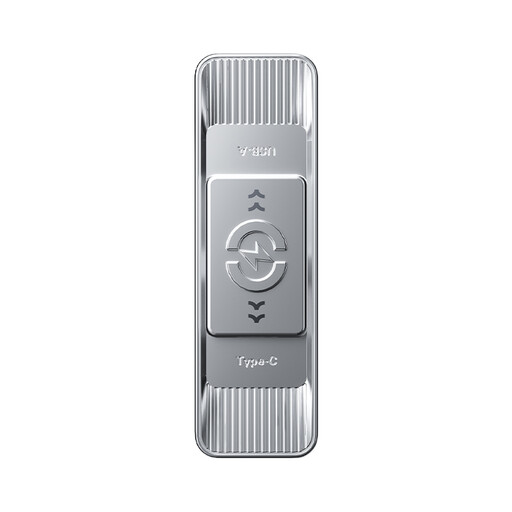
MOVESPEED YSUSP05-512GSR 512GB USB-A and USB-C Drive, Silver
The 512GB stated capacity may suit a larger resource set used across both port types; measure the folders and check usable capacity before choosing it.
- The title lists USB 3.2 Gen 1, up to 570MB/s read, 3D NAND flash and zinc-alloy housing.
- The read figure does not establish how long a full backup will take. Test a representative copy on the intended workstation.
View on Joybuy
 No image available
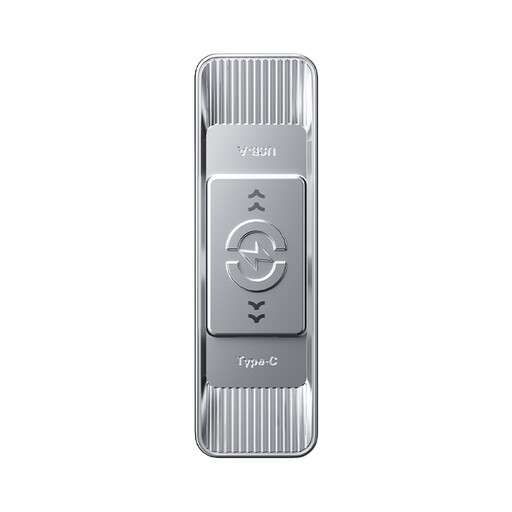
MOVESPEED YSUSP05-256GSR 256GB USB-A and USB-C Drive, Silver
Choose this connector arrangement if teaching files need to move between USB-A and USB-C devices and the complete backup fits its usable capacity.
- The title lists USB 3.2 Gen 1, up to 570MB/s read, 3D NAND flash and zinc-alloy housing.
- Test the chosen file system on recovery devices and a typical file copy before relying on the drive.
View on Joybuy
 No image available
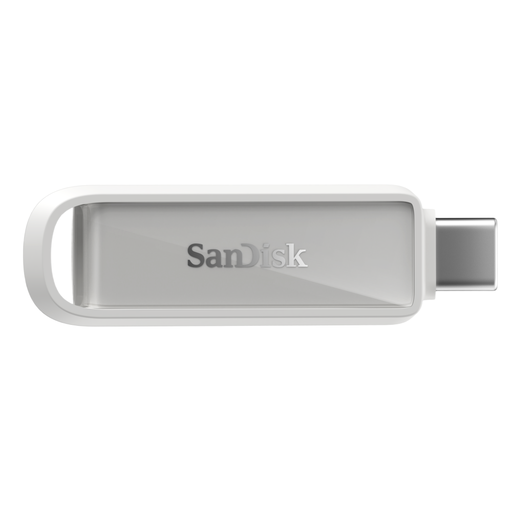
SanDisk Phone Drive with USB-C, Arctic White, 256GB
This USB-C option is worth considering only if the workstation and intended recovery devices have compatible ports and its usable capacity fits the resource set.
- The product information lists a read speed of up to 150MB/s; that figure does not describe write or full-backup speed.
- Its described automatic-backup feature concerns iPhone and iPad, so plan and test a separate process for workstation resources.
View on Joybuy
Common questions
Is one USB stick enough to back up teaching resources?
No: use a USB stick as one separate copy, not the only way to recover your files. The National Cyber Security Centre advises against leaving backup storage connected when it is not in use, and Department for Education guidance recommends three copies across two forms of storage, with one off-site copy; check that you can restore what you have saved.
Should I choose USB-A, USB-C or both?
Choose connectors that fit the workstation making the backup and the devices you might need for recovery. A USB-A drive fits a USB-A setup, while a dual USB-A and USB-C drive can connect directly to devices with either port; also test file access on those devices.
What if the teaching files include pupil information?
Check your school’s approved removable-media and encryption process before copying pupil or other personal information. The Information Commissioner’s Office advises that encrypting personal information on USB or backup media helps protect it against unauthorised or unlawful processing; access must also remain recoverable for authorised users.
Do I need to format a new USB drive?
Format it only if the file system needs changing for your intended devices, and first make sure the drive contains no files you need. Formatting erases its contents; afterwards, test reading and writing files on the devices that may need to restore the backup.


