Choose a hub with a data port that fits your webcam, enough remaining ports for the accessories you use, and a host cable that reaches a practical spot on your desk. A compact bus-powered hub can suit a simple setup; consider Power Delivery pass-through if the laptop must charge through the same port, or a dock if you also need display, networking or storage connections. Check the combined power needs of devices that will share the hub.
Who needs which setup?
Webcam-only small-desk users
If you connect a webcam and perhaps a mouse or keyboard, start with the webcam plug, the available data ports and where the host cable will let the hub sit. Display and Ethernet connections need not drive the choice unless you will use them.
Single-port laptop users
If the webcam occupies your laptop’s only convenient USB-C connection, look for documented Power Delivery pass-through. Confirm that the laptop accepts charging through that port and that you have a suitable charger.
Compact workstation builders
If the same desk also accommodates storage, a monitor or wired networking, compare the full port mix and the computer’s display support. A dock makes more sense when those additional connections will be used.
What matters when choosing a hub?
Compact data-port hub
Choose when: The webcam and a few peripherals need data connections, but the laptop charges separately.
Trade-off: Connected devices may share a limited power supply; Anker specifies a 900 mA combined limit for its 533 A8338.
Hub with pass-through charging
Choose when: A compatible laptop must charge through the USB-C port also used by the webcam hub.
Trade-off: The hub can use part of the charger’s input; Belkin says its AVC022 uses approximately 15 W.
Workstation dock
Choose when: The desk also needs connections for a display, fast external storage or other workstation equipment.
Trade-off: Charging and display functions introduce host-computer compatibility checks beyond connecting the webcam.
| Concern |
What to check |
Who this matters to |
| Data-port fit |
Match the webcam plug to a USB-A or USB-C data port, and check the computer’s available host port. A Power Delivery input is not a webcam data port. |
If the camera cannot plug into a usable data port, the hub cannot do its main job. Around 36% of consumers put connector and port fit first. |
| Desk space and cable reach |
Compare the hub’s dimensions and host-cable length with where it would sit relative to the computer. |
On a shallow desk, I need the hub to sit without its cable pulling across my work area; roughly 29% of consumers prioritise footprint and cable routing. |
| Power and charging |
Check the combined power needs of connected devices. If the laptop must charge through the hub, confirm USB-C charging support and the power available to the host. |
With a webcam and other devices connected, I want to avoid exceeding the hub’s power limit or interrupting laptop charging. Around 21% of consumers make power or charging their primary concern. |
| Workstation connections |
Choose display, Ethernet, card-reader or faster data ports for equipment you will connect; confirm the computer supports the intended video output. |
If this desk also holds a monitor or external storage, I need the hub to serve more than the camera. Roughly 14% of consumers put workstation expansion first. |
Buying pitfalls to avoid
-
Assuming every USB-C socket handles data, charging and video
A USB-C connector alone does not establish that the computer can charge through it or send video to a hub’s display output.
Check the computer manufacturer’s specifications for USB-C charging and the display mode required by the hub before choosing either feature.
-
Reading charger input as power delivered to the laptop
Belkin states that its AVC022 uses approximately 15 W of a maximum 100 W Power Delivery input, leaving up to 85 W for the host under those conditions.
Compare the hub’s stated host-delivery figure with your laptop’s charging needs, and check the required charger specification.
A compatible USB-C charger and cable may be needed separately; CalDigit says a charger is not included with its SOHO Dock.
-
Ignoring power shared between connected devices
A webcam that works by itself may be affected when it shares a bus-powered hub with other devices. Anker specifies a 900 mA combined connection limit for the 533 A8338.
Check the power requirements of everything you plan to connect at once against the chosen model’s stated limit.
-
Choosing a dock for connections you will not use
Display, networking and faster storage ports do not help connect a webcam if those functions are not part of your desk setup. They can also require additional compatibility checks.
Start with the camera plug, the number of data ports needed, cable reach and placement. Add dock functions only for equipment you intend to connect.
Relevant brands to consider
These model examples illustrate different hub layouts; check the specifications of the particular product you are considering rather than assuming every product from a brand has the same connections.
Anker
The Anker 533 USB-C Hub (A8338) is a compact data-port example: Anker lists three USB data ports, HDMI and Ethernet in an 11.2 cm body.
- Its three data ports allow a webcam to share the hub with other compatible accessories.
- Anker specifies a 900 mA combined connection limit for the A8338, so check the load of devices used together.
Belkin
The Belkin Connect AVC022 combines two USB-A data ports and a USB-C data port with a separate USB-C Power Delivery input.
- Its port arrangement is relevant when a laptop needs pass-through charging alongside webcam data connections.
- Belkin states that the AVC022 uses approximately 15 W of its maximum 100 W charging input; laptop charging also depends on the host and charger.
CalDigit
The CalDigit SOHO Dock is a workstation-oriented example with 10 Gb/s USB-C and USB-A data ports, HDMI, DisplayPort and card readers.
- Those connections are relevant when a webcam shares the desk with storage and a monitor.
- CalDigit says charging and display functions depend on compatible computer hardware, and a charger is not included with the SOHO Dock.
Joybuy products for different setups
These products range from a compact hub for USB-A connections to USB-C docks with charging and display ports. Match the webcam and computer connectors first, then consider which other connections your desk needs.
 No image available
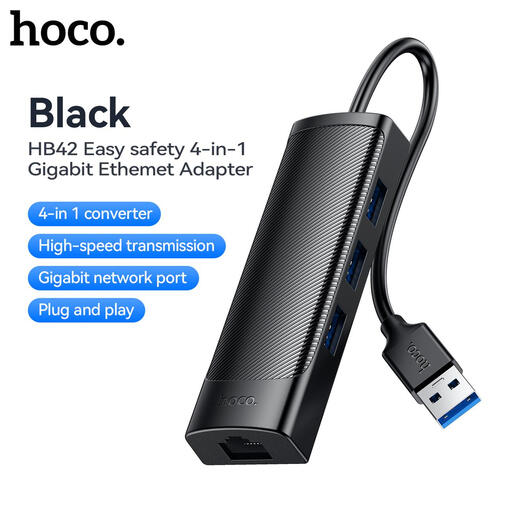
HOCO HB42 4-in-1 USB hub, Gigabit Ethernet, 0.2 m, Black
Consider this hub if your computer has a USB-A host port and your webcam has a compatible USB-A plug; check the needs of other devices sharing its power.
- Three USB 3.0 ports and an RJ45 LAN connection are listed in the product name.
- The stated 0.2 m cable makes the computer port and proposed hub position worth checking together.
View on Joybuy
 No image available
Targus USB-C Universal Dual HDMI 4K Docking Station, 100 W Power Delivery (Retail Packaging)
Consider this dock if a USB-A webcam must share a USB-C laptop connection with charging or displays. Confirm the laptop’s charging and video support before relying on either function.
- The product name specifies dual HDMI 4K connections and 100 W Power Delivery pass-through; the input rating does not establish the power delivered to your laptop.
- The dock requires an external 100 W or higher adapter. Check the box contents and charger requirements.
View on Joybuy
 No image available
V7 V7UC-U3CRJ45HDVG-BLK USB-C adapter
Consider this adapter if the webcam uses USB-A and the desk also needs a display or wired network connection. Check its physical fit and the computer’s USB-C display capability.
- The product name lists two USB 3.0 ports, HDMI, VGA, Gigabit Ethernet and 100 W Power Delivery.
- Confirm the power available to the laptop and whether the host cable reaches your intended placement.
View on Joybuy
 No image available
HOCO HB28 USB-C Multi-Function Converter, Metal Grey
Consider this converter if your USB-C computer needs a webcam data port plus another connection. Check which port fits the webcam and whether the charging provision meets your laptop’s needs.
- The product name lists USB 3.0, USB 2.0, SD, TF and Power Delivery connections.
- Check the dimensions, host-cable reach and stated charging wattage if those affect your setup.
View on Joybuy
 No image available
Baseus Metal Gleam Series II 10-in-1 USB hub, Cosmic Black
Consider this hub when the webcam is one part of a desk setup that also uses displays, wired networking or memory cards. Confirm that its size suits the desk and that the computer supports the intended display output.
- The product name lists USB-A and USB-C data connections, two HDMI outputs, RJ45, SD/TF and a USB-C Power Delivery connection.
- For a webcam alone, decide whether those additional connections have a use before choosing this port layout.
View on Joybuy
Common questions
Do I need a powered hub just for a webcam?
Not necessarily: a bus-powered hub can suit a webcam when all connected devices stay within that model’s shared-power limit. Anker specifies a 900 mA combined limit for its 533 A8338; check the webcam and any other devices you would connect at the same time.
Can the hub charge my laptop while the webcam is connected?
Yes, if the laptop accepts charging through its USB-C port, the hub supports Power Delivery pass-through and the charger meets the setup’s requirements. Belkin says its AVC022 uses approximately 15 W of a maximum 100 W input itself, so compare the stated host power with your laptop’s needs.
Will a hub’s HDMI port work with any USB-C laptop?
No: the computer’s USB-C port must support the video mode required by the hub. For example, CalDigit says 4K at 60 Hz through its SOHO Dock requires a computer USB-C port supporting DisplayPort 1.4; check the computer and hub specifications for the display setup you intend to use.
Does a USB-C dock include the charger needed for pass-through charging?
Not always. CalDigit says a Type-C charger is not included with its SOHO Dock. Check the box contents and required charger specification for the particular dock before planning to charge a laptop through it.


