Standing-desk presenters
If you stay beside your computer to advance slides, a mouse can also serve your everyday cursor work. Microsoft documents clicking a slide to advance it in PowerPoint Slide Show.


Choose a vertical mouse if you advance slides while staying at your standing desk and also need a mouse for everyday computer work. Prioritise hand fit, then check the connection and whether any extra buttons work in your presentation software. If you need to move around the room or want dedicated slide controls, a presentation remote is the more suitable choice.
If you stay beside your computer to advance slides, a mouse can also serve your everyday cursor work. Microsoft documents clicking a slide to advance it in PowerPoint Slide Show.
Hand size, handedness and preferred grip can make a fixed-shape vertical mouse uncertain. Check the stated fit before choosing a model, or consider an adjustable shape.
If you need to leave the computer or use direct next and previous controls, a dedicated presentation remote may suit the task better than a desk mouse.
Decide whether you will remain within mouse reach of the computer before comparing vertical-mouse fit and controls.
Choose it when: You want one device for cursor work and advancing slides while staying at your standing desk.
Bear in mind: Extra mouse buttons are not assured to control slides in your particular software.
Choose it when: You need to move away from the computer or use dedicated slide controls.
Bear in mind: A remote does not replace a mouse for ordinary desktop cursor work.
| Concern | What to check | Who this matters to |
|---|---|---|
| Hand fit and posture | Check the maker’s hand-size and handedness guidance. The Health and Safety Executive advises placing the mouse in line with your elbow as part of the workstation setup. | If I use the mouse for long stretches at my standing desk, I need a shape and grip that suit my hand, not just a vertical angle. Around 40% of consumers put fit and posture first. |
| Slide controls | Check how your presentation app advances and reverses slides, and test any button assignments on the computer you will use. | When I present from beside the computer, I need controls I can use without interrupting the talk. Around 30% of consumers make dependable slide navigation their primary concern. |
| Connection and movement | Confirm the required Bluetooth or receiver connection and consider whether you must move beyond normal mouse reach. | If my presentation setup limits ports or requires me to move around, I need a connection and control device suited to that arrangement. Around 30% of consumers prioritise connection and movement. |
Microsoft documents clicking a slide to advance it in PowerPoint, but that does not give a mouse the dedicated controls of a remote. Kensington lists forward and back controls on its Presenter Expert remote.
Decide whether you will stay at the desk. If you need to move around the room, consider a dedicated remote; otherwise, rehearse with your mouse and presentation software.
Logitech positions Lift for small-to-medium hands, while Kensington positions its Pro Fit Ergo Vertical mouse for average-to-larger hands. The angle alone cannot establish which shape suits your grip.
Check hand-size guidance and handedness options for the exact model. If a fixed shape is uncertain, consider whether an adjustable model offers the fit you need.
Forward and back mouse buttons do not establish next and previous slide behaviour in every app. Microsoft documents PowerPoint’s slide commands separately from a mouse’s button specifications.
Test button assignments in the exact presentation app and work-computer setup before a live session. Keep the documented keyboard controls or a remote available as a fallback.
The Health and Safety Executive’s display screen equipment guidance also covers mouse position, relaxed shoulders and central screen and keyboard placement.
Set up the standing desk and mouse position together. If discomfort persists at work, raise the setup with your employer rather than relying on a product claim.
Its Lift and MX Vertical lines offer different fit and control considerations for desk-based use.
Its range includes a vertical desk mouse and a separate remote for presentations away from the computer.
The Unimouse is an adjustable-shape option to consider when a fixed vertical-mouse fit is uncertain.
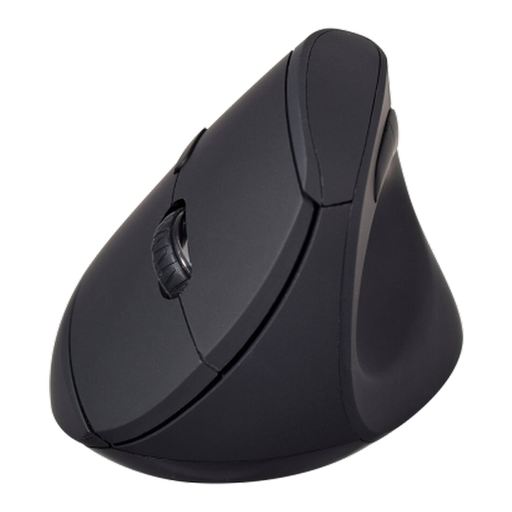
This vertical mouse is an option for advancing slides while remaining at the standing desk and for everyday cursor work. Check its fit and test its buttons in your presentation software before relying on them during a talk.
 No image available
For desk-based slide work and everyday cursor use; test whether its buttons perform the slide commands you need in your presentation app.
The product name specifies Bluetooth and 2.4GHz modes, six buttons and an adjustable sensor rated up to 1600 DPI. Check hand fit and handedness before choosing it.
Yes. In PowerPoint Slide Show, Microsoft says clicking a slide advances to the next slide; it also documents N for next and P for previous. Test any extra mouse-button assignments on the app and computer you will actually use.
Choose a remote when you need to walk away from the computer or want dedicated forward and back controls. Kensington lists those controls on its Presenter Expert remote; keep a desk mouse for cursor work if you need both tasks covered.
Take an old electrical mouse to an appropriate collection route rather than putting it in household rubbish. GOV.UK says waste electrical products can go to a household waste recycling centre and describes like-for-like retailer take-back when a replacement electrical product is purchased; check the appropriate collection route for its battery separately.