Choose a desktop HDD if your video library is large and the backup will stay beside one computer; the cited desktop range offers more capacity than the cited portable ranges. A portable HDD is easier to carry with a laptop, while a portable SSD is worth considering for frequent large-file transfers. Whichever type you choose, check that it fits your library and backup workflow, and keep another copy away from the connected drive.
Who each drive type suits
Large-library home archivists
If you back up a growing collection mainly from one computer, a desktop HDD is worth considering for its capacity. Western Digital lists My Book desktop models up to 26 TB; check the capacity and power requirements of the particular model you choose.
Laptop-based video collectors
If the backup travels with your laptop, a portable HDD offers a capacity-led option, while a portable SSD may better suit frequent transfers of large files. Check that your existing collection and expected additions will fit on the exact drive.
Frequent large-file movers
If you regularly copy or restore video projects away from a fixed desk, consider a portable SSD. Its quoted transfer rate is a maximum for the relevant model, not a promise of the speed you will get with every computer, cable or connection.
What matters when choosing
Desktop HDD
Choose it when: Your library needs substantial room to grow and the backup normally stays at one desk.
Trade-off: It is less convenient to carry than a portable drive; check whether the model needs a separate power supply.
Portable HDD
Choose it when: You need to take a capacity-focused backup with your laptop.
Trade-off: The cited portable range has a lower maximum capacity than the cited desktop range, so allow for library growth.
Portable SSD
Choose it when: You travel with the drive and frequently copy or restore large video files.
Trade-off: The cited SSD ranges offer less maximum capacity than the cited desktop HDD, and transfer speed depends on the connection.
| Concern | What to check | Who this matters to |
|---|
| Capacity and growth |
Measure the library and allow for future footage or backup history. Compare the exact drive capacity, bearing in mind that the computer may display less space after formatting. |
If my collection is growing, I need enough room for the videos I have and the copies I plan to keep. Around 42% of consumers would put capacity and growth first. |
| Transfers and portability |
Check the drive interface, supplied cable and computer port; if using a hub, consider whether a direct connection is practical. |
When I move large projects between locations, carrying the drive and completing transfers conveniently matter most. Around 33% of consumers would prioritise transfers and portability. |
| Recoverability and setup |
Confirm the intended Mac or Windows backup workflow, then plan a separate copy that is offsite or disconnected when not in use. |
I want to know that I can restore my videos after a problem, not just that files were copied once. Recoverability and setup would come first for around 25% of consumers. |
Mistakes to avoid
-
Buying only enough space for today
A drive that just fits the current library may leave no room for new footage or the backup history you intend to keep. Capacity also varies within a product range.
Check the library’s size, decide what else the drive must hold and compare that total with the exact capacity of the model you are buying.
Outgrowing the drive can mean arranging another backup drive sooner than planned.
-
Keeping the only backup permanently connected
A connected backup and its computer can be affected by the same incident. The National Cyber Security Centre describes a 3-2-1 approach: at least three copies on two devices, with one offsite, and advises keeping a backup offline.
Keep another copy in a separate location, disconnect a backup when it is not being updated, and periodically try restoring a few videos.
-
Expecting the quoted SSD speed through any connection
A drive’s maximum quoted rate does not describe every computer-and-cable combination. Seagate also notes that a USB hub can contribute to slow transfers, disconnections or detection problems.
Check the drive, cable and computer port together. If problems arise through a hub, try connecting the drive directly to the computer.
-
Giving one Mac drive conflicting jobs
Apple says an external device holding a Photos library cannot also be the device used for Time Machine backups. It specifies APFS or Mac OS Extended (Journaled) for the external Photos-library device.
Decide whether you are storing a working Photos library, making a Time Machine backup or keeping a separate copied archive before formatting the drive.
Relevant brands to consider
Western Digital
Its My Book range is relevant to a fixed-location video archive. Western Digital lists desktop models with capacities up to 26 TB.
- The My Book product material describes included Acronis True Image for Western Digital scheduling.
- Check the capacity, software and power arrangement for the exact variant; the desktop range is not the portable choice.
Seagate
Its cited One Touch lines provide portable HDD and portable SSD routes for carrying a video backup.
- Seagate lists its One Touch portable HDD range up to 4 TB and its One Touch External SSD up to 2 TB, with SSD transfers quoted up to 1,030 MB/s.
- Those figures apply to different product lines and variants; check the exact drive and host connection rather than treating them as interchangeable.
SanDisk
Its Extreme Portable SSD range is relevant if carrying and transferring large video files are priorities.
- SanDisk lists capacities up to 8 TB for the cited range and quotes up to 2,000 MB/s on its cited UK product page.
- Check the exact variant and your computer connection before relying on a particular capacity or quoted maximum speed.
Joybuy products for portable backups
These portable HDDs and SSDs suit different library sizes and carrying needs. Measure your collection before choosing a capacity, and check your computer’s connection and backup workflow.
 No image available
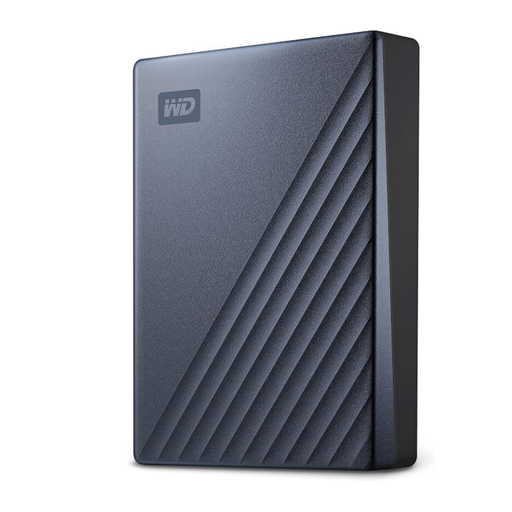
Western Digital My Passport Ultra 5TB Portable Hard Drive, Blue
Consider this portable HDD if you need to carry a video archive and its stated 5TB capacity accommodates your library and expected growth.
Check the usable space and your intended backup workflow before buying. Keep another copy separate from this drive.
View on Joybuy
 No image available
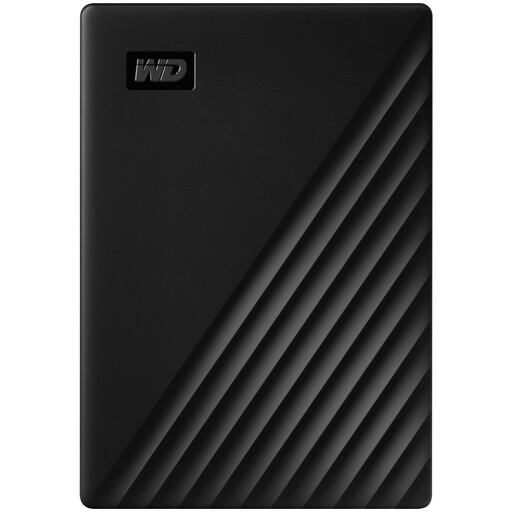
Western Digital My Passport 4TB Portable Hard Drive, Black
This portable HDD is a capacity-led option for a laptop backup if your videos and planned additions fit within its stated 4TB capacity.
Confirm usable space and compatibility with the backup workflow you intend to use. Keep a separate copy of important videos.
View on Joybuy
 No image available
Samsung MU-PE1T0S 1TB USB Type-C 3.2 Gen 2 (3.1 Gen 2), Black
Consider this portable drive for moving large video files if a stated 1TB capacity fits the collection you need to carry or back up.
Its title specifies USB Type-C 3.2 Gen 2 (3.1 Gen 2); check your computer port, cable and backup format before choosing it. Keep another backup copy.
View on Joybuy
 No image available
SanDisk Portable SSD 2TB
This portable SSD is an option for carrying a video collection that fits within its stated 2TB capacity.
Confirm the drive’s connection and your computer’s backup workflow before buying; plan a separate copy as well.
View on Joybuy
 No image available
Western Digital Elements Portable 4TB USB 3.0, Black
Consider this portable HDD for a video backup that needs to travel, provided its stated 4TB capacity leaves enough room for growth.
Its title specifies USB 3.0. Check usable capacity and the format required by your backup workflow, particularly if you use a Mac.
View on Joybuy
Questions about video backups
How much drive capacity do I need for a video-library backup?
Choose a capacity that covers the library you have, the additions you expect and any backup history you plan to retain. Measure the files first, then compare them with the exact model: Seagate notes that a computer can display less available space than the advertised capacity because of measurement conventions and formatting.
Can I use an external drive with Time Machine on a Mac?
Yes. Apple says Time Machine can use an external storage device connected directly to the Mac. If you also keep a Photos library on external storage, Apple says its device must not be the same one used for Time Machine backups and specifies APFS or Mac OS Extended (Journaled) for the Photos-library device.
Can Windows back up files to an external drive?
Yes. Microsoft says File History can use an external drive or a network location. Select the intended drive in File History and configure the backup for the files you need to protect.
Should my only backup drive stay connected?
No: a single, permanently connected drive should not be your entire backup plan. The National Cyber Security Centre describes keeping at least three copies on two devices with one offsite, and advises having an offline copy that is digitally disconnected when not in use. Try restoring sample videos periodically.


