Choose a video-call setup around what your relative can see, hear, answer and keep charged: a smartphone for portable use, a tablet if a larger touchscreen helps, or a computer if a fixed setup and separate controls suit them. Before buying, check the family’s calling app and internet connection, then let the intended user try answering a call and returning the device to its charging place.
Who is this for?
Families setting up a first video-call device
If a relative needs help signing in, connecting to Wi-Fi or finding the calling app, plan who will set up the device and help with it later. Age UK identifies logging in and connecting to Wi-Fi as basic tasks that can be barriers for older people.
Older adults with vision, hearing or dexterity barriers
Try the actual screen, sound and call controls with the person who will use them. Age UK highlights vision, hearing and mobility as considerations when making devices easier to use; an accessibility setting still needs to work in the chosen calling app.
Families already using a calling app
Start with the service the family uses, then check its requirements on the exact device. That includes the operating-system version, account steps and whether the relative can recognise and answer an incoming call.
What matters when choosing?
Smartphone
Consider it when: Your relative needs to take calls away from a fixed spot and can manage a touchscreen.
Trade-off: A smaller screen may make call buttons and notifications harder to identify.
Tablet
Consider it when: A larger view helps and the person is comfortable using touch controls while seated.
Trade-off: Holding and positioning a tablet throughout a call may be awkward; test it in its usual place.
Computer
Consider it when: The person already uses a keyboard and mouse or wants a larger screen in a fixed location.
Trade-off: Signing in, managing windows and allowing camera or microphone access can add steps before a call.
Whichever device type seems workable, test the calling routine from the incoming notification through to charging afterwards.
| Priority | What to check | Your needs |
|---|
| Call controls |
Can the person find the app, recognise a caller and answer without navigating several unfamiliar screens? Try any simplified layout on the exact device. |
I want my relative to answer a family call without needing someone beside them each time. |
| Screen and access |
Try notification visibility, text and control size, contrast and touch accuracy in the intended app. Check available accessibility settings on the exact model. |
If small buttons or touch gestures are difficult, I need controls my relative can identify and operate. |
| App and connection |
Check the app against the installed operating system, then test internet access where calls will happen. Zoom lists iOS and iPadOS 15 or later and Android 9.0 or later for its mobile app. |
Our family uses a particular calling service, so the device needs to run it in the place my relative will normally take calls. |
| Sound and daily setup |
Test speaker and microphone levels, camera position and the charging connection. Add a stand or headset only if it removes a problem encountered during the test. |
I need calls to be easy to hear and the device to be ready when someone rings. |
What can make a setup difficult?
-
Choosing a 2G-only phone for its physical buttons
Physical buttons do not establish that a phone can run the family’s video-call app. Ofcom says UK 3G networks have switched off and 2G networks are being withdrawn.
For calls using mobile data, check the intended app, 4G or 5G capability and compatibility with the intended network provider.
-
Choosing by camera specifications alone
A camera specification does not show whether the person will notice an incoming call, hear it, answer it or position the device comfortably.
Try a family call from start to finish: identify the notification, answer, adjust the sound, end the call and put the device back on charge.
-
Assuming a simpler interface suits everyone
Enlarged controls still require the person to use the screen, while accessibility features and app layouts can differ by model and software version. Doro’s description of simpler Aurora navigation is a manufacturer claim, not a test of an individual’s calling routine.
Let the intended user try the exact model and app, including the incoming-call screen, before relying on a simplified layout.
-
Leaving the connection until setup day
Internet video calls need a working connection. Age UK advises smartphone and tablet users to connect to Wi-Fi before calling because video calls can use substantial mobile data.
Test the connection in the room where calls will take place. If mobile data will be used, check coverage and the available allowance.
Brand references
These brands illustrate different device and interface routes; the usable calling workflow still depends on the exact model and the person using it.
Apple
iPhone and iPad are relevant when a family uses FaceTime or wants to try Apple’s accessibility settings.
- Apple says FaceTime on iPhone and iPad needs a mobile or Wi-Fi connection; its support guidance also describes joining a FaceTime link from Android or Windows through a web browser.
- Check whether the individual can manage the touchscreen, sign-in and charging steps. A FaceTime device does not remove the need for an internet connection.
Samsung
Galaxy phones and tablets offer an Android route with accessibility settings to inspect on the chosen device.
- Samsung documents TalkBack spoken feedback for compatible Galaxy mobile devices.
- Feature availability and the call interface should be checked on the exact model and software version; one Galaxy device’s specifications do not apply to the whole range.
Doro
Doro’s Aurora range is a smartphone route for someone who wants to try a less conventional Android home screen.
- Doro describes Aurora navigation as simplified; check the desired calling app on the exact model.
- A simplified layout still involves touchscreen use and charging. Test whether the person can complete their own call-answering routine.
Joybuy smartphone options
These are portable smartphone options for a family considering calls at home or on the move. If a larger tablet screen or fixed computer setup would suit your relative better, compare those routes before choosing a phone.
 No image available
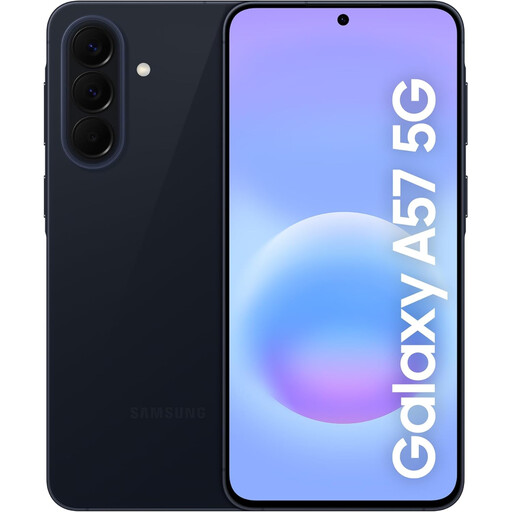
Samsung Galaxy A57 5G 256GB Awesome Navy
A portable phone to consider if your relative can manage smartphone call controls. Check the family’s app and try the incoming-call screen on this model; confirm the compatible charging adaptor before buying.
View on Joybuy
 No image available
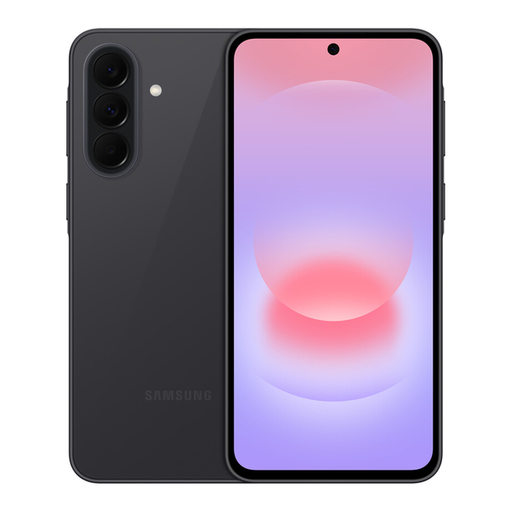
Samsung Galaxy A37 5G 128GB Graphite
Consider this portable option if a smartphone fits the person’s calling routine. Confirm the RAM configuration for this variant, as the supplied product details give conflicting values; also check the intended app and charging arrangement.
View on Joybuy
 No image available
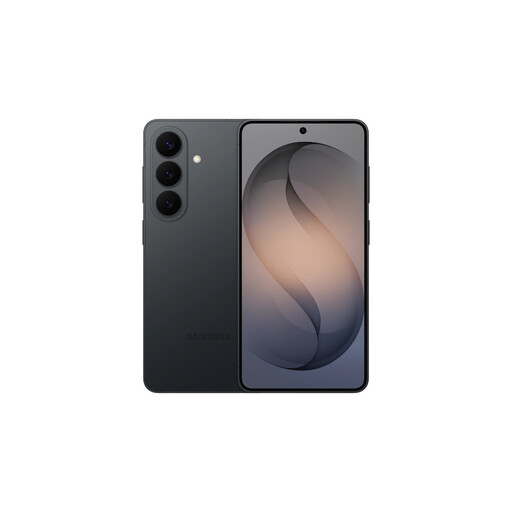
Samsung Galaxy S26 Black 12GB 256GB
A portable option for someone comfortable answering calls on a phone. Try the notification and on-screen controls with the intended user, check the family’s calling app and plan for a charging adaptor.
View on Joybuy
 No image available
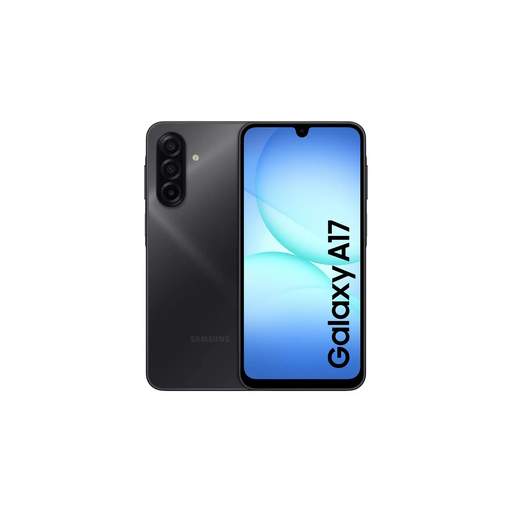
Samsung Galaxy A17 5G A176 Dual Sim 4GB 128GB Grey
This phone is worth considering when calls need to be portable and the user can manage touch controls. Check the intended app and try answering a call; the supplied product details specify a 10W–25W adaptor and USB-C to USB-C cable for charging, with the adaptor not included.
View on Joybuy
 No image available
Samsung Galaxy Z Flip 8 5G 512GB Graphite
Consider the foldable design only if the user can comfortably open it and answer a call. Test that sequence and check the intended app on the exact device; the supplied product guidance also warns against excessive pressure on the display crease.
View on Joybuy
Common questions
Does an older relative need Wi-Fi for video calls?
Video calls need an internet connection, but that can be Wi-Fi or suitable mobile data. Age UK advises smartphone and tablet users to connect to Wi-Fi before calling because video calls can use substantial data; test whichever connection will be used in the usual calling location.
Can someone on Android or Windows join a FaceTime call?
Yes, they can join a FaceTime link through a web browser, according to Apple’s support guidance. Check the browser, internet connection and camera and microphone permissions on the device they will actually use.
Is a 2G-only phone a sensible choice for mobile video calls?
Do not choose one on the assumption that physical buttons make it suitable for video calls. Ofcom says UK 3G networks have switched off and 2G networks are being withdrawn; check that a mobile-data device supports the intended calling app and the network provider’s current service.
How do we check whether a phone or tablet can run Zoom?
Check the operating-system version on the exact device and the current app listing. Zoom’s mobile requirements list iOS 15 or later, iPadOS 15 or later and Android 9.0 or later; meeting a version requirement does not show whether your relative will find the call controls usable.
Will accessibility settings make any phone or tablet easy to use?
Not necessarily. Settings such as spoken feedback or larger on-screen elements may help, but their availability and usefulness depend on the device, software and calling app. Have the intended user try noticing, answering and ending a real call.


