People in frequent home meetings
If calls fill much of the working week, prioritise the specific problem you encounter: hearing and being heard, camera placement, or access to mute and answer controls.


Start with the part of a call that is causing trouble: consider a headset for listening privately and controlling calls, a webcam for poor framing, or a monitor and dock when screen space and connections limit desk work. A USB-C port alone does not establish what a dock can display or charge, so check the exact laptop, monitors, cables and workplace requirements before buying.
If calls fill much of the working week, prioritise the specific problem you encounter: hearing and being heard, camera placement, or access to mute and answer controls.
A monitor and meeting peripherals can make the desk more useful, but a dock needs to match the laptop’s connection, display and charging capabilities. Check workplace rules before connecting equipment to a managed device.
Consider the position of the screen alongside the rest of the workstation, rather than treating a larger display or monitor arm as a complete posture solution. The Health and Safety Executive says display screen equipment rules can apply to home and hybrid workers in Great Britain.
Identify whether audio, camera position, screen space or the connection is limiting your calls, then check compatibility before choosing equipment.
| Priority | What to check | Your needs |
|---|---|---|
| Call audio | Compare wired USB, Bluetooth and USB-dongle connections. Check the exact headset model and connection mode for the mute and answer controls you need in Teams or Zoom. | I need to hear a call privately and control it easily, particularly when other people are nearby. |
| Camera position | Check where a webcam can mount on your screen and how it frames you. Compare the exact model’s stated resolution and lighting features rather than choosing on resolution alone. | My laptop camera sits at an awkward angle, or changing room light makes regular video meetings difficult. |
| Screen and desk space | Check monitor inputs, available desk depth and the adjustment offered by the stand or arm. Consider the whole workstation for sustained screen work. | I share my screen while referring to documents, or spend long periods working from a laptop display. |
| Dock compatibility | Match the exact laptop’s port capabilities to the dock, display count and required resolution. Check cables, monitor inputs and power delivery; Microsoft notes that USB-C functionality depends on the hardware and software combination. | I want to connect a display and meeting peripherals at my desk without discovering that the laptop cannot support the planned setup. |
| Connection stability | Test calls when others are using the home connection. If practical, compare a wired network connection before attributing unstable video to the camera. | Calls become unreliable at busy times, so I want to identify a connection problem before replacing a webcam or microphone. |
The shape of the connector does not establish the laptop’s display or charging capabilities. Microsoft’s USB-C guidance and Dell’s model-specific dock specifications show why the host, dock and intended setup need checking together.
Note the laptop model, charger requirement, monitor inputs, number of displays and required resolution, then compare them with the dock’s compatibility information and cable requirements.
A different cable, display adaptor or power setup may be needed for the arrangement you plan.
Headset call controls and connection requirements can vary by model, dongle and meeting application. Zoom’s supported-device guidance, for example, distinguishes functions available with particular USB devices.
Check the connection method, available laptop ports and support for your meeting application. If you work at a fixed desk, compare those requirements with a wired headset.
Ofcom notes that virtual meetings share a household connection with other online activity. A camera change does not address that competition for connectivity.
Try calls at different times and, where practical, test a wired network connection before deciding whether the camera itself needs replacing.
A monitor arm changes screen positioning, but the desk, equipment and work being done also matter. The Health and Safety Executive says display screen equipment rules can apply to home and hybrid workers in Great Britain.
For sustained screen work, ask your employer about its workstation assessment process before choosing an individual desk accessory.
These brands provide useful product or compatibility references; choose by the exact model and your call setup rather than by brand alone.
Logitech lists business webcams, headsets and other desk peripherals that span several parts of a meeting setup.
Dell publishes model-specific dock and monitor information useful for planning a laptop desk setup.
Microsoft provides Teams peripheral guidance and model-specific Surface dock documentation.
Jabra is a headset reference for workers checking meeting-app call controls.
These options cover a webcam for camera placement, wired and wireless headsets for calls, a dock for a connected laptop desk, and a separate microphone for a fixed desk. Choose the route that addresses your own call or workspace problem.
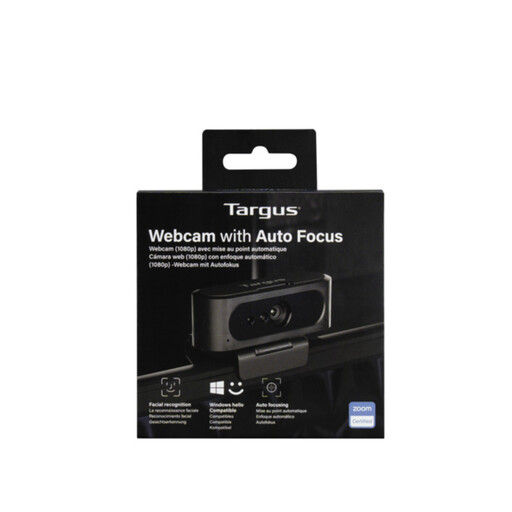 No image available
Consider an external webcam if your laptop camera’s position is the main problem in regular calls. The product name says 2K, while its technical information describes 1080p at 30 fps; confirm the actual video resolution and compatibility with your device before buying.
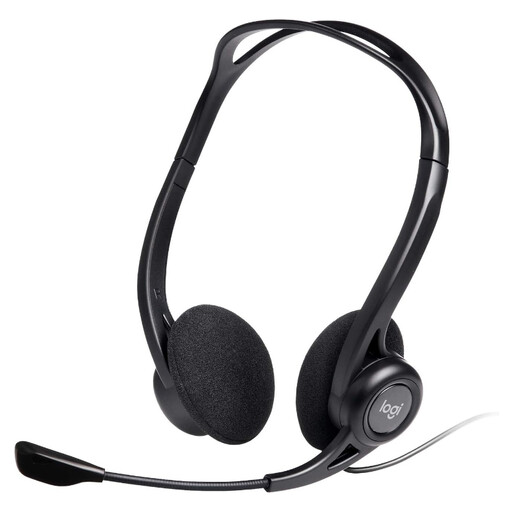 No image available
A wired headset is worth considering when private listening and controls at a fixed desk matter more than moving around during a call. This variant has a noise-cancelling microphone in its product name; check that its USB connection and call controls suit your computer and meeting application.
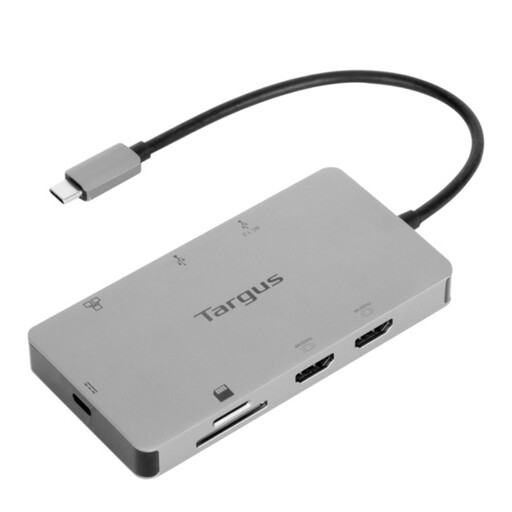 No image available
This dock is a candidate when a laptop desk needs HDMI displays and a simpler peripheral connection. Its named dual HDMI, 4K and 100W pass-through capabilities do not establish what your laptop can deliver: check its display and USB-C capabilities, required power setup, cables and package contents before ordering.
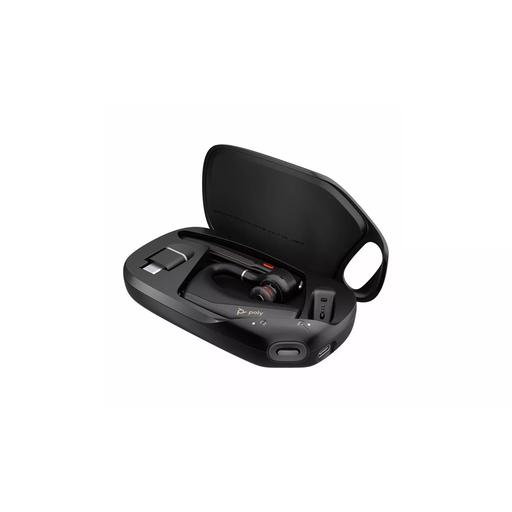 No image available
Consider this Bluetooth headset if you want wireless call audio rather than a cable at your desk. Check battery runtime, whether a receiver is included or needed, and how this exact model connects to your laptop and meeting application.
 No image available
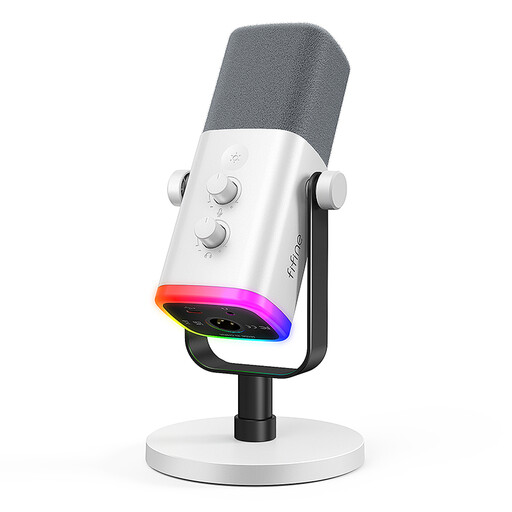
A separate desk microphone is an option if you usually speak from one position and do not need it to provide private listening. This AM8W variant is named as a dynamic XLR/USB microphone; check recognition in your meeting application and whether your planned setup needs an XLR cable or boom arm, which the product information says are not included.
Choose a headset first if the problem is hearing calls privately, being heard or using call controls; choose a webcam if camera position or the picture is the limiting issue. Check the exact device and connection mode for the functions you need in your meeting application.
No: a USB-C connector alone does not establish charging or display support. Microsoft’s USB-C guidance notes that functionality depends on the hardware and software combination, so match the exact laptop, dock, cable, monitor inputs and intended display setup before buying.
Ask your employer or IT team which peripherals, connection modes and supporting software are permitted. Then check the laptop model and your meeting application against the exact device you intend to use; manufacturer compatibility information cannot determine your workplace’s device policy.
Yes, if you do sustained screen work at home, ask your employer about its assessment process before selecting a single accessory. The Health and Safety Executive says display screen equipment rules can apply to home and hybrid workers in Great Britain; the appropriate change depends on the whole workstation.
Not if the shared home connection is the cause. Ofcom identifies virtual meetings among activities using that connection, so test calls at different times and, where practical, try a wired network connection before replacing the camera.