Buying priorities
Start with the sound problem you need to solve, then check the exact connection, operating system and meeting-platform requirements before choosing a model.
| Priority |
What to check |
Your needs |
| Outgoing call clarity |
Look for a boom that sits close to the mouth, stated microphone noise handling and any relevant open-office microphone certification. Check microphone performance separately from ANC. |
I want nearby conversation, typing or household noise to be less distracting for people on my call. A close boom can improve the speech-to-background-noise ratio, according to RTINGS. |
| Call controls and mute |
Confirm the exact model variant, connection method, operating system and meeting app. Check whether controls work through direct Bluetooth, a USB receiver or wired USB. |
I need answer, end-call or mute controls to work with my work setup, not just basic audio. Microsoft and Zoom state that native Bluetooth support differs by operating system and configuration. |
| Listening noise versus microphone noise |
Use ANC as a check for what you hear during calls; assess microphone handling for what other participants hear. Compare model-specific microphone information where it is available. |
I need to decide whether the main issue is household noise in my ears, household noise reaching colleagues, or both. |
| Connection and setup |
Check USB-A, USB-C, Bluetooth and receiver requirements against the laptop or dock. Select the intended speaker and microphone in the call app, then make a test call. |
I want the headset or separate microphone setup to work before an important meeting, including on an employer-managed device. |
Joybuy product options
Joybuy product options for shared-home work calls, covering wired and wireless headsets plus a separate microphone route for users who already have headphones.
 No image available
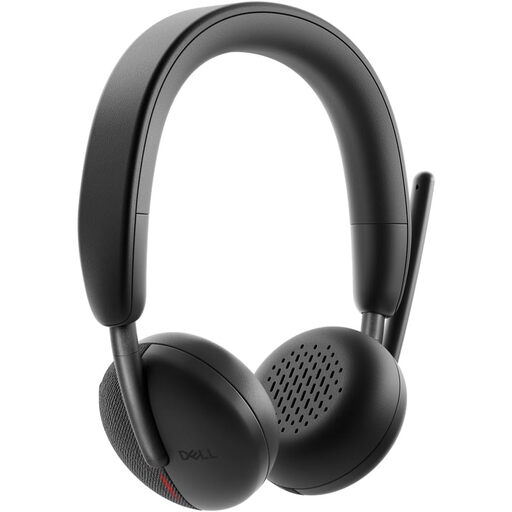
DELL Pro Headset WL3024
A wireless conferencing headset for callers who want to move between work locations while using a boom microphone.
Listed features include Bluetooth, a USB-C receiver with USB-A adapter, multipoint connection, flip-to-mute boom, call controls and replaceable cushions.
Check whether Teams or Zoom controls work through the intended receiver or Bluetooth connection on your work computer. Wireless use also requires charging.
Joybuy
 No image available
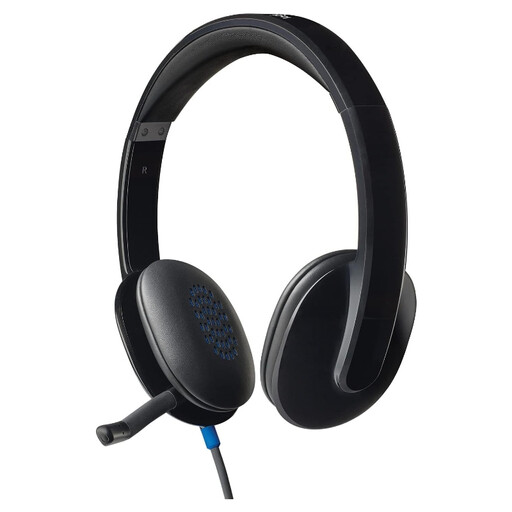
Logitech H540 Wired Headset
A wired option for fixed-desk calls where avoiding Bluetooth pairing and using a noise-cancelling boom microphone are priorities.
The listing states USB-A connectivity, a tuckable boom, inline volume and mute controls, LED mute indication, padded earcups and compatibility with Windows, macOS and ChromeOS.
Confirm that your laptop or dock has USB-A access and check certification or mute synchronisation separately if integrated Teams or Zoom controls are essential.
Joybuy
 No image available
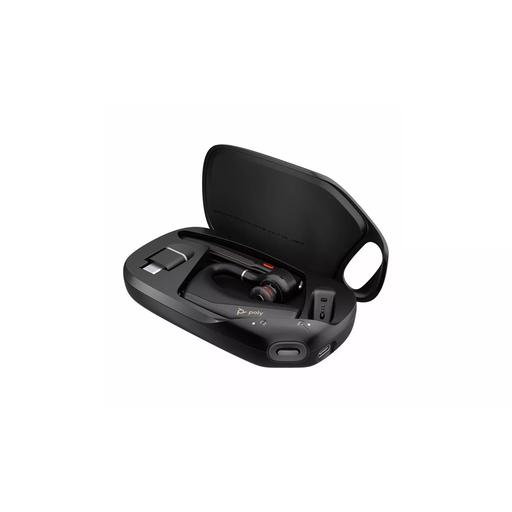
HP Poly Voyager Legend 50-M UC Bluetooth Headset
A Bluetooth UC headset for mobile callers who want a compact boom-mic format for work calls.
The listing states Bluetooth pairing, USB-C charging, on-ear mute, call and volume controls, plus NoiseBlock and WindSmart technologies; it also describes positioning the boom near the mouth.
Check whether a USB Bluetooth receiver is included and whether the chosen operating system supports the call controls you need. Test microphone performance in your normal call environment.
Joybuy
 No image available
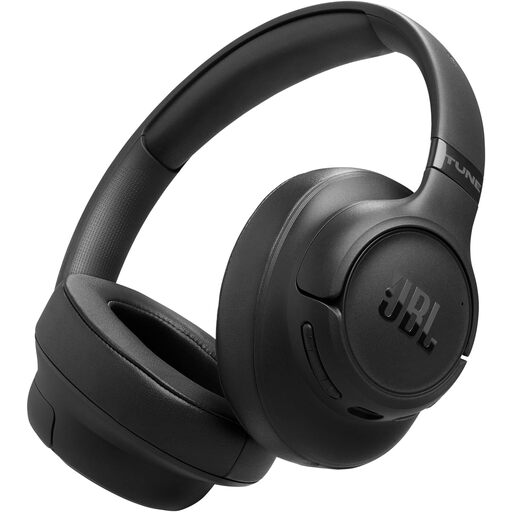
JBL Tune 780NC Wireless Over-Ear Headphones
An over-ear wireless option for calls across two paired Bluetooth devices, with listening-focused noise reduction alongside its call microphones.
The listing specifies Bluetooth multipoint, Windows pairing support, two beamforming microphones, adaptive ANC and a USB-C to 3.5 mm cable for wired listening.
ANC does not by itself confirm how much household noise the outgoing microphones reject. Check Teams or Zoom call-control support, and confirm microphone operation over the wired cable if that matters.
Joybuy
 No image available
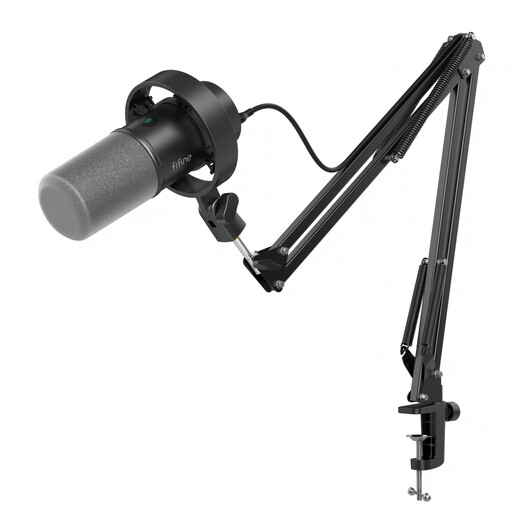
FIFINE K688CT USB/XLR Dynamic Microphone Kit
A separate-microphone route for fixed-desk callers who already own headphones and want independent input and output devices.
The listing states USB-C and XLR connectivity, a dynamic cardioid microphone, boom arm, windscreen, shock mount, gain control, mute button and headphone monitoring.
Separate headphones or speakers are required. Confirm that your call app and employer policy allow separate microphone and speaker selection; the listing states that XLR cable is not included and onboard controls work in USB mode only.
Joybuy
Frequently asked questions
Do I need a Teams- or Zoom-certified headset?
Certification is most useful when you rely on headset buttons for answering, ending and muting calls, or when your employer requires supported equipment. Microsoft states that certified USB devices offer Teams call control, while Zoom maintains certified hardware lists for wired USB, USB wireless and native Bluetooth headsets. A non-certified device may still provide basic audio, but do not assume button controls or mute synchronisation.
Will a Bluetooth headset give the same call controls on Windows and macOS?
Not necessarily. Microsoft states that Teams native Bluetooth-certified peripherals are currently supported on Windows PCs, while Zoom says qualifying native Bluetooth headsets can provide call control on Windows systems. Zoom notes that macOS users can use Bluetooth for audio but need a USB adapter for full call-control functionality.
Does ANC stop people on my call hearing household noise?
Not by itself. ANC is principally for reducing listening distraction for the wearer. For outgoing call sound, check microphone noise handling, boom placement, microphone-array information and, where relevant, open-office microphone certification. RTINGS explains that microphones closer to the mouth generally have a stronger speech-to-noise ratio.
Can I use headphones and a separate USB microphone for Teams calls?
Yes, where the devices are recognised and permitted by your organisation. Microsoft Teams allows you to select a connected speaker and microphone separately in Audio settings and provides a test-call option. Check your employer’s IT policy, as some settings may be unavailable.
Should my employer provide or pay for a work-call headset?
There is no universal answer. Acas says employers should regularly review the equipment and technology needed for home working and agree who will provide or pay for equipment, repairs, technical support and training. Check your employer’s home-working and expenses policies before paying personally.


