Hybrid workers on regular team calls
Test the laptop camera and audio in your meeting app first. Add a device when you can identify a specific problem with sound, framing, light or privacy.


Test your laptop’s camera, microphone and speakers in the meeting app from your usual workspace before adding equipment. If noise or private listening is the problem, assess a headset first; if framing or lighting is the problem, consider camera position, front-facing light or a webcam. Check your employer’s equipment and security requirements, then confirm the exact device works with your laptop and meeting platform.
The useful upgrade depends on what happens during calls in your usual room, not on having a complete set of accessories.
Test the laptop camera and audio in your meeting app first. Add a device when you can identify a specific problem with sound, framing, light or privacy.
If others can hear your calls or household sounds interfere, assess a headset and microphone. Check the connection and meeting-platform controls for the exact model.
Consider who can hear the call and what the camera shows. The UK National Cyber Security Centre also advises checking meeting access and how recordings, chats and shared files are handled.
Make a test call at your normal desk, then choose the component that addresses the problem you can hear or see. Confirm connections, meeting controls and workplace requirements before settling on a device.
| Priority | What to check | Your needs |
|---|---|---|
| Built-in equipment | Select and test the laptop camera, microphone and speakers in the meeting app. Check the preview and sound from your normal seat; Zoom notes that most laptops have integrated call devices. | I would rather keep using the laptop if colleagues can see and hear me clearly and I do not need private listening. |
| Call audio | Check whether the problem is microphone pickup, listening privacy or room noise. For a headset, confirm its connection and microphone selection in the app; assess a speakerphone only where open-room audio is appropriate. | Other people are nearby, so I need to hear the meeting without playing colleagues’ voices into the room. |
| Camera and light | Check camera height, framing and light on your face before changing webcams. If buying a camera, confirm its port and software requirements; Elgato, for example, specifies a direct USB 3.0-or-better connection for Facecam. | My face looks dark or the laptop angle shows too much of the room. I want to correct that without assuming a higher resolution alone will fix it. |
| Compatibility | Check the exact operating system, USB port or Bluetooth setup, meeting app and desired mute or answer controls. Microsoft and Zoom document device-specific call-control support; a working audio connection does not establish button compatibility. | I rely on meeting controls during calls and need to know whether they work with my work laptop and platform. |
| Workplace requirements | Ask whether your employer specifies equipment, companion software or meeting-security settings. In Great Britain, the Health and Safety Executive says display screen equipment assessments can apply to long-term home workers and people who routinely split work between home and the workplace. | Before adding a device or its software, I need to know what my employer supplies or approves and how to handle sensitive meetings. |
A different camera will not change which microphone the meeting app uses or address room echo. Zoom’s laptop guidance includes selecting and testing integrated audio as well as video.
Make a short call from your normal desk. If sound is the problem, check the app’s audio selection and consider a headset before changing the camera.
Sound may work even when mute or answer buttons do not work as expected. Microsoft says many Teams-certified Bluetooth devices are designed to use a USB dongle with PCs and Macs; Zoom lists support by device and function.
Check the exact headset, operating system, meeting app and any dongle or firmware requirements before relying on its buttons.
A speakerphone plays the meeting into the room, where other people may hear it. Its suitability for the room and microphone distance also depends on the model.
Use private listening when others should not hear the discussion. Consider a speakerphone for quiet, hands-free or shared-listening calls instead.
An employer’s equipment assessment or meeting-security requirements may affect which device and companion software you can use. The Health and Safety Executive sets out assessment considerations for long-term and routine hybrid home working in Great Britain.
Ask what your employer supplies or approves, and check its meeting and information-handling rules before installing device software.
These brand ranges illustrate different device features to check; the requirements and claims below apply to the named models, not every product from each brand.
Logitech lists webcams and headsets for work calls, including the Brio 300 webcam and Zone Wired 2 headset.
The PowerConf C200 is a webcam option for buyers considering a physical privacy cover and adjustable framing.
Facecam is a fixed-desk webcam option for a laptop or computer with the connection its setup guidance requires.
These headset and speakerphone options address call audio at a home desk. Choose between private listening and open-room sound according to who shares the space, then check the exact connection and meeting-platform controls.
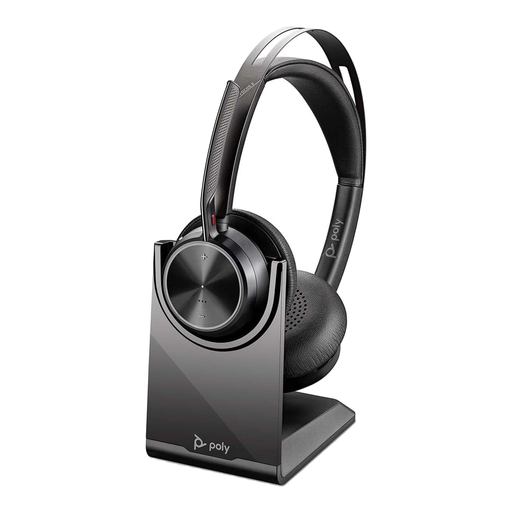 No image available
Consider a headset for calls where private listening matters. This variant is named with a USB-C/A adapter and charging stand; confirm its connection and call controls work with your laptop and meeting platform.
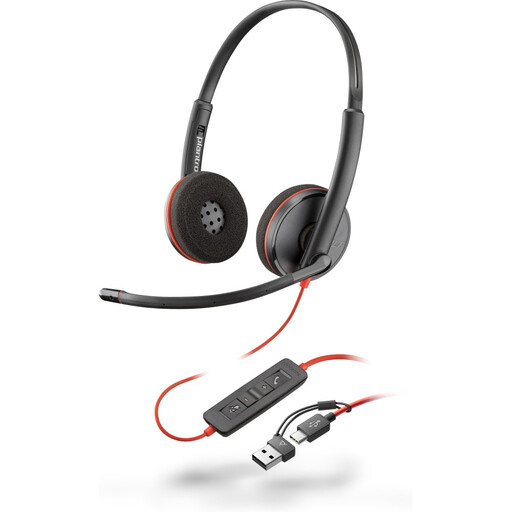 No image available
A USB-C headset is an option for regular calls at a fixed desk. The named variant includes a USB-C/A adapter; check which connection your work laptop accepts and whether the meeting app supports the controls you need.
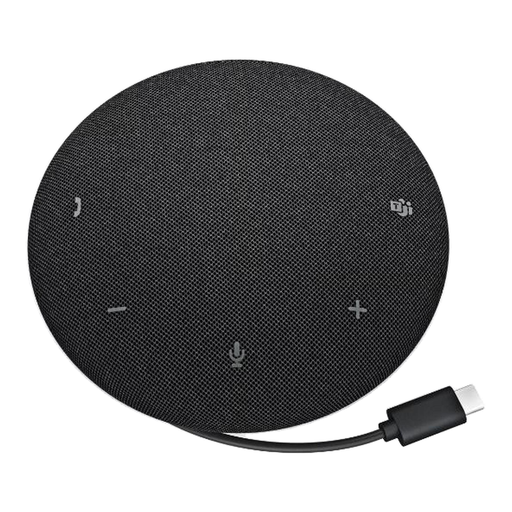 No image available
This wired speakerphone is an option when open-room listening is appropriate. It plays call audio into the room, so consider a headset instead if other people should not hear the meeting.
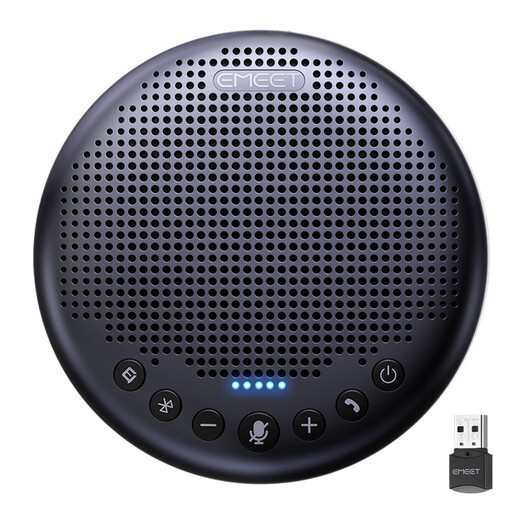 No image available
For hands-free calls in a suitable room, the product name identifies eight microphones and Bluetooth connectivity. Check operating-system and meeting-control compatibility, and remember that speaker playback is audible to others nearby.
 No image available
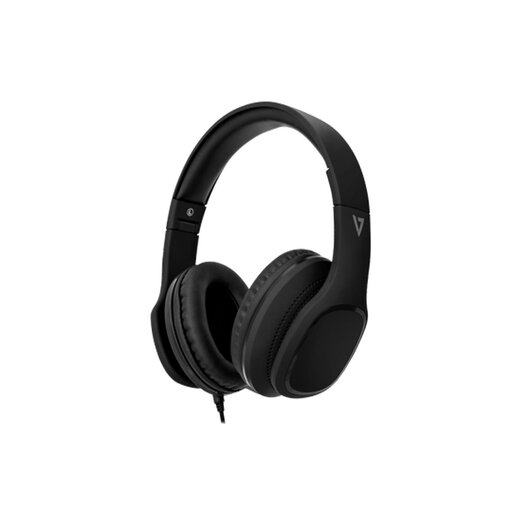
These wired headphones offer a private-listening route for desk calls. The product name specifies 40mm drivers, an inline MEMS microphone and passive noise isolation, not active noise cancellation. Confirm that your device’s 3.5 mm connection supports the microphone.
Yes, if a test call from your usual workspace shows that colleagues can see and hear you clearly and you do not need private listening. Zoom notes that most laptops have integrated cameras and audio devices; select and test them in the meeting app before deciding what to add.
For a fixed desk, a wired headset avoids charging and Bluetooth-connection considerations. If you want wireless use, check the exact laptop and meeting-platform setup: Microsoft says many Teams-certified Bluetooth devices are designed to use a USB dongle with PCs and Macs.
Do not assume it will work from the USB or Bluetooth connection alone. Microsoft describes call controls for Teams-certified peripherals, while Zoom lists supported devices and functions separately; check the exact model, operating system and any dongle requirements.
Yes: ask about supplied or approved devices, meeting software and security rules. In Great Britain, the Health and Safety Executive says display screen equipment regulations can apply to long-term home workers and those who routinely split work between home and the workplace; an assessment determines equipment needs. The Health and Safety Executive for Northern Ireland gives separate guidance for home and hybrid workers there.
No. A closed shutter blocks the lens, but it does not control who joins or what happens to shared material. The UK National Cyber Security Centre advises considering meeting access, surroundings and where recordings, transcripts, chats and files are stored; follow your employer’s approved settings.