Families setting up a first tablet
If you will prepare the device for an older relative, focus on a calling app, recognisable contacts and a routine they can repeat. Set everything up before handover and make a practice call from its usual place.


For calls mainly from home, start by checking whether Wi-Fi works reliably where the tablet will sit, then choose a device the recipient can see, hear and operate comfortably. A larger screen or charging stand may help with a particular difficulty, but neither replaces setting up contacts and practising a call; choose cellular connectivity when Wi-Fi is inadequate, after checking coverage and the ongoing data plan.
If you will prepare the device for an older relative, focus on a calling app, recognisable contacts and a routine they can repeat. Set everything up before handover and make a practice call from its usual place.
Age UK recommends adjusting text and icon size to make a device easier to use. Try the recipient’s needed display, sound and navigation settings on the particular tablet rather than assuming a larger screen will solve every difficulty.
If calls cannot rely on the home connection, check mobile coverage at the address before choosing a cellular tablet and data plan. Ofcom identifies video calls as an activity that uses a mobile data allowance when the device is away from Wi-Fi.
Test the intended calling routine and connection first, then assess the tablet’s controls, charging position and upkeep.
| Priority | What to check | Your needs |
|---|---|---|
| Calling routine | Confirm the preferred app works on the tablet; set up the account and trusted contacts. Test incoming and outgoing calls in the usual room. | I want the caller to recognise whom to contact without searching through unfamiliar menus. |
| Readable controls and audio | Try text and icon sizing, magnification, captions or spoken feedback as needed. Check that the recipient can hear the call and use its controls comfortably. | Small labels, difficult gestures or quiet-sounding calls would make this device harder for me to use. |
| Connection | Test Wi-Fi in the calling location. If it is inadequate, check the cellular model’s network compatibility, address-specific coverage and data-plan terms; Ofcom notes that video calls use mobile data away from Wi-Fi. | I need calls to work where the tablet normally lives, whether that means dependable home Wi-Fi or a suitable mobile connection. |
| Size and charging | Check screen visibility against the device’s weight and how it will be held or supported. For a stand or dock, confirm compatibility, charging method and what comes in the box. | A consistent place to leave and charge the tablet matters if plugging in a cable or holding it for a whole call is difficult. |
| Updates and accounts | Check the exact model’s current software and security-support information. Enable available updates and arrange secure account access and recovery; the National Cyber Security Centre advises installing software and app updates. | Someone in the family will need a manageable way to maintain the tablet and help with the calling account. |
More display space does not automatically simplify menus, touch gestures or sound. The caller may also need adjusted text, audio or navigation settings.
Try the specific tablet with the recipient where possible, and adjust its controls before deciding whether more screen space helps.
Video calls use a mobile allowance when the tablet is not on Wi-Fi, while mobile coverage must be suitable at the place calls will be made.
Test home Wi-Fi first. If cellular service is needed, use Ofcom’s coverage checker for the address and compare plans against expected use.
A cellular setup also brings an ongoing data-plan cost.
Future update information can depend on the exact model and market. Lenovo, for example, cautions that some updates in its Android Upgrade Matrix are country-specific.
Record the model number and check the manufacturer’s current UK software and security-support information before buying.
Account creation, permissions and contact searches can interrupt a calling routine that has not been prepared.
Configure the chosen app, add trusted contacts, test calls in both directions and leave a short written reminder of the steps.
These brand features are starting points for checking an exact model, not a substitute for trying the recipient’s calling routine.
Apple documents iPad accessibility settings for vision, hearing, mobility and other needs. Its Assistive Access can provide a Calls app for voice or FaceTime video calls where that interface suits the recipient.
Samsung’s Galaxy Tab A11+ range includes a 5G model with an 11-inch display and a stated 5 MP front camera. Samsung also documents TalkBack spoken feedback for its mobile devices.
Lenovo provides an Android Upgrade Matrix that buyers can consult when checking software plans for a particular tablet model.
These tablets offer Wi-Fi options for home calls and cellular options to consider where home Wi-Fi is inadequate. Compare each device with the recipient’s controls, calling app and connection before choosing.
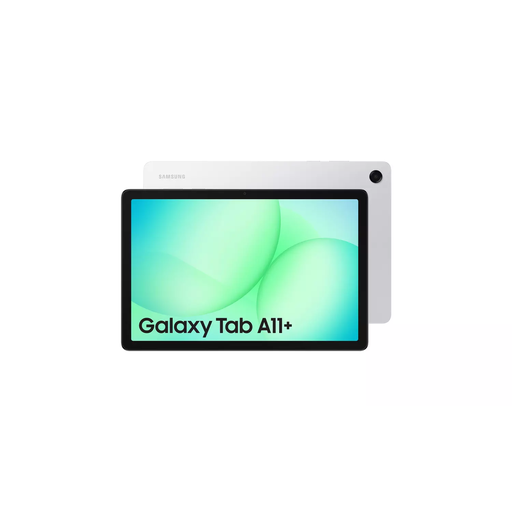 No image available
A Wi-Fi option for calls mainly from home. The listing specifies an 11-inch display, 5 MP front camera, stereo speakers and a weight of 477 g. Check the exact UK model’s current security-support information and which power adapter is included.
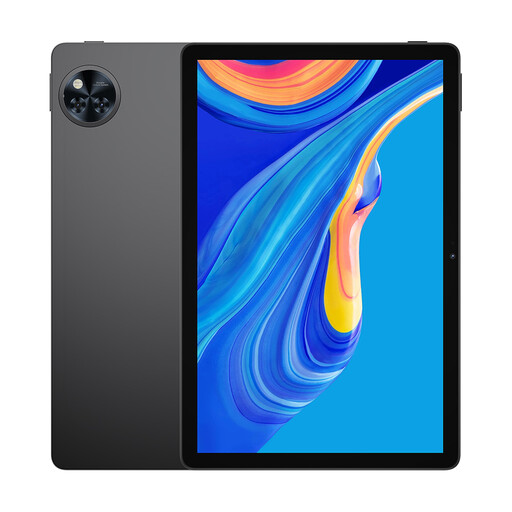 No image available
For a home Wi-Fi calling setup, the listing specifies an 11-inch display, 5 MP front camera and dual speakers. Check the exact model’s current software-support information and try the calling app and accessibility settings the recipient needs.
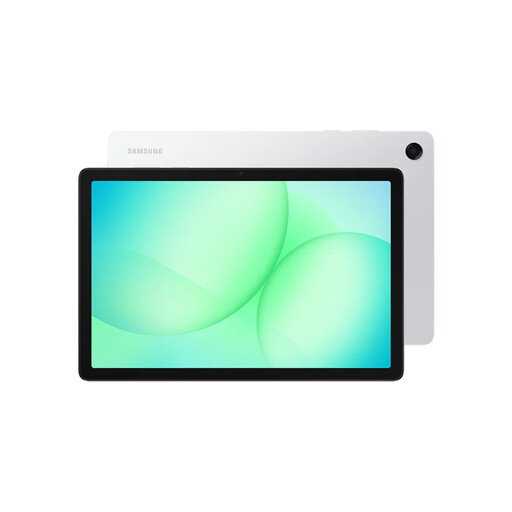 No image available
A cellular option to assess where home Wi-Fi is inadequate. The listing specifies an 11-inch display, landscape 5 MP front camera and quad speakers. Confirm that this exact variant works with the intended UK network, check coverage at the home address and review its current software support.
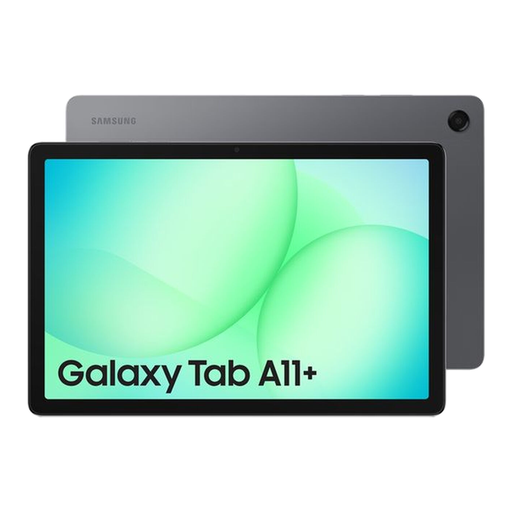 No image available
For home calls over Wi-Fi, the listing specifies an 11-inch display, 5 MP front camera, speaker and microphone. It also lists a USB-C cable and setup instructions; check the exact UK variant’s current update support before choosing it for long-term use.
 No image available
This 13-inch cellular option is worth assessing if the recipient wants a larger display and Apple’s Assistive Access calling setup suits them. The listing specifies a landscape 12 MP front camera. Check handling and audio in person where possible, along with current model support, mobile coverage and a compatible data plan.
Set up the chosen calling app and account, add trusted contacts, adjust text and sound, and make an incoming and outgoing call from the tablet’s usual place. If Apple’s Assistive Access suits the recipient, configure its Calls app before handover.
A Wi-Fi tablet is a practical choice if the connection works reliably where calls will happen. If it does not, check a cellular tablet’s network compatibility and local coverage, then compare data plans: Ofcom notes that video calls use mobile data when the device is not on Wi-Fi.
Match the exact UK model number to the manufacturer’s current support information and look for operating-system and security-maintenance details. Lenovo cautions that some updates in its Android Upgrade Matrix are country-specific and that unlisted products have no upgrade plan available there.
A fixed place for the tablet may make the charging routine easier to repeat, but test whether the person can use it comfortably. Check whether the stand actually charges the exact tablet and works with its case, and confirm which power components are included.
Use a unique, strong password for the main account, keep device and app updates enabled, and agree who can help with account recovery. The National Cyber Security Centre recommends updates for their security fixes and says password managers can help people use unique passwords.