People who need a supported screen
For a relative who finds holding a phone difficult, the tablet needs a case and stand that keep it securely positioned at a comfortable viewing angle.


Choose a tablet your relative can use from a stable stand, with a case fitted to the exact model and the calling app tested on that device. A Wi-Fi tablet makes sense if the care setting confirms usable access where calls will happen. Consider cellular connectivity if Wi-Fi is unsuitable, but first check mobile coverage, the setting’s device policy and who will manage the data plan.
For a relative who finds holding a phone difficult, the tablet needs a case and stand that keep it securely positioned at a comfortable viewing angle.
A relative who can enjoy a video call may still need help finding contacts or handling unexpected prompts. A trusted supporter can set up the calling app and try the chosen accessibility settings with them; Apple Support and Google Android Accessibility Help describe options that vary by platform and device.
Before choosing the connection, ask how the individual setting handles resident Wi-Fi, personal devices, charging and storage. Department of Health and Social Care guidance for care providers in England does not establish what will work in a particular room.
Work out how your relative will start and take a call, then test the tablet, case and stand together. Confirm the connection at the place where calls will happen before deciding whether cellular capability is useful.
| Concern | What to check | Who this matters to |
|---|---|---|
| Repeatable call setup | Test the intended app, account and key contacts on the exact tablet; agree who will handle later prompts and updates. | If my relative cannot easily find a contact or get past a prompt, I need a calling routine they can repeat with support arranged. Roughly 31% of consumers put simple call setup first. |
| Hands-free positioning | Match the case to the exact model and check that the stand holds the tablet securely with the case fitted, without blocking the camera or charging port. | When holding a device is difficult, I need the screen to stay at a usable angle throughout the call. For roughly 25% of consumers, stable positioning is the primary concern. |
| Readable, hearable calls | Try the screen and speaker at the intended calling distance; test useful display or accessibility settings on the chosen model. | If my relative struggles to see the caller or hear the conversation, a larger tablet alone may not settle the choice. Around 25% of consumers put call accessibility first. |
| Connection and acceptance | Ask about Wi-Fi sign-in and room coverage, permission for personal or SIM-enabled devices, and charging and storage arrangements. | Before I choose Wi-Fi or cellular, I need to know which connection and device arrangements the care setting will accept. That is the deciding need for roughly 19% of consumers. |
Mobile connectivity cannot resolve weak in-room coverage or a restriction on personal devices. Department of Health and Social Care guidance for care providers in England describes mobile broadband as an alternative or backup, not a requirement for every resident’s tablet.
Ask the setting about Wi-Fi access, mobile coverage, SIM-enabled devices, charging and storage before choosing the connection.
If holding a phone is difficult, an unsuitable stand can leave the larger tablet just as awkward to use.
Choose the exact tablet model first, then check the case fit, camera and port clearance, and whether the stand remains stable with the case attached.
Apple Support says some permissions and software updates on an iPad require leaving Assistive Access. A supporter may need to make changes after the initial setup.
With the final interface in place, test placing and receiving a call, including what happens after the screen locks or charging is interrupted.
Google Android Accessibility Help and Samsung say controls can vary by device, model or software version.
Try the intended calling app and your relative’s preferred settings on the exact model rather than relying on a general feature description.
An iPad is worth considering when a trusted supporter can configure a focused calling interface for the relative.
A Galaxy Tab may suit a household that prefers Android and wants to examine the accessibility controls on a particular tablet.
Lenovo’s Android tablets are another line to examine for larger-screen video calls.
These tablets offer different connection options for the care-setting calling scenario: the TABWEE W90 lists Wi-Fi and 4G LTE, while the TABWEE T80 lists Wi-Fi. For either one, check the calling app, the setting’s connection arrangements and an exact-model case-and-stand combination before choosing.
 No image available
Consider this model if the care setting permits a mobile-connected tablet and Wi-Fi alone may not suit the intended calling location.
The product name lists an 11-inch screen, dual 4G SIM support and 5G Wi-Fi. Check the intended video app and accessibility settings on this model, and confirm that a case and stand fit it securely.
 No image available
Consider this model for calls over the care setting’s Wi-Fi if access works where your relative will use the tablet.
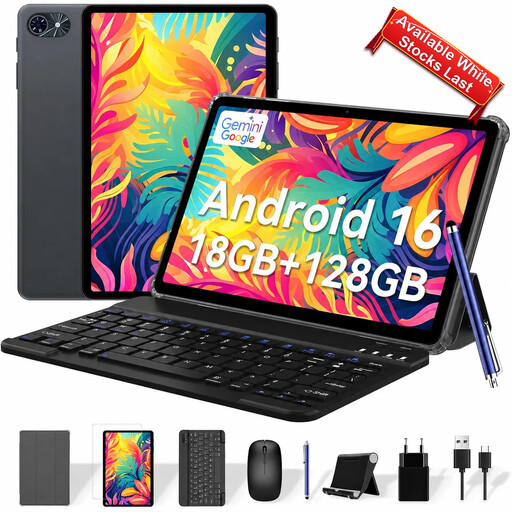
The product name lists a 10-inch screen, 5G Wi-Fi and a keyboard. Test the calling app and useful accessibility settings on the exact model, and check that a fitted case and stand support hands-free calls.
Choose Wi-Fi if the setting confirms usable access where calls will happen; consider cellular if Wi-Fi is unsuitable and the setting permits a mobile-connected personal device. Department of Health and Social Care guidance for care providers in England describes fixed-line broadband as preferable in residential care and mobile broadband as an alternative or backup. Check the individual room’s coverage and connection arrangements before deciding.
WhatsApp can be a calling option on a compatible tablet, but check the app on the exact device before relying on it. The WhatsApp App Store listing describes linking an iPad, while its Google Play listing describes video calling and phone-number-based setup. Complete the account steps, add essential contacts and make a test call.
Set up the intended user’s account where possible, the calling app and contacts, then test a call with the tablet in its case and stand. Agree who will handle charging, passcodes and updates. Apple Support notes that an iPad in Assistive Access must leave that mode for some permissions and software updates.
Ask the individual setting how it handles personal tablets and supported calls, and involve your relative in the arrangements. For technology used as part of someone’s care, Care Quality Commission guidance for providers addresses consent and says the best-interests principle is relevant if the person lacks capacity to consent. That guidance should not be treated as a blanket rule for every family-owned tablet.
Agree on a supporter who can keep it charged, install updates and check that the calling app still works, alongside the setting’s arrangements for storage and assistance. On an iPad using Assistive Access, Apple Support says software updates require leaving that mode.