Who needs which equipment?
The useful upgrade depends on what a test call reveals about your current setup.
People working from home regularly
If you join recurring meetings, check whether others can hear you and whether the camera gives you a usable view. In Microsoft Teams, you can select devices and make a test call; an accessory is worth considering when that check identifies a particular audio or video problem.
Callers in shared or noisy rooms
When you need to listen privately or place a microphone closer to your mouth, assess a headset first. Check how the chosen model connects, then select its speaker and microphone in your calling app.
People struggling with framing or lighting
If audio already works but your built-in camera sits at an awkward angle, a separately mounted webcam may address the positioning problem. Check the mount, computer compatibility and any physical privacy cover you want; if positioning is fine, assess the room’s lighting before replacing the camera.
What should you check before buying?
Start with a call using your existing equipment, identify the weakest part of the setup, then check that a proposed accessory will work with your computer and calling service.
| Priority |
What to check |
Your needs |
| Speech and listening |
Test the microphone and speaker selected in the call app. If considering a headset, check its microphone placement, listening style and connection method; a standalone microphone still needs separate listening equipment. |
I need other people to hear me, and I may need to listen privately in a shared room. If my current headphones or speakers already suit me, a separate microphone may be enough. |
| Camera position |
Preview the current camera angle. For an external webcam, check its mounting options, stated resolution and whether the app can select it. |
My audio works, but the built-in camera gives an awkward view. I want to position a camera where it suits my calls. |
| Room lighting |
Preview the image in the room where calls happen, including with light behind you. Assess lighting separately from camera position; do not treat a manufacturer’s automatic-correction claim as a guarantee. |
The camera angle is acceptable, but my face looks dim or backlit. I want to address that lighting problem rather than assume a new webcam will fix it. |
| Connection and compatibility |
Match USB-A, USB-C, Bluetooth or a supplied adapter to the specific computer. Check the product’s operating-system support and the calling service’s device requirements; Zoom lists built-in, USB and Bluetooth audio options in its system requirements. |
I want the accessory to connect to the computer I actually use and to be selectable in my calls, without assuming every variant connects the same way. |
| Privacy and setup |
Check for a physical camera cover if you want one. Before a call, select and test the intended camera, microphone and speaker, and allow app or browser access where required; a camera cover does not control microphone access. |
I want to know which devices are active and be able to check them before an important meeting. |
| Home connection |
Check the calling service’s network guidance when video quality remains poor. Zoom’s web-app guidance specifies different bandwidth levels for high-quality, 720p and 1080p video, so a camera change alone cannot resolve every connection problem. |
If my video breaks up during calls, I want to check the connection before attributing the problem to the camera. |
Which brands offer relevant options?
These product lines illustrate different camera and audio choices; check the specifications of the exact model and variant you intend to use.
Logitech
Logitech’s Brio webcam range includes models aimed at personal video calls.
- Logitech lists 1080p video, a built-in microphone and a privacy shutter for the Brio 100.
- Logitech describes additional light-correction and framing features for the Brio 500; check that model’s mount, port and operating-system support rather than assuming the features apply across the range.
Jabra
Jabra’s Evolve2 headsets are relevant when a caller needs a headset microphone and private listening.
- Jabra lists Bluetooth connectivity and USB-A or USB-C adapter variants for the Evolve2 65.
- Jabra’s noise-reduction descriptions are product claims, not an assurance of the same result in every room. Confirm the selected variant’s connection method.
HP Poly
HP Poly offers personal webcams and headset ranges, so the relevant line depends on whether video or audio needs attention.
- HP lists a privacy shutter and 1080p resolution for the Poly Studio P5 webcam, alongside USB and wireless headset ranges.
- Connection types and features differ by model. Check the exact device against your computer and calling service.
Joybuy options for home video calls
These options cover wired headsets for call audio, USB webcams for a separate camera position and a desktop microphone for voice pickup. Compare them with keeping your built-in equipment or adjusting your lighting, according to the problem your test call reveals.
 No image available
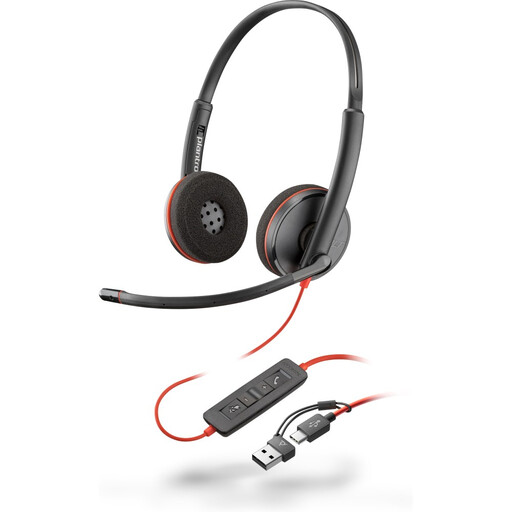
Poly Blackwire 3220 stereo USB-C headset with USB-C to USB-A adapter
Consider this wired headset if private listening and a headset microphone would help with regular calls. Its name specifies a USB-C connection and USB-C to USB-A adapter; check your computer’s port, then select and test the headset in your calling app.
View on Joybuy
 No image available
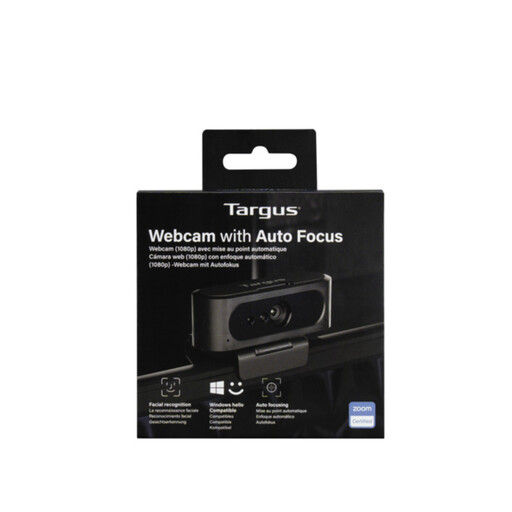
Targus 2K Webcam with Auto Focus
Consider a separate webcam if your built-in camera’s position does not suit your calls. This model’s name says 2K, while its listing’s technical table says Full HD 1080p; confirm the resolution you need before buying, and select the webcam in your calling app after connecting it.
View on Joybuy
 No image available
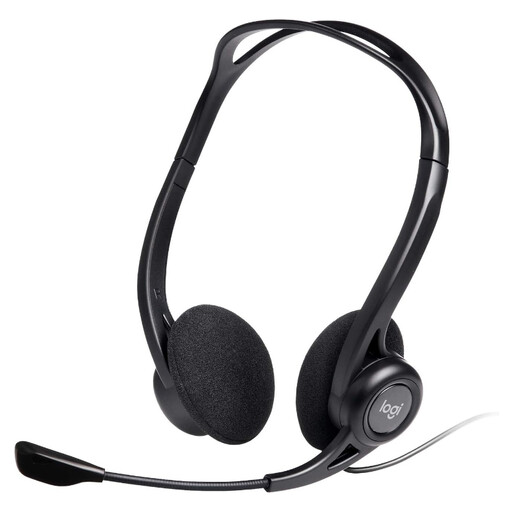
Logitech 960 wired USB headset with inline controls
This is another wired headset option when you want private listening and microphone controls for calls. The listing specifies USB-A, a repositionable microphone and inline volume and mute controls; check for a suitable port and do not assume its noise-cancellation description guarantees results in your room.
View on Joybuy
 No image available
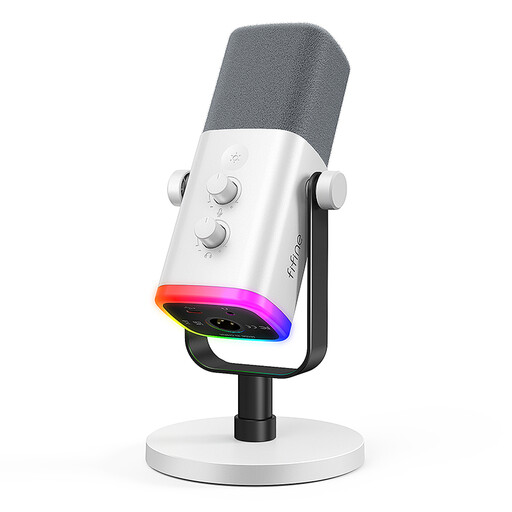
FIFINE AM8W XLR/USB dynamic microphone, white
A standalone microphone is worth considering when voice pickup is the issue and your camera and listening equipment already suit you. The AM8W name specifies XLR and USB connections; check your intended connection and calling-app compatibility. The listing says a base stand is included, but an XLR cable and boom arm are not; you will still need separately selected speakers or headphones.
View on Joybuy
 No image available
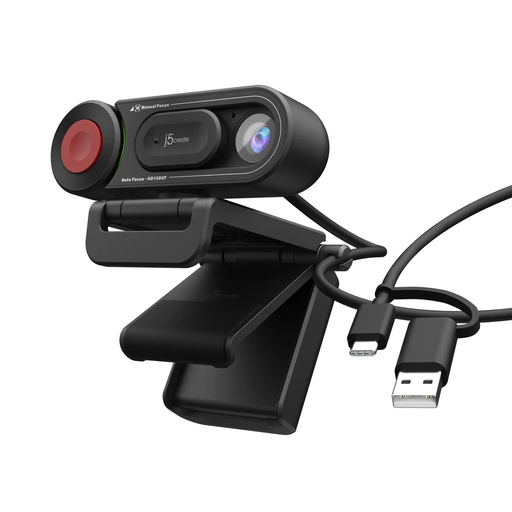
j5create JVU250 HD webcam with auto and manual focus
Consider this webcam if you need a separately positioned camera and want a choice of focus modes. The listing specifies 720p video and USB-A; decide whether that resolution suits your calls, check your computer’s port and select the webcam in the meeting app.
View on Joybuy
Home video-call equipment FAQs
Do I need a separate webcam for regular home video calls?
Not if your built-in camera gives you acceptable framing and visibility in a test call. Zoom lists built-in and USB webcams as options; consider an external webcam when you need a different camera position or a feature such as a physical privacy shutter, and check its compatibility before buying.
Should I choose a headset or a standalone microphone?
Choose a headset when private listening and a microphone close to your mouth matter together. A standalone USB microphone addresses voice pickup without replacing your listening equipment, so check that your existing headphones or speakers suit you and that the call app selects the new microphone.
What matters when choosing a wired or wireless headset?
Check the connection method of the exact variant against your computer: it may use USB-A, USB-C, Bluetooth or a supplied USB Bluetooth adapter. Jabra, for example, lists different adapter variants for the Evolve2 65; once connected, select both the headset speaker and microphone in your calling app.
Why might a new camera or microphone not work in a call?
The app may still have a built-in device selected, or it may lack permission to use the new one. Microsoft also advises checking whether another app is using the camera in Teams; select the intended devices, check permissions and run a test call.
Will a better webcam fix poor video caused by the connection?
No. Zoom’s web-app guidance gives different bandwidth requirements for high-quality, 720p and 1080p video. If calls break up, check the home connection and the service’s requirements before treating a camera upgrade as the fix.


