Choose the setup your relative can use for regular calls, rather than choosing by device type alone. A tablet offers a portable viewing area, an existing smartphone avoids a new interface, and a computer can suit a fixed calling place; a family-managed specialist device is worth considering when navigating calls is the main barrier. Whichever route you choose, check the calling app, internet connection, camera and audio, and plan time to practise together.
Who the setup needs to work for
An older relative learning at their own pace
Someone who wants regular contact may need a calling routine they can repeat without pressure. Age UK describes learning with help from family, carers or a Digital Champion; AbilityNet recommends training tailored to the person and spread over time.
A caller with access needs
Readable controls, call volume, captions, spoken feedback or a comfortable way to operate the device may determine whether calls are practical. Ofcom identifies hearing and vision impairment among factors associated with digital exclusion; settings on a particular device still need to be tried with the person using it.
A family member arranging calls from elsewhere
The person buying the device may also need to set up contacts and the chosen app, check the home connection and provide help later. Age UK and AbilityNet both emphasise paced, individual support rather than a single setup session.
What matters when choosing
Start with the device your relative can operate comfortably, then test the complete call in the place they will normally use it. An external accessory can address a particular computer camera or audio need, but it does not replace the computer or its internet connection.
Tablet
Consider it when: your relative wants a portable screen with more viewing room than a typical phone.
Allow for: touchscreen practice, a comfortable position for calls and a charging routine.
Existing smartphone
Consider it when: your relative already recognises the phone and uses it confidently.
Allow for: a smaller view of faces and controls, and check the mobile-data allowance if calls will not use Wi-Fi.
Laptop or desktop
Consider it when: there is a comfortable, fixed place for calls and the person is familiar with using a computer.
Allow for: camera and audio setup, app permissions and, for some desktop setups, separate peripherals.
Family-managed specialist device
Consider it when: finding contacts and starting calls independently matter more than unrestricted app choice.
Allow for: contact or app restrictions and an ongoing family-administration or service arrangement. AbilityNet describes these features for GrandPad.
| Concern | What to check | Who this matters to |
|---|
| Starting and answering calls |
Try the exact app together: can the person find a contact, answer a call and recover if a call drops? |
If my relative feels unsure about unfamiliar steps, I need a routine they can practise and repeat with help available later; around 31% of consumers would put independent operation first. |
| Seeing, hearing and handling |
Try text and control sizes, call volume and the way the device is held or positioned; test any needed accessibility settings. |
Faces, controls or speech need to be comfortable for my relative during a normal call, not just on a specification sheet; around 25% of consumers would prioritise accessible interaction. |
| A working call at home |
Check the internet connection, camera, microphone and speakers in the usual room; on a computer, check app permissions. |
When we call from the usual room, I need both sides to see and hear each other without repeatedly fixing the setup; roughly 25% of consumers would make call readiness their primary concern. |
| Existing devices and support |
Check whether the family’s app works on a familiar device, where it will charge and who can help after setup. |
I would rather build on a device my relative knows if someone can keep helping with it; about 19% of consumers would put that continuity first. |
Avoiding common setup mistakes
-
Stopping after the app is installed
A configured device may still be difficult to use when a call comes in. Ofcom identifies skills and confidence as barriers to digital participation, while Age UK and AbilityNet describe the value of individual, continuing help.
Arrange a practice call, let your relative repeat the steps and agree who they can ask when something changes.
-
Choosing by camera specification alone
Video calls also need an internet connection and working audio. Microsoft notes that computer apps need access to the camera and microphone, while Zoom lists speakers, a microphone and a webcam among its call requirements.
Make a test call from the intended room, checking what each person can see and hear and which devices the app has selected.
-
Overlooking mobile data
Age UK warns that video calling uses substantial data, so a phone used away from Wi-Fi needs an allowance that suits the planned calls.
For regular home calls, connect to Wi-Fi where possible and make sure your relative can recognise when it is connected.
-
Assuming a specialist device is automatically easier
A managed contact list may suit someone who finds navigation difficult, but mainstream devices also offer accessibility settings. Neither approach settles how the person will handle the device or use the family’s chosen calling service.
Try the relevant controls with your relative and check supported contacts, apps and administration arrangements before choosing a managed system.
Relevant brands to consider
Apple
An iPad or iPhone route for a household considering a familiar tablet or phone interface.
- Apple describes iPad features including VoiceOver, Zoom and Voice Control; its 11-inch iPad (A16) specification lists a landscape front camera, stereo speakers and dual microphones.
- Check the exact model and set up any needed accessibility features with the person who will use them.
Samsung
A Galaxy phone or tablet route for households comfortable with Android navigation.
- Samsung UK describes mobile accessibility options for vision, hearing, mobility and cognitive needs, including TalkBack and magnification.
- Check the chosen Galaxy model, software version and call hardware, then try the relevant controls with your relative.
Microsoft
Windows is relevant when a laptop or desktop will be the calling device.
- Microsoft explains how Windows controls app access to a camera and microphone and provides display, speech and screen-reading options.
- Check the computer’s actual call hardware and permissions, as well as whether its everyday workflow suits the user.
GrandPad
A family-managed specialist tablet route where contact control and simplified calling are priorities.
- AbilityNet describes one-touch calling access, an approved-contact network, family administration and optional calling features for GrandPad.
- Confirm the current UK lease and support terms, internet requirements and whether its contact and app choices fit the family.
Joybuy tablets and calling accessories
These tablets are options to assess if your relative would prefer a portable screen for calls. The webcam is an accessory to consider for an existing computer, not a standalone calling device. Check the intended app and complete audio setup before relying on any of them for regular calls.
 No image available
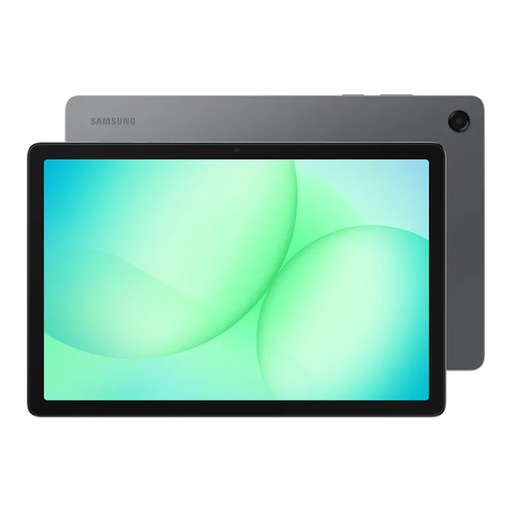
Samsung Galaxy Tab A11+ 11-inch 128GB Wi-Fi, Grey
Consider this tablet if an 11-inch screen suits your relative’s usual calling position. The named variant has 128GB storage and Wi-Fi; check the microphone, chosen calling app and ease of handling in a practice call.
Joybuy
 No image available
HONOR MagicPad 4 256GB, Grey
Consider this tablet for a portable home-calling setup. The named variant has 256GB storage; try its size and controls with your relative, and confirm the microphone and family’s calling app before choosing it.
Joybuy
 No image available
HONOR Pad X9a 11.45-inch Wi-Fi 128GB, Grey
Consider the 11.45-inch screen if viewing space is important to your relative. This named variant has Wi-Fi and 128GB storage; check the home connection, microphone and intended app, then try the controls together.
Joybuy
 No image available
TECLAST ArtPad Pro 2025, 12.7-inch 2K, 256GB, with stylus
Consider this tablet if your relative can comfortably position and operate a 12.7-inch device. Its name specifies a 2K display, 256GB storage and an included stylus; confirm microphone and speaker operation in the chosen calling app before relying on it for calls.
Joybuy
 No image available
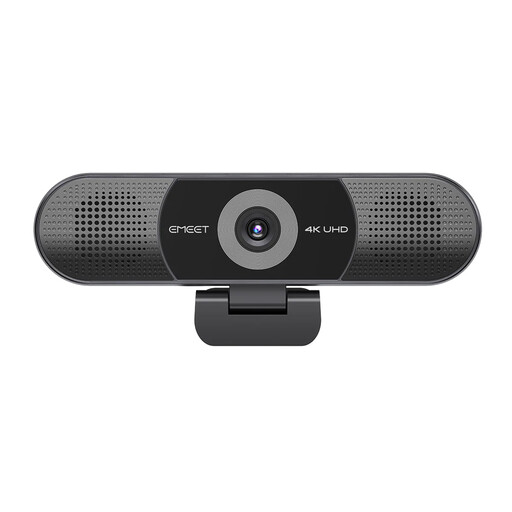
EMEET All-in-One 4K USB Webcam with Sony Sensor
Consider this accessory when an existing computer needs external call hardware. Its name lists a four-microphone array, two speakers, fixed focus and a 98° adjustable field of view. It still needs a compatible computer, an internet connection and a test with the intended calling app.
Joybuy
Questions before you buy
What does a device need for a video call?
It needs the chosen calling app, an internet connection, a camera, a microphone and a way to hear the other person. Zoom lists internet, webcam and audio requirements for computer calls; Age UK also advises watching mobile-data use, so Wi-Fi is worth checking for regular calls.
How can I set up calls for a relative who lives elsewhere?
Arrange a practice call using the family’s chosen app before depending on the device for regular contact. Add the right contacts, check the connection and charging position, and test computer camera and microphone permissions if relevant. Age UK and AbilityNet recommend help that can continue as the person learns.
Is a bigger screen more useful than a simpler interface?
Choose according to what makes calls difficult for the person using the device. More viewing room may help with faces and controls, while fewer navigation steps may matter more if starting or answering a call is the barrier. Try the screen, controls and any accessibility settings together.
What should I check with a family-managed device?
Check which contacts and calling services it allows, who administers it, what internet connection it needs and how support works. AbilityNet describes GrandPad as a UK leasing option with family administration, so confirm its current service terms and whether that arrangement suits your relative.


