What should you check before choosing?
Start with where your relative will call and how they will join. Then try the controls, connection and first-call steps on the proposed setup.
Tablet
Consider it when: Most calls will happen at home and a larger touch display would make contacts and call controls easier to use.
Allow for: Charging, internet access and help with the initial account and app setup if the person needs it.
Smartphone
Consider it when: Your relative already manages a mobile phone and wants to take calls away from home.
Allow for: Smaller onscreen controls and the mobile-data allowance when calling without Wi-Fi.
Existing computer
Consider it when: Your relative is comfortable using their computer at a desk.
Allow for: Camera and microphone permissions, plus any connected accessory the setup needs.
| Priority |
What to check |
Your needs |
| Calling service |
Confirm the app or invitation method close family uses. Try joining a call on the proposed device, including its camera and microphone. |
I want my relative to reach the people they call without having to learn a different joining process each time. |
| Accessible controls |
Try text and display adjustments, spoken feedback or captions where relevant. Check the exact device, language and calling app: Apple Support and Google’s accessibility guidance describe features whose availability or setup can vary. |
Can they find a contact, recognise an incoming call and operate the controls comfortably? |
| Everyday setup |
Set up the account and contacts with the person, practise a call and agree who can help later. Check where the device will be kept and charged. |
I need a routine my relative can repeat, with a trusted person to ask if a setting changes. |
| Internet connection |
Try a call on the intended home connection. If calls will use mobile data, check the allowance; Age UK cautions that video calling uses a lot of data. |
Will calls usually happen on home Wi-Fi, or does the device need to work when they are out? |
| Computer equipment |
Check whether an existing camera and microphone work before adding accessories. For Windows, check camera and microphone access for the chosen app or browser; Microsoft Support describes these privacy controls. |
If a computer is already familiar, I would rather check its calling setup before introducing another device. |
Relevant brands and platforms
These references help identify settings and services to check; a brand’s features do not establish how a particular device will work for your relative.
Apple
For families considering an iPad or iPhone and the accessibility settings available in Apple’s device ecosystem.
- Apple Support describes iPad options for vision, hearing, mobility, speech and cognitive accessibility, as well as Assistive Access on iPad.
- Check the required feature, language and calling app on the intended device; a supporter may also need to help with setup.
Samsung
For families considering a Galaxy phone or tablet and wanting to explore its accessibility settings.
- Samsung UK describes mobile accessibility features for vision, hearing, mobility and cognition.
- Check which settings are available on the exact Galaxy model and try them in the family’s calling app.
Google
Relevant for Android accessibility tools and Google Meet, rather than a promise of identical settings on every Android device.
- Google Android Accessibility Help describes TalkBack for people who cannot see the screen, while Google Meet Help lists computers, smartphones and tablets among supported device types.
- Try the exact Android device and version; TalkBack setup and the available call controls need to work for the person using them.
Joybuy device options
These options include a webcam for an existing computer, tablets for a home setup and a smartphone for portable calls. Use the family’s calling service and your relative’s ability to operate it as the deciding checks.
 No image available
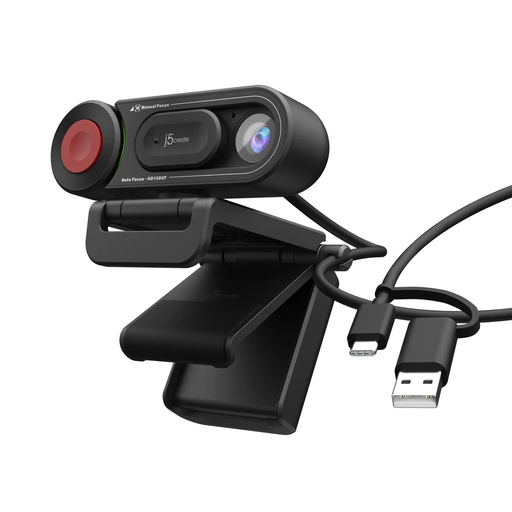
j5create JVU250 HD Webcam, Black
Consider an add-on webcam if your relative already uses a computer comfortably. This JVU250 has an auto and manual focus switch; check the computer connection, microphone setup and camera permissions in the chosen calling service.
View on Joybuy
 No image available
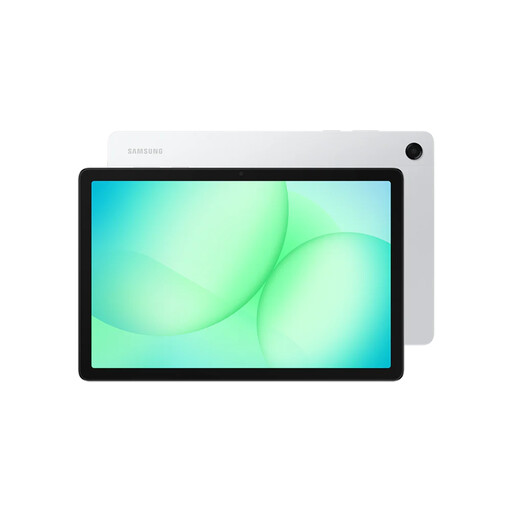
Samsung Galaxy Tab A11+ 5G X236, 6GB RAM, 128GB, Silver
A tablet route to consider for calls mainly at home when touch controls appeal. This is the 5G X236 variant with 6GB RAM and 128GB storage; try the family’s calling app and the accessibility controls your relative needs on this model.
View on Joybuy
 No image available
Samsung Galaxy Tab S10 FE+ 13.1-inch Wi-Fi, 128GB, Silver
Its stated 13.1-inch display may be worth trying if your relative wants more room for a home call. This is a Wi-Fi, 128GB variant: check the home connection and test the chosen app and controls before settling on the larger format.
View on Joybuy
 No image available
DOOGEE U11 PRO 11-inch Android Tablet, 256GB, Black
Another tablet format to try for calls at home. The name specifies an 11-inch screen, 256GB storage and a 3.5mm jack; check whether your relative can manage its controls and whether the family’s calling app works as intended.
View on Joybuy
 No image available
Blackview Wave 7C Android 16 Smartphone, 128GB, Black
A portable option for someone who already feels comfortable using a smartphone. Its stated 6.56-inch display and 4G dual-SIM configuration do not establish whether the call controls will be easy for this person to use; try the chosen app and accessibility settings together.
View on Joybuy
Questions about getting started
Should we choose the calling app before the device?
Yes. Find out which service close family uses, then check whether your relative can receive or join a call on the proposed device. Google Meet Help lists computers, smartphones and tablets among its device types; still try the actual joining steps together.
Can someone using Android or Windows join a FaceTime call?
Yes, through a FaceTime link in a compatible web browser, according to Apple Support. Ask someone to send a link and try joining from the intended device before relying on it for regular calls.
What should we do before handing over the device?
Set up the agreed calling app and contacts with your relative, connect to the intended home Wi-Fi and practise receiving and starting a call. Try only the accessibility settings they need, agree who can help later and check the mobile-data allowance if calls will happen away from Wi-Fi; Age UK notes that video calling uses a lot of data.
Can a family member help through FaceTime screen control?
Apple documents FaceTime screen-control features, but treat access as a specific request for help, not a standing arrangement. Apple Support says a person controlling the screen can open apps, change settings and delete items, so agree on the task, obtain consent and stop control when it is finished.


