Who is the setup for?
The right device depends on where calls happen and which steps the person can comfortably repeat.
Someone who wants a simpler calling routine
If small controls or navigating several apps makes calling difficult, focus on readable contacts and a short, repeatable way to answer and end a call. Age UK Trading identifies poor eyesight and arthritis as practical barriers to mobile-phone use. A family member can help arrange the chosen app and contacts, then try the routine with the intended user.
A family arranging calls at home
A tablet or computer can stay in a familiar place with its screen positioned for calls. Check the home connection, make the calling app and contacts easy to find, and practise answering an incoming call rather than judging the setup by screen size alone.
Someone who also calls away from home
A smartphone is worth considering when portability matters. Check the intended calling app, mobile coverage in the places they visit and how calls outside Wi-Fi fit their data allowance. Ofcom advises choosing mobile allowances with actual non-Wi-Fi use in mind.
What should you check before choosing?
Accessible smartphone
Consider it when: Calls need to work away from home and the person is comfortable carrying a phone.
Trade-off: Small touch controls may be difficult to use, while calls outside Wi-Fi depend on mobile coverage and data.
Tablet at home
Consider it when: A larger touch screen and a regular place for calls suit the person better than a pocketable phone.
Trade-off: It still requires a workable touch-screen routine, charging and a connection; a larger display does not make the calling app simpler by itself.
Familiar computer
Consider it when: The person already uses a laptop or desktop and prefers its screen, keyboard or mouse.
Trade-off: Signing in, opening the app and selecting the camera or microphone may add steps; test them with the intended user.
Once the device type fits the calling location, try the controls and connection together. A feature list cannot show whether the whole routine will be manageable.
| Priority |
What to check |
Your needs |
| Call controls |
Try unlocking the device, finding a contact, answering and ending a call. Check whether the chosen app and contact shortcuts can stay easy to find. Apple documents favourite contacts in Calls with Assistive Access on supported iPhones; confirm the exact setup before relying on it. |
I want to reach familiar people without working through several unrelated screens, and I need to be able to answer when they call me. |
| Screen and handling |
Check text and control size, display settings and whether a stand keeps the screen at a usable position. Try the controls with the intended user rather than choosing by display size alone. |
Contact names and call buttons need to be readable, and I may find holding a device or using small touch targets difficult. |
| Audio and captions |
Test speaker volume and the microphone during a call. If captions matter, check the exact device, app, language and software version; Google documents captions in Meet, while Apple notes that FaceTime caption availability and accuracy can vary. |
I need to follow what the other person says, whether through suitable audio or captions that work for my calling setup. |
| Connection |
Check broadband at the calling address and mobile coverage where calls may happen. Ofcom describes 30–300 Mbit/s superfast broadband as suitable for most everyday use, including video calls, but says actual service at a property can differ from checker results. |
Calls will mostly happen at home, so I need a dependable connection there. If I also call while out, my mobile coverage and data allowance matter too. |
| Daily readiness |
Choose a regular charging place, check how the device will be positioned and make a trial call from that spot. Confirm whether any stand or charging accessory you plan to use fits the device. |
When family calls, I want the device charged, within reach and ready to use without rearranging the room. |
Which brands and platforms are relevant?
These are feature references for particular device routes, not a claim that every model from a brand will suit the user.
Apple
An iPhone or iPad route for a household considering FaceTime and Apple’s accessibility settings.
- Apple documents a focused Assistive Access interface on supported iPhones and the option to place favourite contacts prominently in its Calls app.
- Check the intended model and calling app. Apple says FaceTime can use Wi-Fi or mobile data on supported devices; caption availability can vary by language and region.
Google / Android
An Android phone or tablet route where adjustable display controls or Google Meet features may be relevant.
- Google documents Android display and accessibility controls, as well as captions in Google Meet.
- An Android label alone does not establish the settings or caption behaviour on a particular device and app; check the exact combination.
Samsung
A Galaxy phone or tablet route for buyers examining Samsung’s documented mobile accessibility settings.
- Samsung UK describes display adjustments and a Live Caption in Calls option among its mobile accessibility features.
- Confirm the feature on the exact Galaxy model, software version and calling app before making it part of the user’s routine.
Doro
A phone route for someone considering controls designed with later-life use in mind.
- Doro describes larger buttons or icons and clear displays in its phone range, and provides guidance on WhatsApp video calling with a smartphone.
- Not every Doro phone is a video-capable smartphone. Check the exact model, camera and intended app.
Microsoft
A Windows computer route for someone who already uses a PC or prefers a keyboard, mouse and fixed calling position.
- Microsoft documents Windows accessibility features including Narrator, Voice Access and live captions.
- Windows features do not establish that a particular computer has the webcam, microphone, speakers or app compatibility the user needs.
Joybuy options for home video calls
These laptops and tablets represent the larger-screen home-calling routes discussed above. For each one, try the intended app and the steps for answering a call with the person who will use it.
 No image available
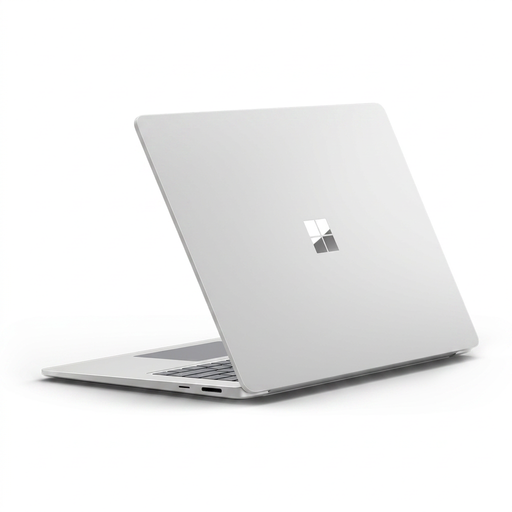
Microsoft Surface Laptop 7 15-inch Copilot+ PC, 16GB RAM, 256GB SSD, Maya
A laptop to consider for home calls if the user already finds a computer familiar. This configuration lists a Snapdragon X Elite processor and PixelSense touchscreen. Check that the intended calling app works on this configuration, then try signing in, answering and ending a call.
View on Joybuy
 No image available
Lenovo LOQ Essential 15ARP11, Ryzen 7 170, RTX 5050, 16GB RAM, 1TB SSD
Its listed 15.6-inch 144Hz FHD display provides a larger computer screen for someone who prefers a laptop calling station. Confirm the intended app works with this configuration and that the user can manage sign-in and call controls; the gaming specification alone does not answer those questions.
View on Joybuy
 No image available
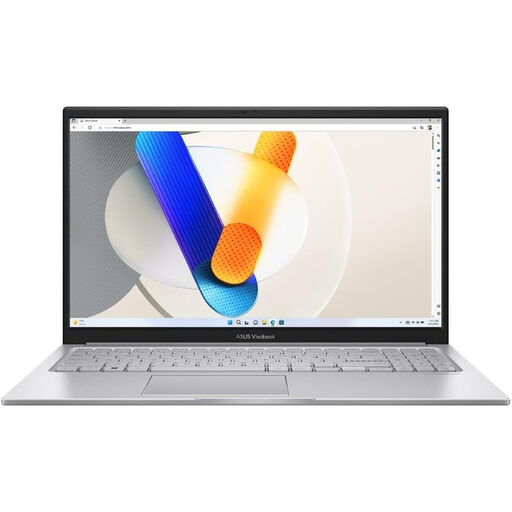
ASUS Vivobook 15 X1504VA, Core 5 120U, 24GB RAM, 1TB SSD, Cool Silver
This 15.6-inch laptop is a computer-route option for calls made from a regular place at home. Check the intended app and try the call audio and controls with the user; the listed processor and storage do not establish how easy the calling routine will be.
View on Joybuy
 No image available
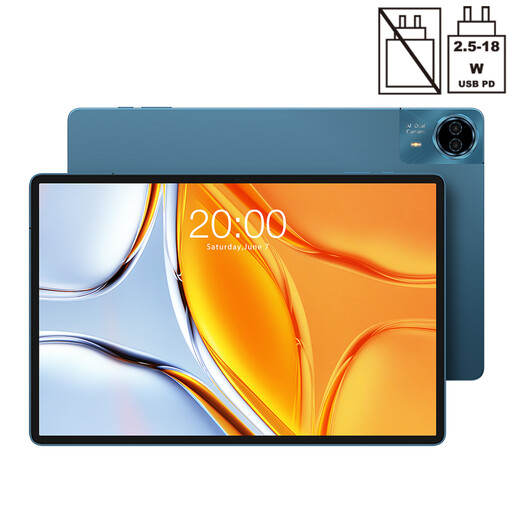
TECLAST T70 14-inch tablet, 256GB, Dual SIM 4G LTE, 2025 Edition
Its listed 1920×1200 display offers a larger touch-screen format for a home calling position. The title also lists 5G WiFi, an 8MP front camera and a 10,000mAh battery with 18W charging. Confirm the Android version and intended app, and check how the tablet will be supported and charged during regular calls.
View on Joybuy
 No image available
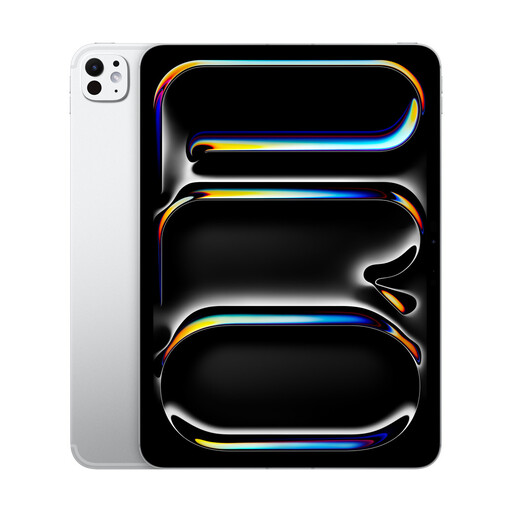
Apple iPad Pro 13-inch (M5), Wi-Fi + Cellular, 1TB, Standard Glass, Silver
A 13-inch tablet option for someone who prefers touch controls and may also want to call away from Wi-Fi. Check the intended calling app and accessibility features on the exact model and software, then try the audio, screen position and charging routine with the user.
View on Joybuy
Video-calling questions
Should an older relative use a phone, tablet or computer for video calls?
Choose a smartphone for calls on the move, a tablet for a larger touch screen at home, or a computer if the person already uses one comfortably. In each case, set up the intended app and contacts, then practise answering and ending a call before settling on the arrangement.
When should home calls use Wi-Fi rather than mobile data?
Use a dependable home Wi-Fi connection for regular home calls where it is available and works well. Age UK warns that video calls use substantial mobile data and that exceeding an allowance may lead to extra charges. For calls away from Wi-Fi, check local coverage and choose an allowance around actual use, as Ofcom advises.
What broadband connection should I check for home video calls?
Check the service and performance at the address where calls will happen. Ofcom describes 30–300 Mbit/s superfast broadband as suitable for most everyday uses, including video calls, but notes that actual availability and received speeds can differ at a particular property.
Can captions make video calls easier to follow?
Captions may provide a text alternative when speech is difficult to follow, if they work in the chosen setup. Google documents captions in Meet, and Apple offers FaceTime captions on supported devices. Check the exact app, device, language and region, and try a call: Apple notes that caption accuracy can vary.


