Buying priorities
Work from the calling app and host device outward: confirm compatibility first, then choose the accessory that addresses the main problem in the room where calls happen.
| Priority |
What to check |
Your needs |
| Familiar calling |
Confirm support for the calling app, operating-system version and browser where relevant. Check that camera and microphone permissions can be enabled. |
I want to call family and friends through the service we already use, without discovering that the accessory cannot be selected by the app. |
| Clear audio |
For one caller, compare headsets with microphones. For shared calls, check speakerphone placement and select the same device as both microphone and speaker in the app. |
I need speech to be easier to hear without turning a shared room into an echo-prone call space. |
| Comfortable view |
Position a webcam or tablet near eye level, with the screen at a usable distance. Check display-size and accessibility settings before replacing a working device. |
I want the caller to be easy to see and the controls to be manageable, rather than having to hold a tablet throughout the call. |
| Connection and setup |
Match USB-A or USB-C to an available port, or verify an adapter separately. Test Bluetooth accessories in the exact calling app and check permissions after connection. |
I need a setup that fits the computer, tablet or phone already at home, with as few avoidable connection steps as possible. |
Joybuy product options
Joybuy product options for home video calls, covering webcam, headset and speakerphone routes for compatible devices.
 No image available
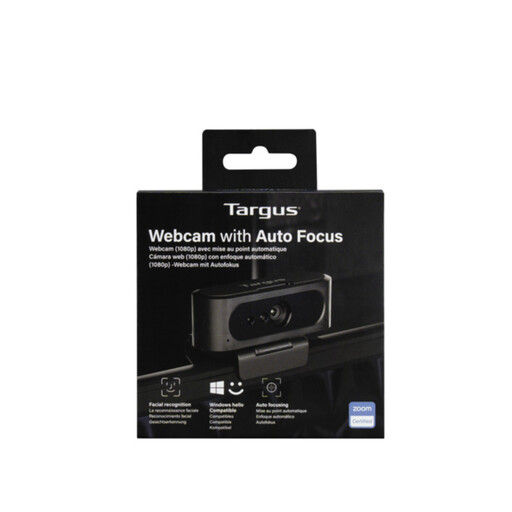
Targus Webcam with Auto Focus
A webcam route for a compatible computer where the built-in camera is inadequate or awkwardly positioned.
The listing states an adjustable 360° rotating clip, tripod thread, auto-focus, lighting correction, dual microphones and USB-C-to-A connection options.
Verify the host port, operating-system version and camera and microphone permissions. The listing gives conflicting resolution information, so confirm the manufacturer specification if resolution is important.
Joybuy
 No image available
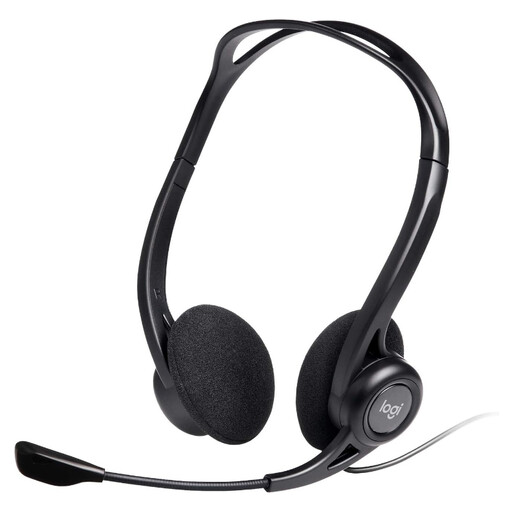
Logitech 960 Wired USB Headset with Inline Controls
A wired headset option for one-person calls where privacy and clearer voice pickup matter.
The listing states a USB-A connection, adjustable noise-cancelling microphone, inline volume and mute controls, and a 2.4 m cable.
Check for an available USB-A port or a separately compatible adapter, and route the cable safely to reduce entanglement or trip risks.
Joybuy
 No image available
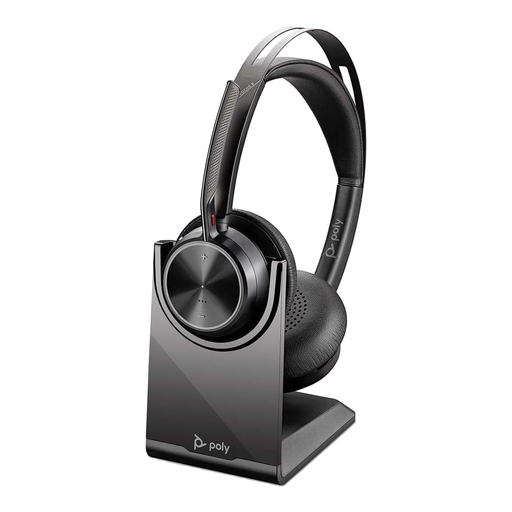
Poly Voyager Focus 2-M USB-C-C Headset with Charging Stand
A headset route for callers moving between a computer and phone or calling in a distracting room.
The listing states Bluetooth 5.1, multipoint pairing, a USB-C dongle, USB-A adapter, charging stand, three-level ANC and a noise-cancelling microphone boom.
Test it in the household’s actual video-call app and select it as both microphone and speaker. Google Meet notes that some Bluetooth headsets can perform poorly even when normal calls work well.
Joybuy
 No image available
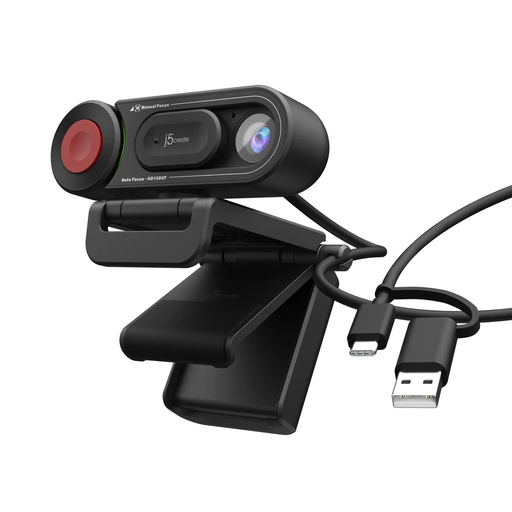
j5create JVU250 HD Webcam with Focus Switch
A webcam option for a laptop or desktop that needs a separately positioned camera for personal calls.
The listing states 720p video, auto and manual focus selection, an integrated microphone, USB-A connection and flexible mounting for monitors, laptops and flat surfaces.
Check for an available USB-A port, then confirm camera and microphone permissions in the selected calling app after setup.
Joybuy
 No image available
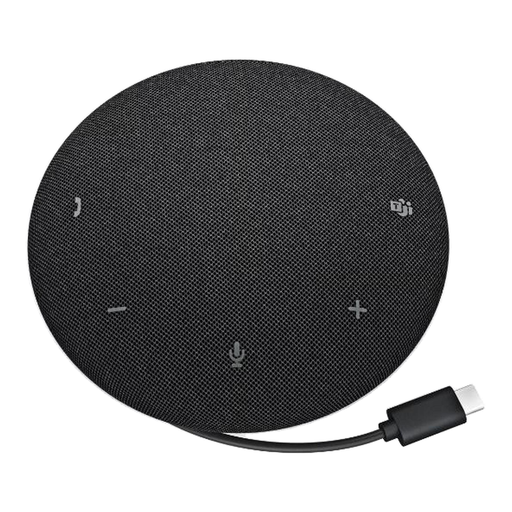
DELL Pro Wired Speakerphone SP325
A speakerphone route for a small group seated near one compatible computer who do not want to wear headsets.
The listing states a USB-C connection, four omnidirectional microphones, 2.5 m microphone pickup range, onboard mute and volume controls, and support claims for several computer operating systems.
Confirm USB-C host compatibility, room placement and app audio-device selection. It is not a substitute for headphones where privacy is needed or the room is very noisy.
Joybuy
Frequently asked questions
Will any webcam work with Zoom, Google Meet and Microsoft Teams?
No. Zoom supports built-in, USB plug-in and certain other webcams within its system requirements, while Google Meet requires a built-in or external USB camera alongside a supported operating system and browser. Check the exact webcam model, connector, operating-system version and calling app before purchase.
Should I choose a headset or a speakerphone for calls at home?
Choose a headset with microphone for one caller where privacy or echo control matters. Choose a speakerphone for a small group around one device, but select it as the microphone and speaker in the app and use it in a suitable room position.
Why can a Bluetooth headset work for phone calls but not well in a video-call app?
Bluetooth behaviour can vary by application. Google Meet notes that some Bluetooth headsets work well for normal audio calls but poorly with Meet, so test the exact headset in the calling platform used by family and friends.
What should I set up before giving a video-call device to a less confident user?
Install and sign in to the agreed calling app, complete a test call, choose the camera, microphone and speaker, allow required permissions, and adjust display or accessibility settings. Age UK advises learning at the user’s own pace and notes that family, friends, carers or a Digital Champion can help with setup.
Can I let a calling website use my webcam and microphone safely on Windows?
Windows lets you control camera and microphone access at system and app level, while browsers request permission for individual websites. Allow access only for the calling service you intend to use, and review permissions if the camera or microphone does not appear in the app.


