Taxiing-focused simulator learners
If your main aim is to practise ground steering and braking, look closely at a separate rudder-and-brake setup if you have floor space. Check that your simulator exposes the controls you want to practise.


For a compact games-room setup, start with a flight stick that offers an analogue rudder input, such as stick twist or a throttle-mounted rudder lever. Choose a HOTAS if you also want a separate throttle within reach; consider pedals with independent toe brakes when steering and braking practice are the main goals. Check your platform, simulator bindings and available space before choosing a layout.
If your main aim is to practise ground steering and braking, look closely at a separate rudder-and-brake setup if you have floor space. Check that your simulator exposes the controls you want to practise.
A stick and separate throttle can stay within reach on a desk without starting with pedals. Check the model’s rudder control and how its two units will fit your surface.
If you are planning a more dedicated layout, the choice may centre on a particular sidestick, yoke or separate pedal arrangement. Match each control to your platform and simulator before expanding the setup.
Choose it when: you want an analogue steering input in a compact, single-stick layout.
Trade-off: your hand controls twist as well as pitch and roll; the stick alone does not give you independent toe brakes.
Choose it when: you want a separate throttle for wider flight-simulator sessions without initially adding pedals.
Trade-off: stick and throttle need desk space, while twist or lever steering does not replace independent pedal braking.
Choose it when: steering and braking practice take priority and the room has space for pedals.
Trade-off: pedals add a floor unit and another control to connect; check for the toe-brake axes you intend to use.
For virtual taxiing in a dedicated games room, decide how you want to steer and brake, then consider throttle placement and confirm that the controls work with your platform and simulator.
| Concern | What to check when buying | Who this matters to |
|---|---|---|
| Steering and braking | Look for an analogue rudder axis. If separate braking matters, check for left and right toe-brake axes and simulator bindings. | I want to practise controlled ground turns and braking rather than rely on button presses; around 42% of consumers put steering and braking first. |
| Throttle and desk fit | Check whether the throttle is separate or detachable and where each control will sit. | With a desk that can remain set up, I want the throttle close to hand without committing floor space to pedals; around 33% of consumers make throttle access and desk fit their primary concern. |
| Platform and simulator | Match the exact model to your PC or console, then confirm recognition and rudder and brake bindings in your simulator. | Before choosing a control layout, I need it to work with the system and aircraft I use; around 25% of consumers put compatibility first. |
A stick’s pitch and roll axes alone do not establish how you will steer while taxiing.
Check the exact model for twist rudder, a throttle-mounted rudder lever or a compatible pedal route, then confirm that your simulator can bind the control.
Rudder movement and independent left and right toe braking are different inputs. Logitech G lists both for its Flight Sim Rudder Pedals, but that specification should not be assumed for every pedal set.
If braking practice matters, check the pedals’ stated axes and whether your simulator and chosen aircraft can use them.
Thrustmaster states PC, PS4 and PS5 support for the T.Flight HOTAS 5 Microsoft Flight Simulator Edition, PC and Xbox Series X|S support for the T.Flight HOTAS One Microsoft Flight Simulator Edition, and PC support for the TCA Sidestick Airbus Edition.
Match the precise variant to your platform and check its simulator bindings before buying.
Its flight-control range includes HOTAS models and a PC Airbus-style sidestick with different control layouts and stated platforms.
Its flight-simulation controls include a HOTAS system and separate rudder pedals for a desk-and-floor layout.
The Gladiator NXT EVO Space Combat Edition is a standalone-stick option for a configurable desktop layout.
These flight-control options cover mounted PC controls, a stick-and-throttle layout for PC or PlayStation, and a flight stick for Xbox or PC. For taxiing practice, choose by the rudder and brake controls your simulator can bind, not by the presence of a throttle alone.
 No image available
Consider this mounted flight-control system if you have a fixed PC desk position. It is labelled for Windows 10/11; check its rudder and brake bindings in your simulator and allow room for the mounted controls.
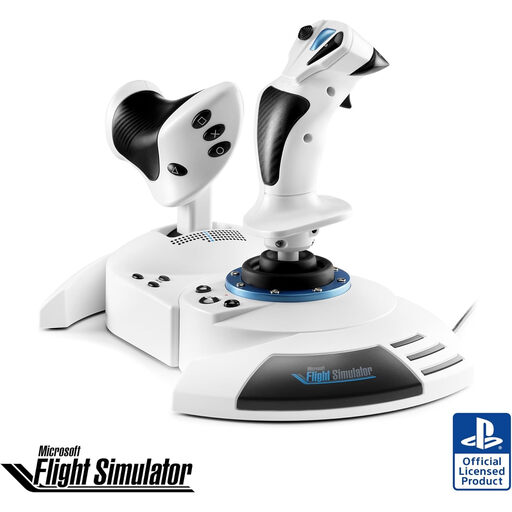 No image available
This stick-and-throttle layout suits a desk setup where you want separate throttle control. The listed platforms are PS5, PS4 and PC; confirm the exact variant’s rudder method, brake bindings and simulator support.
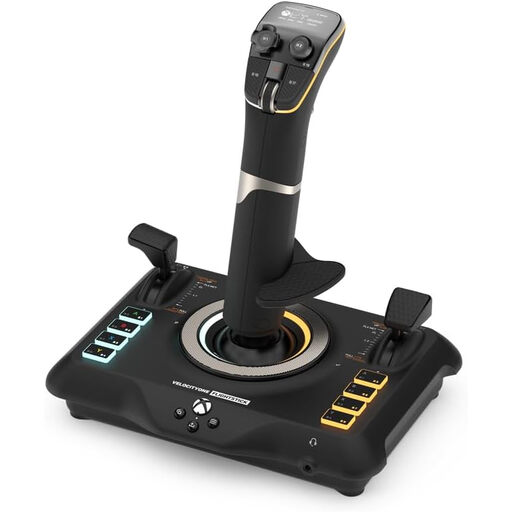 No image available
Consider this flight stick if you use Xbox or PC and are deciding how to add taxiing controls. Check its available rudder input; if you plan to use separate VelocityOne Rudder Pedals, confirm the pedal and brake bindings in your simulator.
It can be enough for a compact setup if the stick has an analogue twist axis and your simulator lets you bind it to rudder control. Twist steering does not itself provide independent toe brakes, so check your braking controls if that is part of your practice.
Choose a HOTAS when a separate throttle matters more to your setup; consider pedals when steering and braking practice take priority and you have stable floor space. Before combining devices, check their platform support and the simulator’s available bindings.
Check the simulator’s assignments for rudder or yaw, throttle and braking, as well as the stick’s pitch and roll controls. If you add pedals, check whether separate left and right brake axes are recognised; the available assignments can depend on the simulator and aircraft.