What should you check before choosing?
Find out whether the weakness follows a room, affects the whole connection or appears mainly when several devices are active. That distinction helps narrow the equipment worth considering.
| Priority | What to check | Your needs |
|---|
| Broadband or Wi-Fi |
Compare a device connected by Ethernet with Wi-Fi in different rooms. Check whether slowdowns affect the whole home or coincide with a provider fault. |
Everything feels slow, even close to the router. I want to identify the bottleneck before buying coverage equipment; Ofcom notes that Wi-Fi cannot outperform the broadband service. |
| Router position |
Check whether the router can sit more centrally and away from objects that obstruct its signal. Test the weak rooms again after moving it. |
Only a few rooms have poor reception, and moving the existing router may help before I add another device. |
| One weak area |
Find a position between the router and the weak area where an extender still receives a good signal. Check whether any advertised mesh feature requires a compatible router. |
One room needs attention, and I have a suitable halfway socket rather than only a socket inside the dead zone. |
| Several weak areas |
Plan mesh-unit positions across the affected rooms or floors. Check where the main unit will connect to the existing internet equipment. |
Coverage drops in several separated parts of the home, so a single extender may leave other rooms unchanged. |
| Router replacement |
Identify the broadband handoff, required WAN or DSL connection and provider setup requirements. Check any provider voice service and the support arrangements for your own router. |
My existing router disconnects or lacks a feature I need, but I want the replacement to work with the current service. |
| Wired backhaul |
Check cable routes, available ports and the mesh system’s wiring instructions. TP-Link documents Ethernet backhaul for compatible Deco setups. |
Ethernet reaches another floor or room, and I would rather connect mesh units by cable than depend on a weak wireless link between them. |
Which brands are relevant?
These brands illustrate different networking ranges; a brand’s presence here does not establish that every model suits a particular home.
TP-Link
Its range includes routers, extenders and Deco mesh systems, making the exact product type and setup mode important.
- TP-Link’s Deco instructions describe Ethernet backhaul and operation with an existing router.
- The main Deco needs a physical Ethernet connection to the internet handoff; follow the wiring instructions for the chosen mode.
eero
The eero 7 three-pack is a mesh option aimed at coverage across multiple rooms.
- Its Amazon UK listing claims coverage of up to 560 m² and support for 120+ devices across three units.
- Those listing figures do not guarantee coverage in a home with a different layout or building materials.
NETGEAR Orbi
NETGEAR positions the Orbi 970 Series for large homes and fast internet plans.
- NETGEAR describes the Orbi 970 Series as a Wi-Fi 7 mesh range with dedicated backhaul.
- That positioning does not establish a need for this range when the problem is limited to one room or router placement.
Mesh systems on Joybuy
These Joybuy listings are mesh-system options for homes considering coverage across more than one area. They do not replace the checks for broadband faults, router position or compatibility with existing equipment.
 No image available
TP-Link Deco BE22 BE3600 Wi-Fi 7 (3-Pack)
A three-pack mesh option to consider when several rooms need Wi-Fi coverage. Check the planned unit positions and how the main unit will connect to your existing equipment; the listing name identifies a BE3600 Wi-Fi 7 system, not the coverage it will achieve in your home.
 No image available
NETGEAR Orbi 370 RBE373 WiFi 7 (3-Pack)
A three-pack mesh option for planning access across multiple areas. The title specifies dual-band BE3600 and 2.5Gbps Ethernet; check the required connection to your provider’s equipment and where the units can be placed.
 No image available
TP-Link Deco BE25 WiFi 7 (3-Pack)
A three-pack whole-home mesh option when weak signal affects several rooms. Plan unit placement and check the connection and operating mode needed with your existing router before choosing it.
 No image available
TP-Link Deco BE65 BE9300 Tri-Band Wi-Fi 7 (3-Pack)
A three-pack mesh option for several weak areas. Its title identifies tri-band Wi-Fi 7; check the ports, proposed unit positions and operating mode against your broadband equipment rather than choosing by wireless designation alone.
 No image available
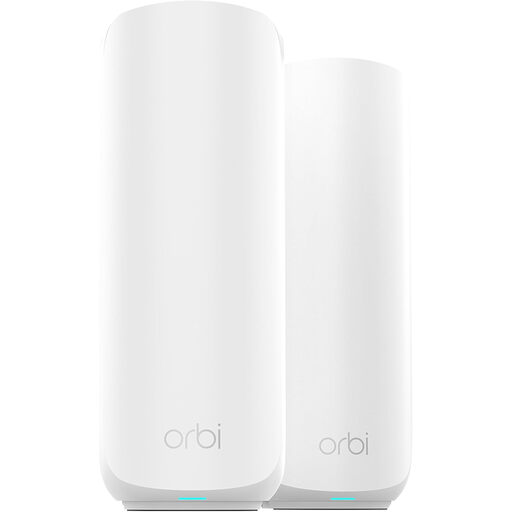
ORBI3 Wi-Fi 7 2-Pack Bundle (RBE372)
A two-unit mesh bundle to consider when more than one access point is needed. Check whether two unit positions suit the affected rooms, along with the required connection to your provider’s equipment.
Common questions
Will an extender help if broadband is slow throughout the home?
Not if the broadband service itself is the bottleneck: Ofcom notes that Wi-Fi cannot outperform it. Check for a provider fault and compare wired and Wi-Fi performance before buying equipment intended to improve in-home coverage.
Where should a Wi-Fi extender go?
Place it between the router and the weak area, where it can still receive a good router signal. The Joybuy TP-Link RE705X placement guidance describes this halfway approach; a socket deep inside the dead zone may leave the extender with a poor upstream connection.
Can mesh Wi-Fi work with an existing provider router?
It can in supported configurations, but check the exact system’s operating mode and wiring. TP-Link’s Deco guidance describes router and access-point modes, and says the main Deco must be connected by Ethernet to the modem, router or internet handoff.
What should I check before replacing a provider router?
Identify how your broadband reaches the current router, then check the replacement’s required WAN or DSL interface and your provider’s setup and voice-service requirements. Ofcom cautions that a provider may be unable to help with problems involving an independently purchased router, so keep the provider equipment available for fault diagnosis.


