Households with weak Wi-Fi in several rooms
If the connection works near the router but weakens beyond walls, floors or long distances, the choice is between better router placement and a way to carry the connection further.


If Wi-Fi is weak only in distant rooms, consider coverage equipment: mesh for several weak areas, an extender for one spot with a usable signal nearby, or powerline where a wireless relay is impractical and the connection can be tested. If connections are poor close to the router too, check the router and broadband service before buying coverage equipment. Ofcom notes that Wi-Fi cannot outperform the incoming broadband connection.
If the connection works near the router but weakens beyond walls, floors or long distances, the choice is between better router placement and a way to carry the connection further.
When work, study, streaming or downloads overlap, check whether the slowdown affects the whole home or mainly devices far from the router. Ofcom advises checking what other household members are doing online when a connection slows.
Before changing a provider-supplied router, establish how it connects to the service and whether a separate router would affect the features or support you use.
Start with where the problem occurs: a weak room calls for different checks from a connection that slows down throughout the home.
| Priority | What to check | Your needs |
|---|---|---|
| Weak-room coverage | Check whether the router can be better placed. For several weak rooms or floors, consider mesh and plan where each node will receive a usable connection. | I get a workable connection near the router, but need Wi-Fi across more than one distant room. |
| One dead spot | For an extender, find a position between the router and weak room that still receives Wi-Fi. Check the particular router and extender if you intend to use Ethernet backhaul. | Most rooms are covered; it is one room or edge of the home that needs attention. |
| Wired route to another room | If running Ethernet cable is impractical, test powerline adapters in the intended wall sockets. Devolo advises against using power strips or extension leads and notes that some VDSL connections can become unstable. | A wireless relay cannot get a dependable signal to the room where I need a connection. |
| Router and provider fit | Check the provider, service type and hub model before replacing a router or adding one behind it. Confirm the connection requirements and which provider-managed features would remain available. | The existing router disconnects or struggles with connected devices, and I want to know whether changing it will work with my service. |
| Incoming broadband | Compare performance near the router, or over Ethernet where practical, with performance in weak rooms. Check provider service information if slowdowns affect the whole home; Ofcom notes that Wi-Fi cannot outperform the broadband service. | Several people are online at once, and even devices close to the router slow down. |
Mesh, an extender or a new Wi-Fi router cannot make the incoming broadband service faster. Ofcom advises checking other data-heavy use and provider problems when a connection is slow.
Check a device near the router, look at the provider’s service status and discuss persistent whole-home problems with the provider before choosing coverage equipment.
An extender or wireless mesh node needs a connection back towards the router. TP-Link’s Deco guidance says wireless-node placement depends on the layout and recommends no more than 50 feet between its wireless nodes.
Position the node where it still receives a usable signal, then check the connection in the room you want to reach. Where compatible equipment and cabling are available, consider Ethernet backhaul.
Powerline uses the home’s electrical wiring, so socket choice and interference matter. Devolo also warns of instability in some VDSL scenarios.
Test the adapters directly in wall sockets in the rooms where you intend to use them, rather than through an extension lead or power strip.
A separate router must work with the particular broadband connection and hub arrangement. BT Business says customers using their own equipment need a router compatible with its service; Virgin Media describes modem mode for connecting separate Wi-Fi equipment to a Hub.
Ask your provider which connection settings, hub modes and managed features apply to your service and hub model before buying.
Its Deco guidance is relevant when planning mesh-node placement; its EasyMesh guidance is relevant when checking an extender’s wired-backhaul compatibility.
Its powerline guidance helps with socket placement and testing when a wireless link to another room is difficult.
Its Hub guidance is an example of why customers should check the provider’s arrangement before connecting their own Wi-Fi equipment.
These options include four three-pack mesh systems for homes considering multi-room coverage and one standalone router for those considering a router change. First establish whether coverage or the router is the problem; neither type of equipment makes the incoming broadband service faster.
 No image available
A three-unit mesh option to consider when several rooms have weak Wi-Fi. Plan positions where the units can connect, and check how the system would connect to your provider equipment.
 No image available
This three-pack is another mesh option for several weak rooms. Check where its units could be placed and whether the connection to your provider equipment suits your setup; the tri-band specification alone does not establish coverage in your home.
 No image available
A three-pack mesh option for planning coverage across rooms. Its name specifies 2.5Gbps Ethernet, but check the port arrangement and your modem or gateway requirements before relying on a particular wired setup.
 No image available
This three-pack is relevant if weak Wi-Fi affects multiple rooms. Work out viable node positions and confirm how it will connect to your existing broadband equipment before choosing it.
 No image available
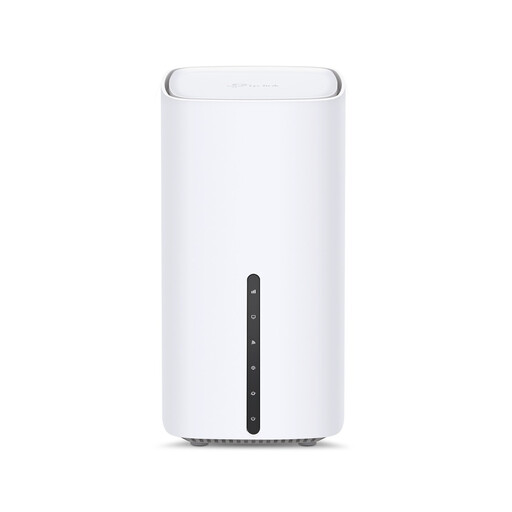
A standalone router to consider when a router change, rather than extra mesh nodes, addresses the problem. Check its fit with your broadband connection; if considering 5G access, check local coverage and service requirements separately.
Check the connection near the router, using Ethernet if practical, and compare it with the connection in weak rooms. If the problem persists throughout the home, discuss the service or a possible fault with your provider before buying coverage equipment; Ofcom notes that Wi-Fi cannot outperform the incoming broadband connection.
Put a wireless extender or mesh node where it can still receive a usable connection towards the router, rather than only inside the dead zone. For its Deco systems, TP-Link recommends no more than 50 feet between wireless nodes; walls, floors and placement still affect the connection.
It depends on your provider, service and hub model. BT Business says customer-owned equipment must be compatible with its service, while Virgin Media describes a Hub modem mode for connecting separate Wi-Fi equipment. Confirm the connection requirements, available hub modes and any features you would lose with your own provider before purchasing.
Test them in the intended rooms before depending on the connection. Devolo advises plugging adapters directly into wall sockets rather than power strips or extension leads, and warns that some VDSL setups can experience instability.