What should you prioritise when choosing?
For homes where broadband works beside the router but coverage is weak farther away, match the equipment to the number of affected rooms, the available connection path and any provider requirements.
| Concern |
What to check when buying |
Who this matters to |
| Coverage across rooms or floors |
Check how many units are included, where they can be placed and whether supported Ethernet backhaul is practical. |
If I need a connection across several regularly used rooms, I would check how the units can link and be positioned. Around 36% of consumers prioritise coverage across multiple rooms or floors. |
| A fix for one weak room |
Check for a usable router signal at the proposed midway socket and confirm compatibility for any shared mesh feature. |
If the rest of my home works and one room is the problem, I would check whether a device can receive a signal before relying on it there. Around 29% of consumers primarily need a fix for one weak room. |
| A route through walls or floors |
Check whether Ethernet can reach the area; otherwise check the intended sockets and compatibility of any powerline kit. |
If walls or floors obstruct the wireless path, I would compare a practical cable route with powerline at the sockets I intend to use. Around 14% of consumers prioritise a viable connection past obstructions. |
| Keeping provider equipment working |
Check the rules for your actual provider and plan, including any voice service, before replacing its router. |
If my broadband setup includes provider-specific equipment or voice service, I would confirm what must stay connected before changing the router. Around 14% of consumers prioritise keeping their provider setup and services working. |
| A fixed device connection |
Check whether Ethernet can reach the device or a wired access point, and whether other devices in the room also need Wi-Fi. |
If I mainly need a dependable connection for a stationary device, I would check whether a cable can reach it directly. Around 7% of consumers primarily prioritise a fixed-device connection. |
Mesh Wi-Fi
Consider it: for weak coverage across several rooms when the units can be placed with a usable link.
Trade-off: it uses multiple units; wireless links can still be affected by the home layout, while Ethernet backhaul depends on compatible equipment and a practical cable run.
Wi-Fi extender
Consider it: for a particular weak room if a midway position still receives a usable router signal.
Trade-off: it repeats the signal it receives and cannot fix a location where that incoming signal is unusable.
Powerline Wi-Fi
Consider it: where a wireless path is difficult, Ethernet is impractical and the intended sockets can support a powerline connection.
Trade-off: results depend on the household wiring and sockets; check that the remote adapter provides Wi-Fi if wireless devices need it.
Replacement router or wired access point
Consider it: when the current router is the limitation, or when Ethernet can reach the weak room for an access point.
Trade-off: provider and plan requirements can affect a replacement; an access point needs a suitable wired connection.
Joybuy products for extending home Wi-Fi
These Joybuy choices include mesh systems for multi-room coverage, an extender for a targeted weak area and a powerline Wi-Fi kit for a possible wired-through-the-home route. Check each system’s connection and placement requirements against your home.
 No image available
NETGEAR Orbi 370 RBE373 WiFi 7 Mesh System, 3-Pack, Dual-Band BE3600, 2.5Gbps Ethernet, White
The three-unit mesh setup is relevant if you are considering coverage across several rooms.
The listing describes one router and two satellites, with LAN ports on the router and each satellite. An existing modem or gateway is required; coverage varies with building conditions.
Shop on Joybuy
 No image available
TP-Link Deco BE22 (3-Pack) BE3600 Whole Home Mesh Wi-Fi 7 System
A three-pack mesh system to consider when you want to extend Wi-Fi across multiple rooms.
The listing specifies Wi-Fi 7, dual-band operation, MLO and combined wired and wireless backhaul.
Shop on Joybuy
 No image available
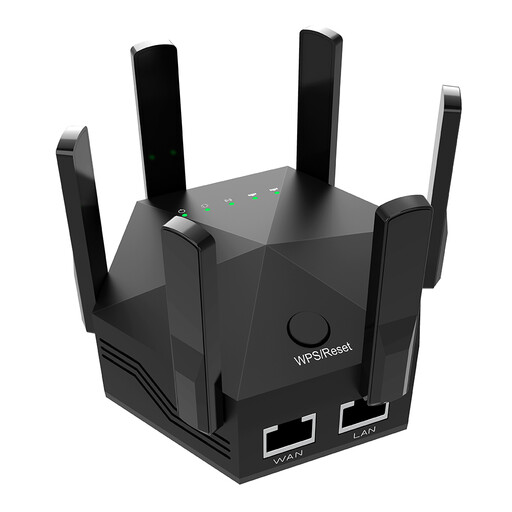
Dual-Band Wi-Fi Signal Extender, 1200Mbps, 6 Antennas, UK Plug
This extender is relevant to a targeted weak-room fix if the chosen position can still receive the router’s signal.
The listing describes dual-band Wi-Fi, six adjustable antennas and two Ethernet ports. It advises placing the extender between the router and the weak-signal area where it can receive the router’s signal.
Shop on Joybuy
 No image available
TP-Link TL-WPA8631P KIT AV1300 Gigabit Powerline Wi-Fi Extender Kit
Consider this powerline Wi-Fi kit if the wireless route through the home is difficult and the intended sockets can support a connection.
The listing describes dual-band Wi-Fi, three Gigabit Ethernet ports and OneMesh compatibility with a compatible router. It advises plugging the adapters directly into wall outlets, not extension leads; OneMesh operation also requires a compatible router.
Shop on Joybuy
 No image available
TP-Link Deco BE65 BE9300 Tri-Band Wi-Fi 7 Whole Home Mesh System (3-Pack)
A three-pack mesh system to consider when extending Wi-Fi across several rooms is the goal.
The product name specifies a tri-band Wi-Fi 7 system supplied as a three-pack.
Shop on Joybuy
Home Wi-Fi coverage FAQs
How can I tell a weak-room Wi-Fi problem from a broadband-line problem?
Where possible, compare the connection beside the router with a test using Ethernet directly to it, because Wi-Fi can affect a speed test. Check your expected service speed with your provider; if the connection also fails at the router, ask the provider about a possible fault rather than treating an extender as a fix for the line.
Where should I put an extender or mesh node?
Place a wireless extender where it can still receive a usable router signal; TP-Link advises positioning one about halfway to the poor-signal area. For mesh, check the link between each unit and consider supported Ethernet backhaul if a suitable cable is available.
Can I connect a new system to a full-fibre ONT and remove my provider router?
Do not assume that an Ethernet socket on the ONT means you can remove the provider router; check the rules for your provider and plan. Vodafone UK, for example, says its router must be used with Pro Broadband, 5G Broadband and plans with Digital Voice. Keeping the provider router and adding a supported access-point setup is a separate option.
What happens to mesh features if I keep my existing router?
The features available depend on the product and mode. TP-Link says Deco access-point mode leaves IP-address assignment to the existing router and disables specified Deco app features; eero also identifies features unavailable in bridge mode. Check the exact model and the features you need before choosing a setup.
Will powerline Wi-Fi work from any two sockets?
Do not assume that every pair of sockets will work for your setup. Check the selected kit’s instructions and assess the sockets you intend to use; a BT powerline-kit guide specifies plugging adapters directly into wall sockets rather than extension leads.


