Several weak rooms
You need usable Wi-Fi across multiple rooms or floors and want to understand node placement, obstacles and supported backhaul before choosing equipment.


Choose equipment according to where the connection fails: consider a replacement router for an inadequate central unit, an extender for one reachable weak spot, mesh for several rooms, or wired access points and Ethernet backhaul when cabling is practical. Before buying, compare the connection near the router with the weak-room experience and check for a service problem; Ofcom notes that Wi-Fi cannot outperform the broadband service. Check the exact device’s operating modes, backhaul support and compatibility with any provider equipment you plan to keep.
You need usable Wi-Fi across multiple rooms or floors and want to understand node placement, obstacles and supported backhaul before choosing equipment.
The main connection works, but one room needs better access. You want to check whether an intermediate position receives a useful wireless signal or a wired upstream connection is available.
One fixed location matters most, and Ethernet may already reach it or be practical to route there. You need to distinguish a client-device port from supported access-point or mesh-backhaul operation.
For UK consumers choosing among these routes, start by checking the broadband service, then match the equipment to the rooms and connections that need attention.
Consider it when: the existing central unit is inadequate and one well-positioned router could serve the rooms you use.
Trade-off: it remains a single radio location; check provider connection requirements and support before replacing a hub.
Consider it when: several rooms or floors need coverage and there are suitable powered positions for the nodes.
Trade-off: you need to buy and place multiple units, and wireless links remain affected by layout and obstacles.
Consider it when: one limited weak area can be reached from an intermediate position that still receives a useful router signal.
Trade-off: the extender still relies on its upstream connection; check exact-model compatibility before expecting mesh-style integration.
Consider it when: Ethernet can reach a priority room or mesh node, particularly where obstacles make a wireless upstream link difficult.
Trade-off: cable routing, available ports and the device’s supported network mode all need to fit the intended setup.
| Concern | What to check when buying | Who this matters to |
|---|---|---|
| Coverage where you need it | Note affected rooms, floors, obstacles and possible powered positions before choosing how many equipment locations are needed. | If I need a usable connection in several weak rooms, I want to match placement to the layout. Around 29% of consumers put coverage in the rooms they use first. |
| Upstream connection | Check for usable Ethernet runs, exact-model backhaul support and the intended connection layout. | When a wireless link back to the main network is the concern, I would check whether cabling is practical. About 22% of consumers prioritise a dependable upstream connection. |
| Simultaneous household use | Consider normal busy periods and the activities taking place; treat device-count figures as model-specific claims, not guaranteed throughput. | If calls, streaming or downloads happen at the same time, I want to assess the setup during ordinary busy use. Approximately 21% of consumers focus first on simultaneous activities. |
| Compatibility and setup | Confirm whether the provider hub will remain the router and check the exact device’s access-point, router or mesh modes. | When I want to keep existing provider equipment, I need to know how the new device will connect and operate. Roughly 14% of consumers put setup compatibility first. |
| Equipment for the size of the problem | Define the weak area and check the complete bundle and supported roles before deciding whether to replace or add equipment. | If only a defined area needs attention, I want to avoid buying equipment that does not fit that scope. Around 14% of consumers prioritise limiting unnecessary equipment. |
Ofcom advises that a Wi-Fi connection cannot outperform the broadband service supplying it, so additional wireless equipment may not address an outage or an incoming-service issue.
Compare the connection near the router with the weak-room experience, and check for provider outages before choosing hardware.
A repeater needs a usable signal from the router to repeat. TP-Link’s placement guidance recommends an intermediate position where the router signal is still strong; obstacles may call for a closer position.
Test the proposed position before settling on it. If the wireless link is not suitable, check whether a supported wired connection is practical.
A port for a wired client does not by itself establish support for access-point operation or Ethernet backhaul. TP-Link documents access-point mode for the RE705X and mode-specific wiring for Deco systems.
Check the exact model’s documentation and intended network mode before planning the connections.
Manufacturer coverage and capacity claims do not establish performance in every home or for every combination of simultaneous activities. Walls, placement and the upstream connection still matter.
Check the actual bundle and assess the connection in the rooms and during the activities that matter to you.
Its cited UK product range includes routers, Deco mesh systems and extenders, so check the exact model and operating mode rather than relying on the brand name alone.
ZenWiFi XD5 is a mesh example for households considering Ethernet connections between nodes.
The EAX12 is a wall-plug Wi-Fi 6 extender example for a household considering a wired client connection.
These Joybuy product choices cover mesh systems, a range extender with access-point mode and router-replacement options for improving Wi-Fi around the home.
 No image available
A three-unit mesh system for households considering multiple wireless equipment locations.
Ethernet LAN ports are listed on the router and satellites. Requires a high-speed internet connection and an existing modem or gateway.
 No image available
Consider it for a limited weak area where the intended extender position can still receive the router’s signal, or where a wired access-point setup is planned.
Supports range-extender and access-point modes and has a 1 Gbps LAN port. EasyMesh compatibility depends on pairing it with a compatible router.
 No image available
A three-unit mesh system for households considering coverage across multiple rooms.
Each unit has two 1 Gbps Ethernet ports. The product description states that wireless and wired connections can be used together for backhaul.
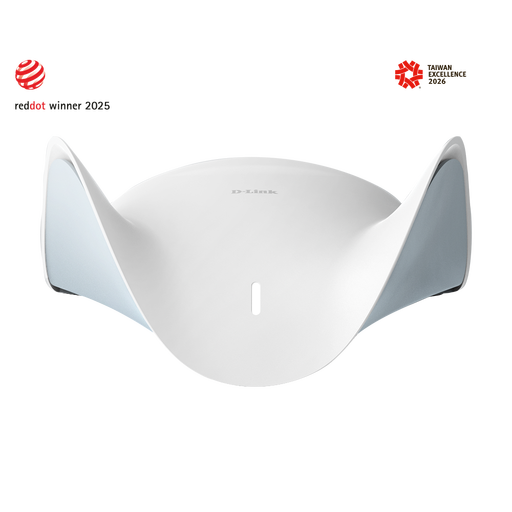 No image available
A router option for households considering replacement of the central unit.
The product description lists a 2.5-Gigabit WAN port and three 2.5-Gigabit LAN ports. It describes adding compatible AQUILA PRO AI routers or extenders to create a mesh network.
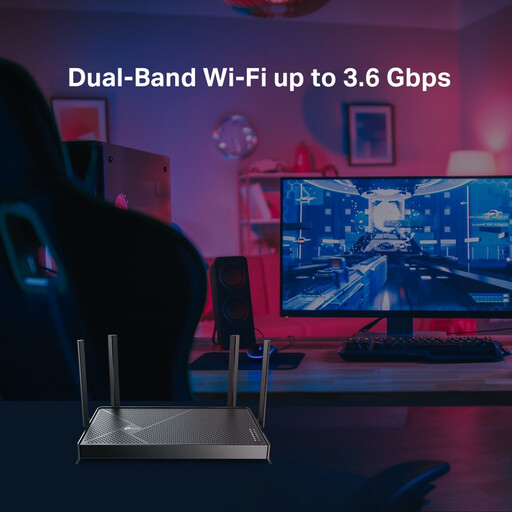 No image available
A dual-band Wi-Fi 7 router option for households considering replacement of their central router.
No. Ofcom’s checker reports predicted broadband services and estimated access speeds for a location, not the wireless connection in an individual room. Ofcom also notes that actual property availability and received speeds may differ.
Yes, TP-Link documents connecting the main Deco by Ethernet and using access-point mode when the existing router continues to manage the network. Follow the mode-specific wiring instructions for the exact setup.
Place it where the router’s signal is still strong enough to reach it, rather than in the dead zone itself. TP-Link suggests a position roughly halfway towards the weak area, but obstacles in your home may call for a closer position.
No. Check provider outages, recent equipment changes and simultaneous downloads or streaming. If the issue affects the service rather than a particular room, contact your provider instead of assuming extra coverage equipment will fix it.
Not on that figure alone. Consider the activities taking place at the same time and check the exact model’s specifications; a manufacturer’s connected-device figure does not establish usable throughput for every combination of active devices.