One-room home worker or student
If your connection works well near the router but is unreliable at one regular desk, try checking router placement and the signal at an intermediate point before choosing a targeted extender.


For a single distant work or study room, try improving the router’s position before buying coverage equipment. Compare the connection near the router with the one in the room—preferably using Ethernet for the near-router test—because an extender or mesh system cannot make an inadequate broadband service faster. If only one room is affected, consider a suitably placed extender; if several rooms are weak, consider mesh, and check your ISP connection and any phone service before replacing its hub.
If your connection works well near the router but is unreliable at one regular desk, try checking router placement and the signal at an intermediate point before choosing a targeted extender.
If several occupied rooms have weak Wi-Fi, consider where multiple units could be placed, which operating mode a mesh system needs and whether Ethernet backhaul is an option.
If the connection also struggles near the router, distinguish a broadband-service limitation from an in-home Wi-Fi problem before buying coverage equipment. Ofcom notes that Wi-Fi cannot outperform the broadband service supplying it.
Start by finding out whether the problem is confined to one room, affects several rooms or is present even near the router; the answer changes which purchase, if any, is relevant.
| Concern | What to check when buying | Who this matters to |
|---|---|---|
| Reliable Wi-Fi in one distant room | Try router placement changes and check for usable signal at an intermediate extender position. If Ethernet reaches the room, check for an access-point mode. | If I mainly need a dependable connection at one distant desk, I would focus on that room and the best place to extend the signal. Around 36% of consumers put a single room first. |
| Coverage across several rooms | Map the weak rooms and available sockets; check the mesh system’s unit arrangement, operating mode and backhaul options. | When several rooms where I work, study or spend time have weak Wi-Fi, I need to consider coverage beyond one desk. Around 29% of consumers prioritise multiple rooms. |
| Incoming broadband capacity | Compare repeated tests near the router, preferably over Ethernet, with results in the affected room; check the service information and availability for your address. | If the connection is poor even near the router, I would check the broadband service before adding Wi-Fi equipment. Around 21% of consumers put the incoming service first. |
| Replacing the existing router | Check the connection type, required ISP settings and any provider-linked phone service; confirm whether an access-point setup with the existing hub would work for your needs. | If I want to replace generally inadequate router Wi-Fi, I also need the new setup to work with my broadband and retain services I use. Around 14% of consumers prioritise router compatibility. |
Wi-Fi equipment distributes the connection around the home; it cannot raise the speed supplied by the broadband service.
Compare repeated tests near the router or over Ethernet with the connection in the problem room, and check the speed information for your service before choosing coverage hardware or changing provider.
A wireless extender relies on a usable link to the existing Wi-Fi, and repeating the signal can affect speed or responsiveness.
Check an intermediate position where the extender can still receive Wi-Fi. If Ethernet reaches the room, check whether an access-point mode is suitable.
An Ethernet WAN connection is not itself a telephone-line modem, and provider setups can require particular settings or retain services such as a phone connection.
Check your connection type, ISP settings and any phone service you need. Keeping the provider hub and using a compatible access-point mode may be another option.
Mesh functions can depend on compatible equipment. For example, TP-Link lists the RE700X EasyMesh function for use with a compatible router, and NETGEAR warns that not all Orbi routers and satellites work together.
Before adding a unit, check the complete model numbers and the mesh system each device supports.
Its RE700X represents a targeted extender route, while Deco X50 represents a multi-unit mesh option.
The RT-AX58U illustrates a configurable third-party router or access-point route.
eero’s UK setup guidance describes different configurations for different ISP connections and hubs.
Orbi is a mesh-system option for households considering a router with additional satellites.
A provider-supplied hub upgrade is one route for households that prefer to retain provider equipment.
These Joybuy products cover targeted Wi-Fi extension, multi-room mesh and router-based options. Check your existing connection, ISP requirements and the placement or wired connections available at home before choosing.
 No image available
Consider this three-unit mesh setup if Wi-Fi is weak across several rooms.
The listing describes one router and two satellites, dual-band Wi-Fi 7 and 2.5Gbps Ethernet ports on the router and satellites. An existing modem or gateway is required.
 No image available
Consider this extender for a distant room if it can be placed where it still receives a usable signal from the router.
The listing describes Range Extender and Access Point modes, a 1 Gbps Ethernet port and EasyMesh pairing with a compatible router. For wireless extension, place it within range of the existing router.
 No image available
Consider this three-unit mesh system when several rooms need Wi-Fi coverage.
The listing describes a unified network with wired and wireless backhaul, and Ethernet ports on each unit.
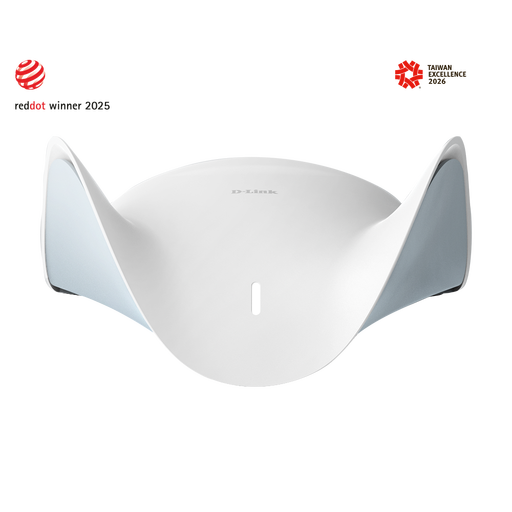 No image available
Consider a router-based option if you are looking to replace inadequate Wi-Fi from your current router; check the connection and ISP requirements first.
The listing describes tri-band Wi-Fi, one 2.5-Gigabit WAN port and four 2.5-Gigabit LAN ports. It says compatible AQUILA PRO routers or extenders can be added for mesh networking.
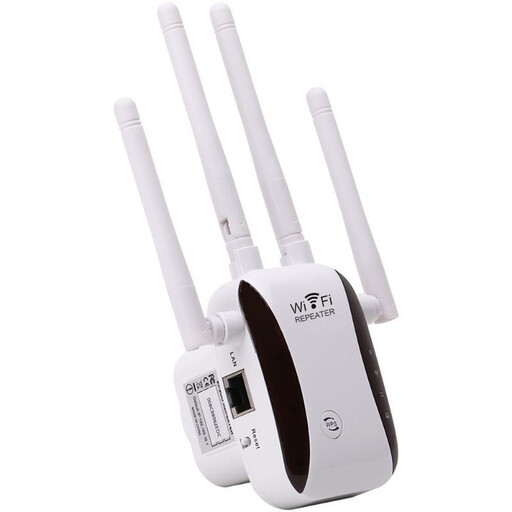 No image available
Consider this option when you want to extend an existing Wi-Fi network and can place the device where it receives a usable signal.
The listing describes Access Point, Relay, Router and Client modes.
Compare tests near the router with tests in the room, repeating them at different times; an Ethernet-connected device gives a better way to assess the connection near the router. If it is already inadequate there, investigate the broadband service. If the problem is mainly in the distant room, look at placement and in-home coverage. Ofcom advises testing over several days and varying the time of the test.
Not necessarily: it depends on the connection and ISP setup. Identify whether your home uses an Ethernet-connected fibre ONT, a telephone-line modem or a provider hub, then check the device’s WAN connection and any required ISP settings such as PPPoE or VLAN tagging. Keeping the existing hub and using a supported access-point or bridge configuration may also be an option; check how it affects services and features you use.
For wireless extension, choose a position where the device can still receive a usable connection from the router, rather than assuming a socket in the dead zone will work. Try improving the router’s position first, then check whether an intermediate location serves the room. If Ethernet reaches the room or a mesh-unit location, check whether the equipment supports an appropriate wired access-point or backhaul setup.
Ask your provider whether a supported hub upgrade or coverage option suits your setup, and check whether changing the router affects support or a phone service you rely on. If the connection is inadequate near the router, check your service information and the provider’s applicable speed terms before assuming new Wi-Fi equipment will solve it.