What to check before choosing
Ofcom advises checking device use and connection conditions because home Wi-Fi cannot outperform the broadband service feeding it. Use these checks to work out whether the issue is coverage, shared use, provider compatibility or one isolated spot.
| Concern |
What to check when buying |
Who this matters to |
| Coverage across several rooms |
Map weak rooms and possible node positions. Check the exact system’s node count and whether it supports Ethernet backhaul. |
If my work or streaming room is separated from the router, I need usable Wi-Fi across several rooms, not just beside the hub. Consumers who prioritise multi-room coverage make up about 36%. |
| Slowdowns when several people connect |
Compare performance near the router, in weak rooms and, where practical, over Ethernet. Consider busy and quieter times. |
When calls or streams falter as others connect, I want to know whether the broadband feed or local Wi-Fi is limiting us before replacing equipment. About 29% of consumers put diagnosing shared-use slowdowns first. |
| Provider hub and service compatibility |
Identify the provider, hub model, connection type and any home-phone service. Check which functions are available in the chosen router, access-point or bridge mode. |
If my household relies on provider-hub features or a phone service, I need to know what the proposed setup will retain. Consumers prioritising provider-hub compatibility account for about 21%. |
| One isolated weak spot |
Check whether you can wire an access point or place an extender where it still receives a usable signal. Confirm router compatibility for any mesh-roaming feature. |
If only one room or fixed device has weak Wi-Fi, I want to avoid adding more equipment than that area needs. Consumers focused on one isolated spot make up about 14%. |
Joybuy mesh Wi-Fi products
These Joybuy choices are mesh Wi-Fi systems for households considering coverage across multiple rooms. Pack sizes and router-only options differ, so check how many units are included and whether additional compatible units are needed.
 No image available
NETGEAR Orbi 370 RBE373 WiFi 7 Mesh System, 3-Pack
A three-unit mesh option to consider when several rooms need coverage.
The product name specifies a dual-band BE3600 system with 2.5Gbps Ethernet. The listing says an existing modem or gateway is required.
Joybuy
 No image available
TP-Link Deco BE22 BE3600 Mesh Wi-Fi 7 System, 3-Pack
A three-unit mesh option for considering coverage across several rooms.
The product name identifies a BE3600 Wi-Fi 7 system. The listing describes wired and wireless combined backhaul.
Joybuy
 No image available
TP-Link Deco BE65 BE9300 Tri-Band Wi-Fi 7 Mesh System, 3-Pack
A three-unit mesh option to consider if several rooms need coverage.
The product name specifies a tri-band BE9300 Wi-Fi 7 system. The listing describes wired and wireless combined backhaul.
Joybuy
 No image available
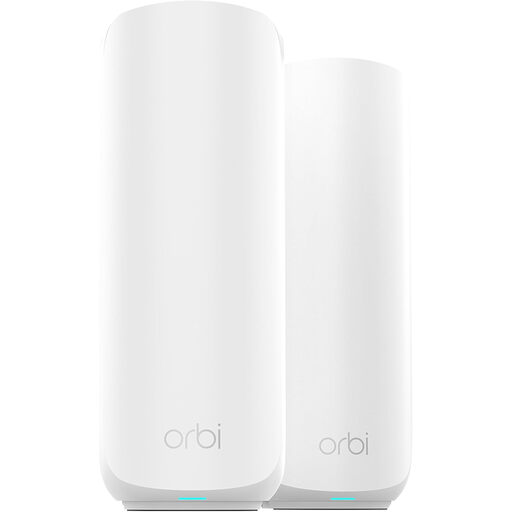
ORBI3 DB WiFi 7 Mesh Bundle, RBE372, 2-Pack
A two-pack mesh option to consider when extending Wi-Fi beyond one router location.
The product name identifies a Wi-Fi 7 bundle with two units.
Joybuy
 No image available
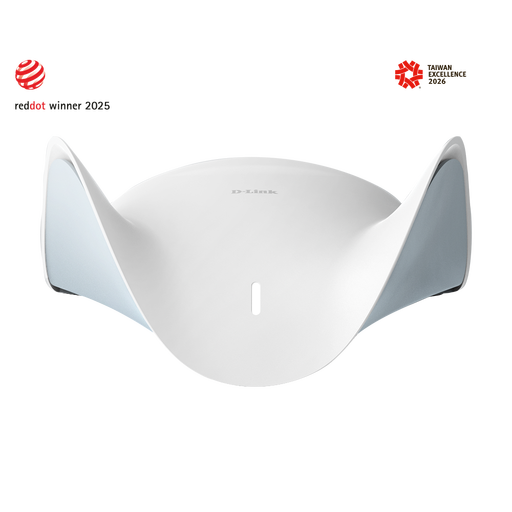
D-Link BE9500 Wi-Fi 7 Smart Mesh Router M95
A router option for a household considering an expandable mesh setup.
The product name specifies a BE9500 Wi-Fi 7 smart mesh router. The listing describes this as a single router; compatible additional units are needed to build a whole-home mesh.
Joybuy
Frequently asked questions
How can I tell a broadband problem from weak Wi-Fi in one room?
Compare the same activity close to the router and in the affected rooms; where practical, test an Ethernet-connected device too. If the connection is poor near the router or over Ethernet, check for a provider fault before expecting mesh or an extender to help.
Can mesh work with my existing UK broadband-provider hub?
It can, but the arrangement depends on the provider and equipment. BT says its Whole Home Wi-Fi products connect to a router with an RJ45 Ethernet port, while eero publishes different UK-provider setup instructions. If the hub remains the router, check whether the chosen system’s access-point or bridge mode removes features you need.
Can I replace a Virgin Media Hub or remove a BT Smart Hub?
Do not assume those changes are interchangeable. Virgin Media describes modem mode for specified hubs as a way to connect your own Wi-Fi equipment, but says it is not currently available on Hub 5x and lists functions affected on supported hubs. If you use BT Digital Voice, BT’s setup uses the Smart Hub; check your specific broadband and phone arrangement with BT before removing it.
Where should I place mesh nodes?
Place wireless nodes where they can still connect to the existing network, rather than relying only on the location of the dead zone. BT recommends testing disc locations with its app; follow the placement and maintenance instructions for the exact system you use.
Is an extender enough for one weak room?
It may be enough for one limited weak spot if the extender can receive a usable signal there. If Ethernet can reach the room, consider a wired access point; check compatibility before relying on a mesh-roaming feature.


