If Wi-Fi is weak in just the workshop room, consider a plug-in extender that can receive a usable signal from the router at its chosen socket. Connect the laptop by Ethernet where a cable is practical; if several rooms have weak coverage or you move around during calls, compare a mesh system instead. An extender cannot improve an inadequate broadband connection, and advertised Wi-Fi rates do not guarantee call quality.
Who needs which connection?
Attending from one weak-signal room
If Wi-Fi works elsewhere at home but falters where you attend workshops, a plug-in extender is worth considering. Choose a socket that still receives a usable signal from the router, then test the connection from your seat.
Presenting or screen-sharing
If you can run a cable to your laptop, test Ethernet before buying wireless equipment. Ofcom recommends a direct Ethernet connection to the router when connection speed matters; a cable also helps you check whether the workshop-room Wi-Fi is the problem.
Joining from a busy household
If others are online during your workshop, check the connection under normal household use. Where weak coverage extends across several rooms, compare a mesh system with a single extender rather than assuming one plug-in unit will reach every area.
What matters when choosing?
Start by separating a weak signal in one room from a connection problem throughout the home. That determines whether an extender, a cable or wider mesh coverage addresses the workshop setup.
Plug-in extender
Choose it when: The workshop is usually in one weak-signal room and a socket between that room and the router receives usable Wi-Fi.
Bear in mind: It rebroadcasts the connection it receives; it cannot repair an inadequate broadband service or a missing router signal.
Mesh Wi-Fi
Choose it when: Coverage is weak in several rooms or you need to move around the home during workshops.
Bear in mind: A multi-unit system takes more equipment and placement planning than one plug-in extender.
Ethernet
Choose it when: A cable can reach the workshop laptop, particularly if you present or screen-share frequently.
Bear in mind: The cable needs a practical route, and a wired local connection cannot increase the broadband speed delivered to your home.
| Concern |
What to check |
Who this matters to |
| Connection in the workshop room |
Check the router signal at the proposed extender socket, then test calls from your workshop seat. A placement indicator can help you choose a socket. |
If my workshop room has patchy Wi-Fi, I need audio and screen-sharing to stay usable where I sit. Around 33% of consumers put that room-level connection first. |
| Wired laptop option |
Check whether a cable can reach the laptop and whether the exact extender model has the Ethernet port you need. |
When I am presenting, I want a practical cable option rather than relying on the final wireless hop. That is the primary need for around 27% of consumers. |
| Busy-home coverage |
Identify whether weak coverage affects one room or several; check any router requirements for mesh roaming. |
If other devices are active or I use several rooms, I need coverage beyond one workshop seat. Around 20% of consumers prioritise that wider-home need. |
| Setup and compatibility |
Check the exact router and extender models for setup options, mesh features and firmware support. |
I need to set up the connection with my existing router and keep it maintained without assuming branded roaming will work. For around 20% of consumers, that is the main concern. |
Mistakes to avoid
-
Choosing by the headline Wi-Fi rate alone
A rated link speed is not guaranteed throughput during a workshop. D-Link notes that traffic, building materials and other conditions can reduce actual throughput and range.
Use the rate to compare stated specifications, but test the connection from your workshop seat and consider placement and a wired fallback.
-
Putting the extender in the dead zone
An extender needs to receive a usable router signal before it can rebroadcast one to the workshop room.
Try sockets between the router and the room, using a signal indicator or setup tool if the model provides one. Test again with the room in its usual working arrangement.
-
Trying to fix every freeze with an extender
If a connection tested by cable near the router is also inadequate, extending Wi-Fi into another room will not address that underlying problem.
Compare a wired test near the router with a Wi-Fi test from the workshop seat before deciding what to change.
-
Assuming branded mesh features work with any router
Basic extender operation and features such as one-name roaming can have different compatibility requirements. TP-Link, for example, requires a compatible OneMesh router for its OneMesh feature.
Check the exact router model, extender model and applicable compatibility guidance before choosing a device for branded roaming.
Relevant brands to consider
TP-Link
Its extender range includes models with placement guidance, Ethernet and access-point options, which are useful features to check for a single workshop room.
- TP-Link describes one-name roaming through OneMesh when the router and extender are compatible.
- Check the exact models before relying on that feature. TP-Link marks its UK RE605X page as end of life, so use current model information when comparing devices.
NETGEAR
The EAX12 line is an example of a wall-plug Wi-Fi 6 extender to examine if Ethernet connectivity and guided setup matter to you.
- NETGEAR lists a Gigabit Ethernet port and app-guided setup for the EAX12.
- Its stated Wi-Fi rate and roaming features do not establish workshop performance or compatibility with every router; check the exact setup you intend to use.
D-Link
The DAP-X1860 is a documented Wi-Fi 6 extender with a placement indicator, a Gigabit port and mesh support subject to router compatibility.
- D-Link lists WPS and app setup options alongside the placement indicator for this model.
- D-Link cautions that building materials, traffic and other conditions can lower actual throughput and range. Check mesh compatibility for the router you own.
Joybuy product choices
These choices cover one plug-in extender for a room-level Wi-Fi problem and four mesh systems to consider when coverage is needed across more of the home. Check the connection from your workshop seat whichever route you choose.
 No image available
TP-Link RE220BE BE3600 Wi-Fi 7 Range Extender
Consider this plug-in extender if the workshop has one weak-signal room but a suitable socket still receives router Wi-Fi.
If you want to connect the laptop by cable or use branded roaming, check the exact port, operating mode and router compatibility before choosing it.
View on Joybuy
 No image available
TP-Link Deco BE22 (3-Pack) BE3600 Wi-Fi 7 Mesh System
This three-pack is a mesh option when the workshop is not the only room with weak coverage.
Check how its units would connect to your existing modem or gateway and whether their proposed positions serve the rooms you use.
View on Joybuy
 No image available
NETGEAR Orbi 370 RBE373 WiFi 7 Mesh System, 3-Pack
This router-and-satellite mesh arrangement is relevant if workshop connectivity needs improvement across several rooms.
The named variant is dual-band BE3600 with 2.5Gbps Ethernet. Check that its setup suits your modem or gateway and test coverage where you attend.
View on Joybuy
 No image available
TP-Link Deco BE25 WiFi 7 Mesh System (3-Pack)
Consider this mesh system when weak coverage extends beyond the workshop room.
Confirm the exact BE25 variant, included units and Ethernet connections if a wired laptop connection is part of your plan; test coverage from the intended seat.
View on Joybuy
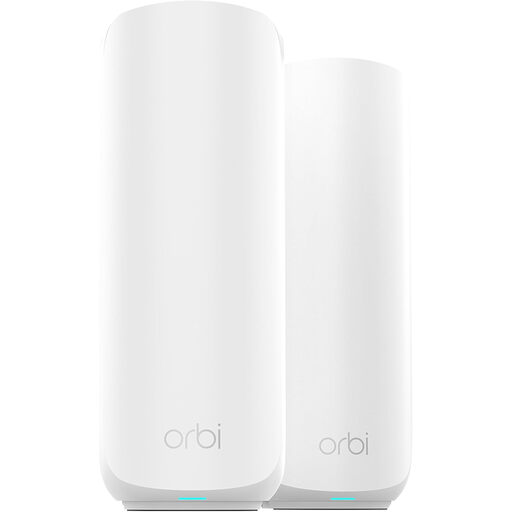 No image available
ORBI3 DB WIFI7 2PK BNDL (RBE372)
This two-unit mesh bundle is a route to consider if coverage is needed beyond a single weak room.
Check how the router and satellite fit your existing network, and confirm the port and wireless-band specifications if those affect your workshop setup.
View on Joybuy
Common questions
Will an extender stop my virtual workshop freezing?
An extender may help if weak Wi-Fi in one room is causing the interruptions, but it cannot fix an inadequate broadband connection or a poor signal at the extender itself. Compare a wired test near the router with a test from your workshop seat before buying.
Where should I plug in a Wi-Fi extender?
Use a socket where the extender still receives a usable router signal, not one deep in the dead zone. Follow the model’s placement guidance, then test the connection from the room where you attend workshops.
Should I use 5 GHz for a virtual workshop?
Test 5 GHz if the router, extender and laptop support it and the signal reaches your workshop seat. Google Meet recommends trying 5 GHz rather than the more heavily used 2.4 GHz band when troubleshooting video quality, but the usable connection in your room is what matters.
What should I check about support before buying?
Check the exact model’s firmware-update route, manufacturer support information, warranty and the retailer’s return terms. Do not assume that information for an older model applies to its replacement; TP-Link marks its UK RE605X page as end of life.


