What should you check before buying?
Start with the view you want on an ordinary call, then check your room lighting, audio and device setup before deciding whether extra camera features will help.
| Priority | What to check | Your needs |
|---|
| Resolution |
Compare 1080p with higher-resolution capture in the mode you would use. Check whether you intend to crop or zoom, and what video setting your calling service offers. |
I usually stay in one position on screen, so a clear solo frame matters more to me than spare image area for cropping. PCMag UK describes 1080p as a starting point and recommends considering 4K when cropping without losing sharpness matters. |
| Framing |
Check the stated field of view from your normal sitting position. For selectable views, confirm how settings are changed and whether manufacturer software is required. |
In a small room, I want control over how much of my background appears. AnkerWork specifies 65°, 78° and 95° settings for the PowerConf C200 through its software; a fixed-view model will not offer that adjustment. |
| Lighting |
Check for a bright window behind your seat and whether a light can face you. Raise the camera towards eye level before judging a camera’s light-correction feature. |
My face needs to remain visible during evening or backlit calls. I can improve the room setup first, then decide whether the camera’s stated light-correction feature is relevant. |
| Connection and privacy |
Check the camera connection, operating-system support and app or browser permissions. If you want a physical lens cover, check that the model has one and open it for calls. |
I want my camera to work with the computer and meeting service I actually use, and a straightforward way to cover the lens between calls. Google says Meet accepts an external USB camera; Microsoft notes that privacy mode can block video in Teams. |
| Audio |
Check whether the webcam has a microphone and which audio device your calling app selects. Consider room noise before relying on microphone feature descriptions. |
For quiet solo calls, a built-in microphone may be convenient. If other people or background sounds make speech difficult to hear, I need to assess whether a headset or separate microphone suits my setup. |
Which webcam lines are worth comparing?
These manufacturer model descriptions give you features to compare; the right fit still depends on your desk, computer and calling service.
Logitech
Logitech’s UK webcam range includes fixed-view 1080p models and a Brio 4K model with selectable framing.
- Logitech specifies 1080p/30fps, a fixed 78° field of view, dual microphones and a privacy shutter for the C920s.
- Logitech specifies 4K/30fps and selectable 90°/78°/65° views for Brio 4K, but the camera specification alone does not establish the resolution sent by a calling service.
AnkerWork
The PowerConf C200 is a model to consider when changing the amount of room in the frame matters.
- AnkerWork specifies 65°, 78° and 95° field-of-view options through its software, alongside a built-in privacy cover.
- Check that the computer you will use supports the software needed to change those views.
Jabra
The PanaCast 20 offers features aimed at personal video conferencing rather than a simple fixed desk view.
- Jabra specifies 4K/30fps capture, a 90° horizontal field of view, intelligent zoom and a sliding privacy cover for the PanaCast 20.
- Consider those framing features against your actual call pattern rather than treating 4K capture as necessary for every seated call.
Joybuy webcams for individual calls
These webcams cover fixed desk calls, clip-on setups and options for callers interested in focus or zoom controls. Check each model against your computer, room and usual meeting service.
 No image available
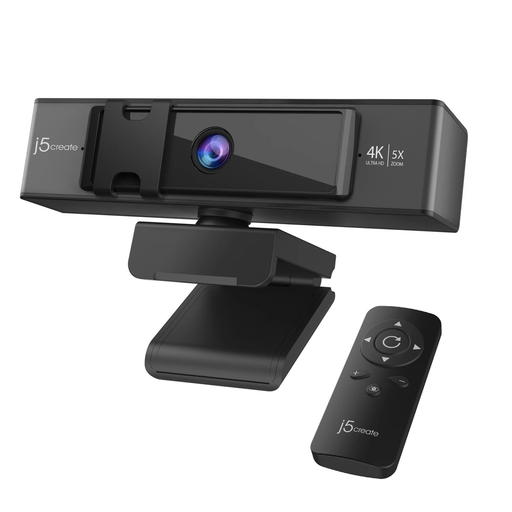
j5create JVCU435 USB 4K Webcam with 5x Digital Zoom Remote Control
Consider this model if you expect to adjust the shot during individual calls: its product name specifies 4K capture and 5x digital zoom with remote control. Check the camera connection and your calling service’s video settings; 4K capture does not establish that a call will be transmitted in 4K.
View on Joybuy
 No image available
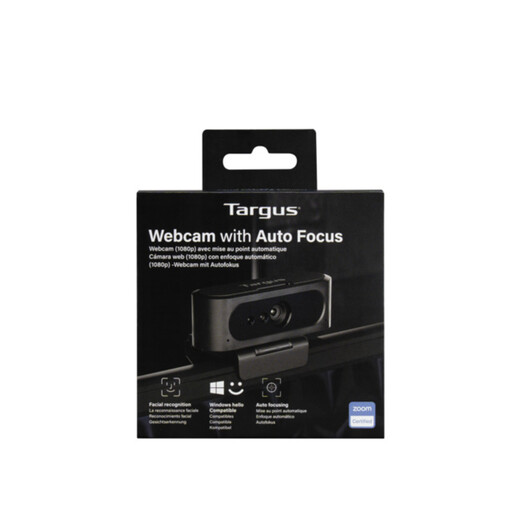
Targus 2K Webcam with Auto Focus
Auto focus may be relevant if your distance from the camera changes during desk calls. Confirm this exact model’s resolution before buying: its product title says 2K, while the supplied technical-specification information says Full HD 1080p at 30fps.
View on Joybuy
 No image available
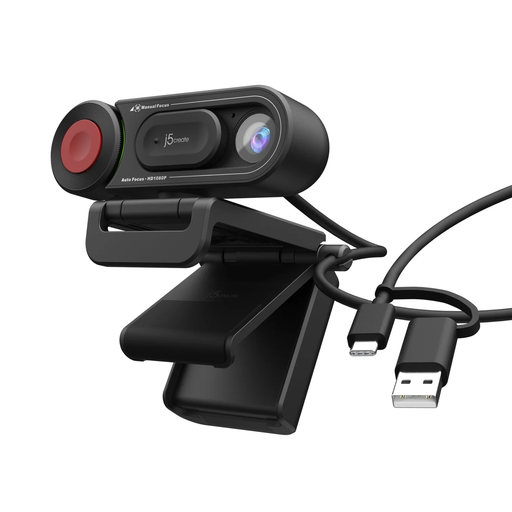
j5create JVU250 HD Webcam with Auto and Manual Focus Switch
This is an option for desk callers who want to switch between automatic and manual focus. Check its stated video resolution against your image-quality needs, and confirm the field of view and physical lens-cover arrangement if those matter in your room.
View on Joybuy
 No image available
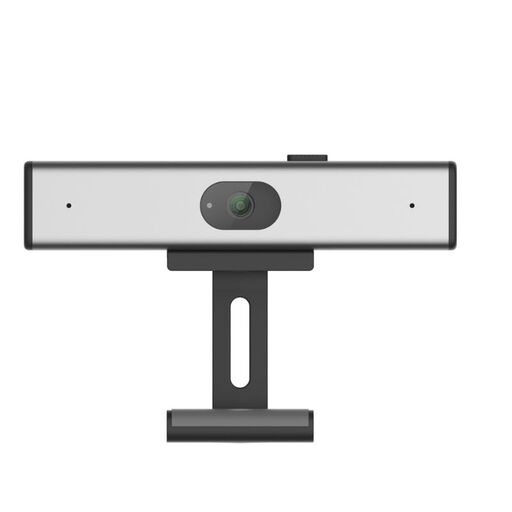
Philips SPL6308S/00 2K QHD Clip-on Webcam, EU Version
The product name identifies a clip-on PC webcam with a noise-reduction microphone, which may suit a laptop or desktop call setup. Confirm the connection, computer compatibility, field of view and privacy controls for this EU Version; the microphone wording is a product description, not a measure of performance in your room.
View on Joybuy
Common questions
Will a 4K webcam make every video call appear in 4K?
No. A camera’s capture resolution does not determine what the calling service sends. Google’s Meet guidance makes its 1080p sending option conditional on a suitable camera and sufficient computer processing power, so consider 4K for a specific capture or cropping need rather than assuming everyone will receive a 4K stream.
Do I need a physical privacy shutter for video calls?
A physical shutter is a preference for covering the lens between calls, not a feature you should assume every model has. If you choose one, remember to open it before calling: Microsoft identifies a manufacturer privacy screen or privacy mode as a possible cause of blocked video in Teams.
What should I check before my first call with a USB webcam?
Connect the camera, select it in your meeting app and make a test call. Check computer and browser camera permissions where applicable, along with any privacy cover or mode. Google says Meet can use an external USB camera, while Microsoft’s Teams guidance identifies privacy settings as a possible cause of missing video.
Should I change my lighting before replacing my webcam?
If your face looks dark against a bright window, try changing the lighting and camera position first. Imperial College London recommends placing the light source in front of you; reducing strong backlight can help you judge whether the camera itself still needs changing.
Is a webcam’s built-in microphone enough for regular calls?
It may suit a quiet solo setup, but the presence of a microphone does not establish how clearly others will hear you in a noisy room. Test the audio device selected by your calling app and consider a headset or separate microphone if background sound interferes with speech.


