Individual callers at a desk
If a laptop lid limits your camera angle or placement during interviews and meetings, consider a movable webcam or a positioning accessory before changing your audio setup.


For recurring home calls, choose a webcam if camera position, framing or lighting is the main problem; choose a work headset if speech pickup and call controls matter more. An integrated camera and microphone makes more sense when several people share a room, while adjusting the position or lighting of a working camera may be enough for an individual desk. Check the exact device’s connection, operating-system support and meeting-app features before buying.
If a laptop lid limits your camera angle or placement during interviews and meetings, consider a movable webcam or a positioning accessory before changing your audio setup.
If others struggle to hear you or you need an accessible mute control, compare call-focused headsets and their microphones rather than judging the setup by its picture alone.
When several people join from one room, check whether a room-oriented camera, microphone and speaker arrangement covers their seating positions. A personal desk webcam serves a different setup.
Start with the part of the call you need to change: the picture, your voice, or coverage for several people. Then check how the proposed device connects to your computer and meeting app.
Choose when: You need more freedom to place or frame the camera for individual calls.
Bear in mind: Changing the camera does not by itself move a microphone closer to your voice.
Choose when: Speech pickup, listening and accessible call controls are your main concerns.
Bear in mind: A wireless model also needs a suitable connection and charging routine; a headset will not change your camera angle.
Choose when: Several people regularly join the same call from one small room.
Bear in mind: Check seating and audio coverage rather than assuming room equipment suits a one-person desk.
Choose when: Your existing camera works, but its angle or desk lighting is the issue.
Bear in mind: An accessory will not add microphone controls or change camera permissions.
| Priority | What to check | Your needs |
|---|---|---|
| Framing and light | Check where the camera can sit, whether its mount fits your screen, and whether the exact model offers light adjustment or a physical shutter. Confirm any software needed for auto-framing. | I want the camera at a useful angle for desk calls, without relying on the position of the laptop lid. |
| Speech and controls | Check microphone placement, mute access and the headset’s connection. For wireless models, confirm charging arrangements and whether a receiver is included. | People need to hear me during calls near other household activity, and I want to mute without searching through the meeting app. |
| App and computer fit | Confirm the connector, operating-system support and certification for the exact variant if platform-specific controls matter. Microsoft says Teams-certified personal devices offer plug-and-play setup and Teams call control; Zoom describes its own hardware certification programme. | My regular meeting app should recognise the device, with the controls I expect from the version I buy. |
| Shared-room coverage | Check the intended room size, camera view, seating positions and microphone and speaker arrangement. Logitech describes its MeetUp camera as a USB-connected device for small meeting rooms. | Several of us may join from the same room, rather than each using a separate desk setup. |
| Camera access | Check for a physical lens cover if you want one. On Windows, review camera and microphone permissions for the system, app and browser; Microsoft notes that privacy settings can prevent video from appearing. | I want a clear way to cover the lens between calls and to control which apps can use the camera. |
A new camera changes the picture, but it does not place a headset microphone near your mouth or add headset call controls.
Ask callers whether the difficulty is seeing you, hearing you, or both. Choose the equipment that addresses the affected part of the call.
The connection method affects which computer port or wireless connection you will use and which version of a headset you need.
Check the exact package for a receiver, its USB-A or USB-C connector, and the headset’s stated support for your computer and meeting app.
A physical shutter covers the lens; Windows camera and microphone permissions separately control app access. A covered lens can also explain a missing picture.
Check both the shutter position and the relevant system, app and browser permissions before an important call.
A camera intended for shared-room calls addresses several participants and their seating positions, which may not be the issue on an individual call.
For a solo desk, compare the camera and microphone needs separately. Consider an integrated device when people regularly join together from one room.
These product lines illustrate different home-call setups; their features and platform support depend on the exact model and variant.
Its Brio webcams, Zone work headsets and MeetUp room camera address different parts of a video-call setup.
The Evolve2 65 is a wireless business-call headset line with variants for different work-platform setups.
Poly headsets and speakerphones are relevant to personal and shared calling setups.
These options cover individual-call headsets and webcams as well as a camera with built-in room audio for shared calls. The wired V7 headset uses a 3.5 mm connection, so it calls for a different port check from a USB or Bluetooth headset.
 No image available
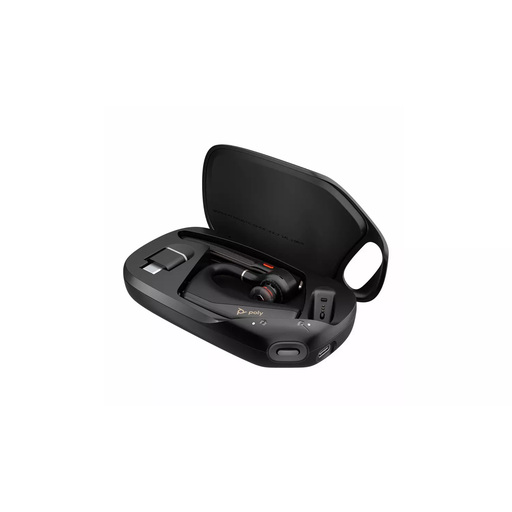
For individual calls where microphone position and accessible controls matter, this headset has a boom microphone and on-ear mute, call and volume controls described in its listing.
It uses Bluetooth and USB-C charging. Check the receiver configuration, operating-system support and exact meeting-platform features for your setup; position the boom near the corner of your mouth as the listing advises.
 No image available
For an individual desk where camera placement and covering the lens matter, the listing describes a tiltable clip, tripod thread, autofocus, automatic lighting correction and a privacy slider.
Confirm the output resolution before buying: the product name says 2K, while its technical specification and English description say Full HD 1080p.
 No image available
For several people joining from one space, the listing describes a camera with an adjustable 98° field of view, a four-microphone array and two speakers.
It specifies fixed focus and a Sony sensor. Check the intended seating arrangement, operating-system support and meeting-app compatibility; its room-oriented functions may not be needed for solo desk calls.
 No image available
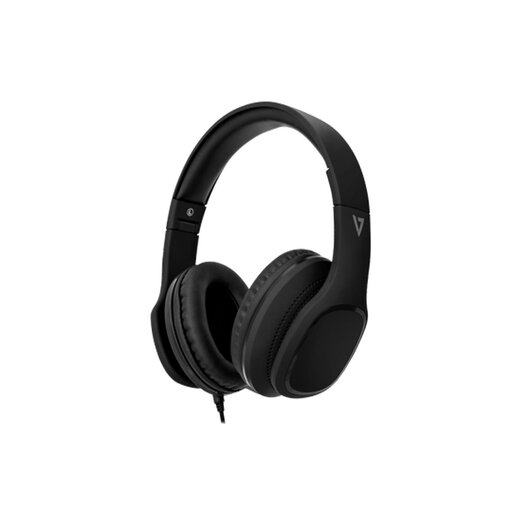
For a stationary wired call setup, the listing describes an inline MEMS microphone and answer and end-call controls.
It specifies a 1.8 m cable, 3.5 mm connection, 40 mm drivers and passive noise isolation. Check that your computer’s audio jack supports the headset microphone; passive isolation is not active noise cancellation.
 No image available
For an individual desk that needs an external camera, the listing describes a clip for a monitor or laptop and states 2K QHD video.
The listing also claims a noise-reduction microphone. Check the connector, operating-system and meeting-app compatibility, and the seller’s documentation for this EU version and your UK delivery destination.
Not for every home call. Certification is worth checking if your work depends on platform-specific setup or call controls: Microsoft says Teams-certified personal devices offer plug-and-play operation and Teams call control, while Zoom has a programme for hardware certified to work with its services. Confirm the certification, connector and operating-system support for the exact variant.
Check camera permissions and whether the lens is covered before replacing the hardware. Microsoft identifies Windows privacy settings as a possible cause of missing Teams video; if you join in a browser, check its permissions too.
Choose one if being able to cover the lens between calls matters to you, and confirm that the exact model has it. Zoom’s Brio 300 listing, for example, describes an integrated shutter. A lens cover does not replace checking camera and microphone app permissions.
It can bring camera and room-audio functions together when several people regularly join from one small space; Logitech describes MeetUp as a USB-connected camera for that setting. For a solo desk, decide whether the picture, microphone or both need changing before choosing room-oriented equipment.