People with an awkward camera angle
If the computer and camera work well enough but the lens sits too low or off-centre, try changing its position before replacing either device. A holder must fit and securely support the particular camera or phone.


Keep the current computer if it runs meetings reliably: try a mount for an awkward camera angle, lighting for a dim or backlit room, or a separate webcam when the camera itself needs different capabilities. Consider a replacement laptop when the computer also struggles to support Teams or Zoom; an integrated camera alone will not necessarily fix a low viewing angle. Check device compatibility and any software-dependent camera features before buying.
If the computer and camera work well enough but the lens sits too low or off-centre, try changing its position before replacing either device. A holder must fit and securely support the particular camera or phone.
If Teams or Zoom runs reliably but the existing camera does not give you the framing, focus or controls you need, compare separate webcams. Check the connection and any companion-software requirements against your computer.
If meeting-client support or wider device capability is the problem, assess a replacement computer against the current Teams or Zoom requirements. Zoom says most laptops have an integrated webcam, but its position remains tied to the screen.
Separate a positioning problem from a camera problem, then check whether the computer itself can support your meetings. For a compatible Mac and iPhone, Apple also describes using Continuity Camera with a suitable MagSafe notebook mount; lighting is another option when the camera otherwise works in a dim or backlit room.
| Concern | What to check | Who this matters to |
|---|---|---|
| Camera position | Check that a mount securely fits the camera or phone and can place the lens where you want it without blocking the screen. | If my picture is acceptable but the lens points up from the desk, I need a steadier, better-positioned view rather than another computer. About 42% of consumers would put positioning first. |
| Camera image and controls | Compare focus and framing controls for your seating position; distinguish a camera’s stated resolution from what the meeting call delivers. | When my computer handles calls but its camera struggles with focus or framing, I want to change the camera itself. Clearer, more controllable video would be the primary need for about 33% of consumers. |
| Computer and meeting-client support | Check the chosen Teams or Zoom client’s current operating-system and hardware requirements, plus the connections needed for an external camera. | If the computer also has trouble running my meeting app, changing the camera may leave the main problem untouched. For about 25% of consumers, computer compatibility would come first. |
A laptop’s integrated camera moves with its lid, so using a new laptop low on a desk can leave the same viewing angle.
Try the present camera at a higher position. If the picture and meeting app then work for you, compare mounts or holders before replacing the computer.
A computer change can also mean moving files, settings and meeting apps.
AnkerWork notes that conferencing software and bandwidth can affect the video delivered during a call. A capture specification does not promise the same picture to every participant.
Assess framing, focus and room lighting as well as resolution, and test the webcam with the meeting app and connection you intend to use.
Logitech says Brio 505 auto-framing requires Logi Tune; that feature is unavailable on ChromeOS and unsupported on ARM computers.
Check the exact model’s software and computer requirements for the feature you want, not just its basic camera connection.
A better camera height can leave the built-in keyboard awkward to use. The Health and Safety Executive also identifies workstation setup as relevant to comfort during regular display-screen work.
Consider screen height, keyboard position and seating together. Where your work falls under an employer’s display-screen-equipment process, use that process for workstation advice.
Its Brio 500 and Brio 505 lines offer separate-webcam options for meetings.
The PowerConf C200 is a webcam option for buyers comparing focus and framing controls.
The Meet 2 is relevant when comparing higher-resolution capture modes and automatic framing.
Continuity Camera offers a phone-camera route for people with compatible Mac and iPhone hardware.
These Joybuy webcams are options if your computer already handles meetings and you want to change its camera. Match the connection, mounting arrangement and camera controls to your own setup before choosing one.
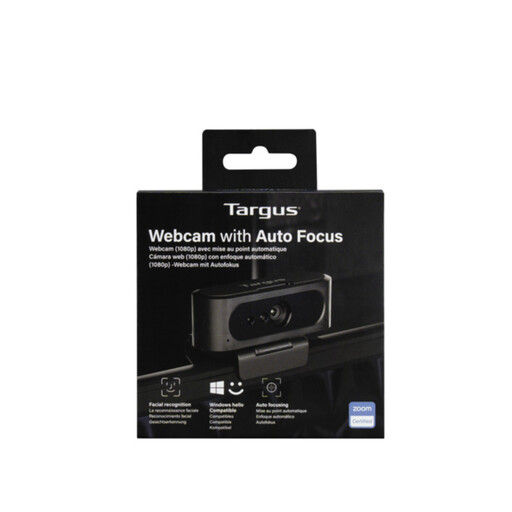 Image unavailable
Consider this separate webcam if focus adjustment matters for calls at your desk. The title states autofocus and 2K, but the resolution information for this variant conflicts; confirm its actual video mode before relying on the 2K designation.
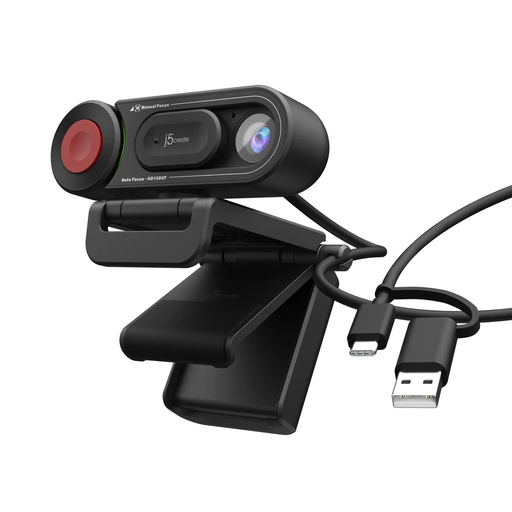 Image unavailable
Consider this model if you want the auto and manual focus switch named in its title. Confirm that its connection fits your computer and that its image detail meets your needs in the meeting app you use.
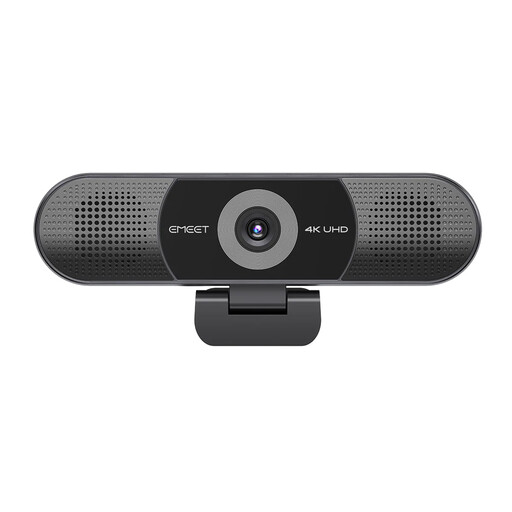 Image unavailable
This model is worth considering if you want the stated 4-mic array and dual speakers at a meeting desk. Its title also specifies a fixed-focus lens and an adjustable 98° field of view: check that fixed focus suits your seating distance, and confirm the exact USB connector and meeting-app compatibility.
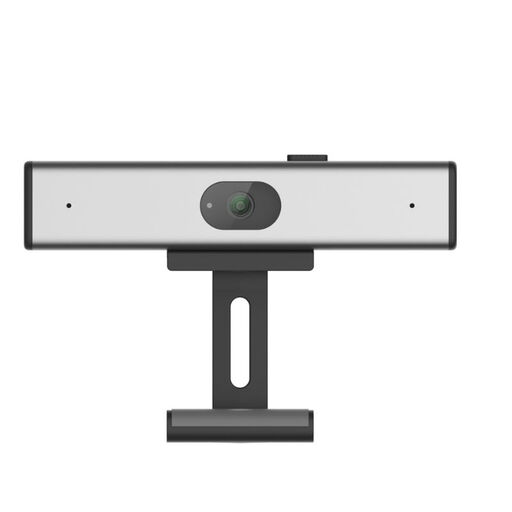 Image unavailable
Its title describes a clip-on camera with a noise-reduction microphone for a desktop or laptop setup. Before choosing this variant, confirm its connection, meeting-app compatibility, focus controls and any privacy features you need; the 2K QHD designation alone does not establish call quality.
A mount may be enough when the computer runs meetings reliably and the existing camera’s picture is acceptable, but its position is not. Check that the mount securely fits your device; it cannot change the camera’s focus or the computer’s capabilities. Apple also describes a hands-free phone-camera arrangement for compatible Mac, iPhone and MagSafe mounting hardware.
Check the computer’s current Teams-client requirements, an available suitable USB connection and whether you can select the camera in the app. Microsoft Learn lists a USB 2.0 video camera among its published Teams requirements; also check the exact webcam’s connector and software-dependent features.
Not necessarily. AnkerWork explains that third-party conferencing software and bandwidth can affect delivered image quality. Treat the camera’s resolution as a capture specification, then test it with your intended meeting platform and connection.
It can if its integrated camera meets your needs and the computer supports your meeting app. Zoom says most laptops have a built-in webcam that you can select and test in its video settings. If your only problem is a low camera angle, changing laptops may leave that problem in place.
Consider the whole workstation, not only the camera angle. In the UK, the Health and Safety Executive says display-screen-equipment rules apply to workers who use such equipment daily for continuous periods of an hour or more, including home workers. Where applicable, use your employer’s workstation assessment process when adjusting screen, keyboard and seating positions.