One-to-one mentees who want a simple private setup
If you stay seated and mainly show your face and shoulders, a straightforward webcam with a physical lens cover may meet your needs without wider framing controls.


For a seated, one-to-one mentoring call, start with a 1080p USB webcam and a physical lens cover, positioned at eye level. Adjustable framing becomes more useful if you regularly show paperwork or include another person; consider autofocus or auto-framing if you move during sessions, and check software requirements, your USB port and how well the microphone suits your kitchen.
If you stay seated and mainly show your face and shoulders, a straightforward webcam with a physical lens cover may meet your needs without wider framing controls.
If you switch between conversation and showing a worksheet, notebook or second participant, consider how easily the camera can change its view and refocus.
If you stand to explain something or occasionally include a group, check the camera's framing modes, autofocus and any software needed to use them.
Decide what the camera must show before comparing resolution: a fixed seated view, changing tabletop views and movement call for different framing controls.
Choose when: You normally sit alone and need a head-and-shoulders view.
Trade-off: A fixed view gives you less flexibility for paperwork, another participant or movement.
Choose when: Your calls alternate between conversation and showing notes or a wider table view.
Trade-off: A wider setting reveals more of the kitchen, and changing the view may require software.
Choose when: You regularly move while presenting, need group framing or want detail for cropping.
Trade-off: Auto-framing can require companion software; higher resolution alone will not correct poor lighting.
| Concern | What to check | Who this matters to |
|---|---|---|
| Clear calls in kitchen lighting and noise | Look at stated light-correction and microphone features; consider whether you can use a headset. | I need to be seen and heard despite changing daylight or household sounds. Around 31% of consumers put call clarity first. |
| Framing people and materials | Check the field of view and whether it can be changed or the camera repositioned. | If I bring a worksheet or another person into the call, I need room in the frame without showing the entire kitchen; roughly 25% of consumers prioritise flexible framing. |
| Simple setup and lens privacy | Confirm the USB connector, meeting-platform compatibility and presence of a physical lens cover. | I want to connect the camera without setup complications and cover its lens afterwards. About 25% of consumers make straightforward, private setup their main concern. |
| Focus and framing while presenting | Check autofocus, single-person or group framing modes, and any required software. | When I move or hold material nearer the camera, I do not want to keep adjusting the shot; around 19% of consumers place presentation flexibility first. |
More pixels will not fix backlighting, an awkward camera position or a view that cuts out your notes. PCMag UK identifies 1080p as a useful starting point for a webcam.
Set the camera near eye level, arrange light in front of you and decide what needs to fit in the shot before paying attention to higher-resolution modes.
A wider setting can include a second person or paperwork, but it can also show household details you meant to keep out of view.
Use the narrowest setting that includes what you intend to share, and check whether adjusting it requires companion software.
Some advanced controls depend on desktop software. Logitech says Brio 500 auto-framing requires Logi Tune.
Check the required application, operating system and available USB port before choosing a camera for its framing features.
A shutter covers the lens after a call; it does not control recordings, transcripts, messages or shared files. The National Cyber Security Centre advises organisations to consider protection for calls and related data.
For confidential mentoring, follow your organisation's arrangements for the conferencing service, account access and any recording or sharing.
Logitech's Brio range includes the basic Brio 100 and the more adjustable Brio 500.
The PowerConf C200 offers a way to change the view when a mentoring call moves between a person and tabletop materials.
Meet 2 illustrates the higher-resolution, automatic-framing route for moving presenters or occasional groups.
These webcams offer different starting points for a kitchen-table call: a seated view, a wider conference-style view and a clip-on camera. Check each model's framing and connection details against what you plan to show.
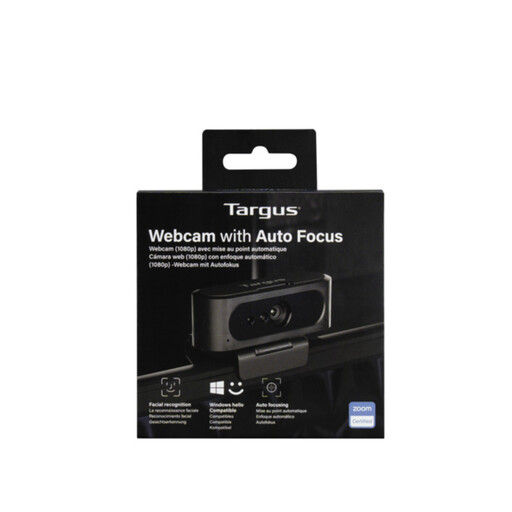 No image available
Consider this model if you mainly stay seated and want autofocus. Check the video resolution for this variant before choosing it for its 2K designation, and confirm that its lens cover and USB connection meet your needs.
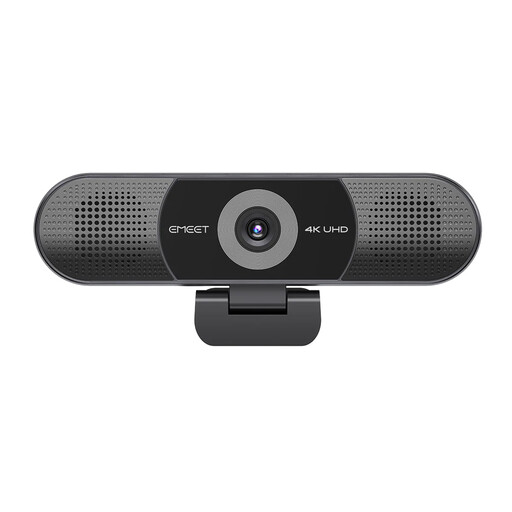 No image available
Consider its wider view if more than one person needs to appear in the call. The name specifies 4K video, fixed focus, a 98° adjustable field of view, a four-microphone array and two speakers. Fixed focus makes it important to check your intended document distance; also confirm the USB connector and physical privacy control.
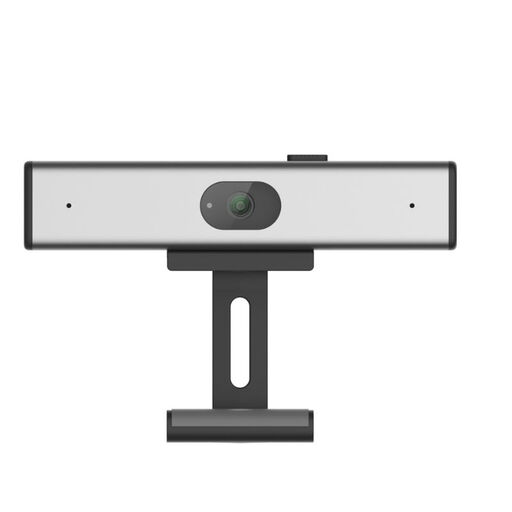 No image available
Consider this clip-on model for a screen-mounted video-call setup. Its name specifies a noise-reduction microphone; check the field of view, privacy control, USB connector and compatibility with your meeting platform before ordering.
Use the narrowest view that includes everyone and everything you intend to show. A wider setting helps when a second person or tabletop material must fit, but it also reveals more background; AnkerWork specifies 65°, 78° and 95° settings for the PowerConf C200.
Place it around eye level for a seated conversation, with light in front of you where possible. Logitech cautions that strong light behind you can leave your face difficult to see.
You may need companion software even if the webcam handles a basic call without it. Logitech says Brio 500 auto-framing requires Logi Tune, while AnkerWork uses its software to change PowerConf C200's field of view; check the application's compatibility with your computer.
No: it covers the lens but does not protect recordings, messages or shared files. Follow your organisation's confidentiality arrangements and conferencing controls; the National Cyber Security Centre advises organisations to consider the security of calls and related data.