Home workers on regular calls
If your laptop works but calls are awkward, identify whether the difficulty is camera position, lighting, microphone pickup, room noise or the device selected in your meeting app.


Test your laptop camera, microphone and meeting-app settings before adding equipment: Zoom says most laptops can use their built-in camera and audio. If the problem is camera position or framing, consider changing the laptop position or adding a webcam; if other callers struggle to hear you, consider a headset instead. Check connections, mounting and workplace rules against your own setup before buying.
If your laptop works but calls are awkward, identify whether the difficulty is camera position, lighting, microphone pickup, room noise or the device selected in your meeting app.
For an important meeting, check that your face is framed as intended and your speech can be heard before deciding whether an accessory would help.
If the laptop sits below or beside your main screen, a separately positioned camera may address the angle without changing where you work.
Start with a test call, then choose equipment for the specific camera or audio problem that remains.
Choose this when: Your camera and audio pass a test call, and you can position the laptop for a suitable frame.
Bear in mind: A working built-in camera may still sit too low or too far to one side when you use a separate monitor.
Choose this when: You need to place the lens independently of the laptop or adjust what appears in the frame.
Bear in mind: A webcam does not fix a microphone problem, and its listed resolution does not guarantee the same image in every meeting app.
Choose this when: Being heard is the main difficulty, or you take frequent calls in a shared workspace.
Bear in mind: Bluetooth requires pairing and charging; a wired connection needs a suitable port or jack.
| Priority | What to check | Your needs |
|---|---|---|
| Existing setup | Run a camera preview or test call. Check the selected camera, microphone and speaker; review permissions and close other apps using the camera. Microsoft Teams offers a test call, while Google Meet and Chrome document device-selection and permission checks. | I want to know whether a setting, rather than the laptop hardware, is causing the problem. |
| Camera position | Compare the lens position with where you look during calls. For an external webcam, check the mount, cable reach and field of view against your monitor and desk. | My main screen is separate from the laptop, and I want a face-level frame without moving my whole workspace. |
| Call audio | Test how your microphone sounds from your usual seat. If considering a headset, check its microphone arrangement and select it for both input and output in the meeting app. | People need to hear me clearly on calls, particularly when others share the room. |
| Connections | Match USB-A, USB-C, Bluetooth or a 3.5 mm jack to the laptop. Confirm operating-system and meeting-app support, including any software needed for camera controls. | I need the accessory to work with the computer and call service I actually use. |
| Workplace use | Check approved-device rules before using a personal accessory for work. Review what your camera shows and the meeting’s recording status; the UK Information Commissioner’s Office advises using organisation-provided technology where supplied. | I take work calls from home and need a setup that fits my employer’s rules and my surroundings. |
Microsoft Teams, Google Meet and Chrome describe device selection, permissions or another app using the camera as possible causes of camera trouble. An added webcam may face the same settings issue.
Try a preview or test call, close other camera-using apps and check camera permissions before buying.
A webcam’s listed resolution does not address an awkward angle, poor room lighting or a microphone that is too far away. The computer and meeting service also affect which camera mode can be used.
Check framing and audio separately, then confirm that your computer and call service support the camera mode you want.
A Bluetooth headset adds pairing, charging and meeting-app device-selection steps. USB and 3.5 mm alternatives have their own port or jack requirements.
Check the connection your laptop can use, then test both microphone and speaker selection in your meeting app.
A personally purchased device may not fit an employer’s approved-technology policy. The UK National Cyber Security Centre also advises checking your surroundings and understanding meeting controls and recording status.
Check workplace requirements before purchase, and choose a camera position and privacy controls that suit your calls.
These manufacturer examples illustrate features to compare; they do not indicate which models are listed in the Joybuy options below.
Logitech’s UK webcam and headset lines include options for separate camera placement and call audio.
HP Poly offers wired USB and Bluetooth headset lines for work calls.
AnkerWork’s PowerConf C200 is a webcam example for buyers who want to adjust their frame.
These options cover headsets for call audio and a separate webcam for camera framing. Choose according to the issue your test call reveals, then check the connection and setup for the individual model.
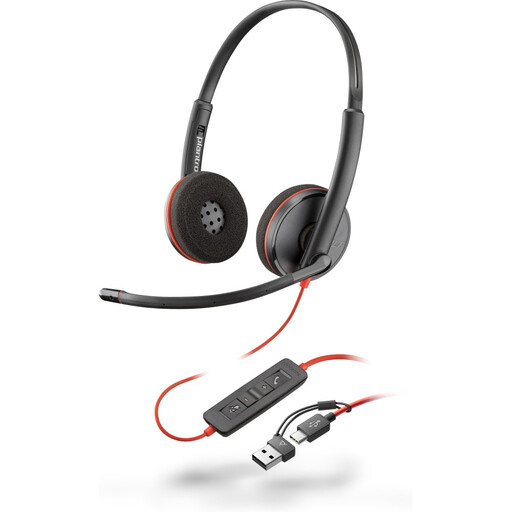 Image unavailable
Consider this wired headset when you want a separate microphone for regular calls. Check that the stated USB-C connection or USB-C/A adapter fits your laptop, and select the headset for both call audio and microphone input.
 Image unavailable
A separate camera is worth considering if the laptop lens sits in the wrong place for calls. Check where this webcam can sit on your monitor or desk, and whether your computer and meeting service can use its stated 4K mode.
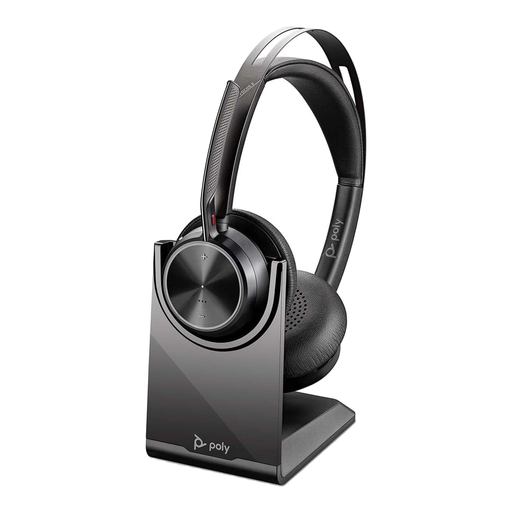 Image unavailable
This is a headset route for calls where laptop audio is the limitation. Check that its stated USB-C/C variant and USB-C/A adapter suit your computer, and allow space for the charging stand.
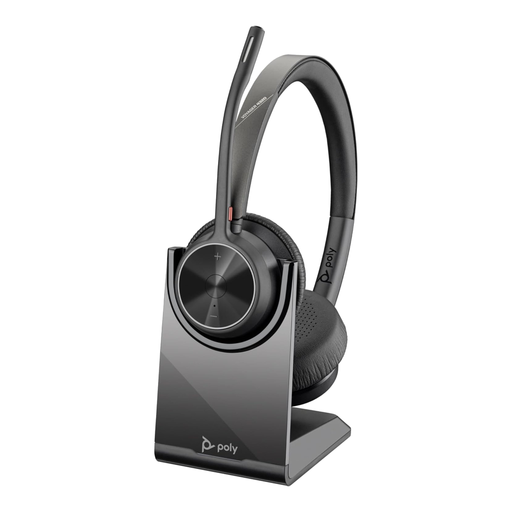 Image unavailable
Consider this headset if a wireless connection fits your call routine. Its title specifies USB Type-A, Bluetooth and a charging stand; check the connection you intend to use, pairing and meeting-app device selection.
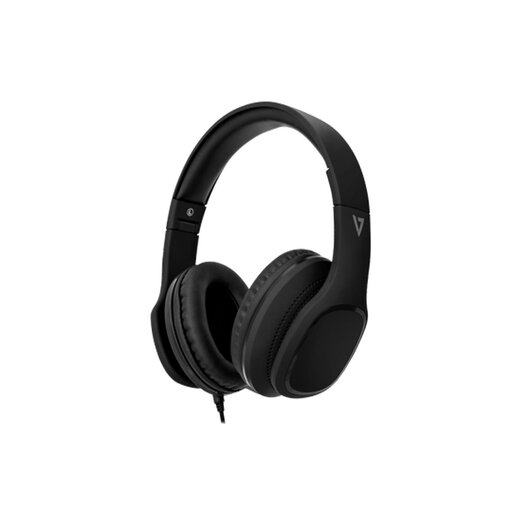 Image unavailable
These headphones offer a wired microphone option for calls. Check that your laptop’s audio jack supports microphone input as well as headphone output; the listed passive noise cancellation does not describe a noise-cancelling microphone.
Not necessarily: Zoom says most laptops have a built-in webcam and audio devices. Test your current frame first; a separate webcam is more relevant if you cannot position the laptop lens suitably or need different framing controls.
Run a meeting preview or test call and check the selected camera, microphone and speaker. Microsoft Teams offers a test call; Google Meet and Chrome also advise checking camera access, device selection and whether another app is using the camera.
Yes, if the laptop and meeting setup support the connection: Zoom lists USB and Bluetooth audio routes. Pair or connect the headset, then select it as both speaker and microphone in the meeting app; for a 3.5 mm model, check that the laptop jack supports microphone input.
A separate webcam can put the lens nearer the screen you use instead of leaving it on a low or side-positioned laptop. Check how it mounts, where its cable will run and whether its field of view suits the space behind you.
Check your employer’s approved-device policy first, particularly for work involving personal data. The UK Information Commissioner’s Office advises using organisation-provided technology where supplied, while the National Cyber Security Centre recommends checking your surroundings and understanding camera, microphone and recording controls.