Small-text map presenters
If viewers must read symbols or rule references, give the legend enough of the frame and test focus, lighting and the image delivered by your app.


Choose an adjustable webcam if one camera needs to show both your face and an occasional desk-held map; check that you can hold the map at a usable angle and read its smallest legend text in your calling app. If printed maps are the main subject, a USB document camera, or visualiser, provides a purpose-built desk-facing arm and a stated shooting area, but is less convenient for face-to-camera calls.
If viewers must read symbols or rule references, give the legend enough of the frame and test focus, lighting and the image delivered by your app.
If you alternate between speaking to the camera and showing a map, look for a workable tilt-down position or repeatable framing rather than choosing on frame rate alone.
If physical maps, cards or books occupy most of the session, compare the area you need to show with a visualiser’s stated shooting area and allow desk space for its arm.
Decide whether the camera will mainly face you or the map, then test the smallest legend text at your intended camera height in the app your viewers will use.
Choose when: You need one camera for face video and occasional map shots; Logitech describes MX Brio’s Show Mode as a way to share desk notes and sketches.
Allow for: A secure angle and enough working distance to frame the legend; capture resolution alone cannot establish its readability in a call.
Choose when: You repeatedly switch between presenter and map framing; OBSBOT says Tiny 2 Lite can save pan, tilt and zoom positions in presets.
Allow for: Checking that tracking does not move a fixed map shot away from the legend.
Choose when: A flat map is the main subject; IPEVO specifies an arm and a maximum shooting area of 342 × 255 mm for its V4K.
Allow for: Desk space and a separate approach to face video if you also need to appear on camera.
| Concern | Buying check | Who this matters to |
|---|---|---|
| Readable small text | Check focus at the planned map distance and test the smallest legend text in the actual app. A tighter crop leaves less room for map context. | If viewers need to distinguish small labels, I would put a legible close-up ahead of a wide map shot; for around 36% of consumers, legend detail is the primary concern. |
| Stable desk framing | Check the mount and cable reach; for a visualiser, compare the map section with its stated shooting area. | When a map stays on the desk throughout a session, I need its position to remain steady. A repeatable desk view is the main concern for roughly 29% of consumers. |
| Switching views | Confirm a safe tilt-down position or, on a suitable PTZ model, a saved map position. | If I explain a map face-to-camera, I want to return to the same legend framing without rebuilding the shot; about 21% of consumers put that switch first. |
| Computer and app setup | Check the required port, operating system and camera permissions, then select the device in your calling app. | If my existing computer or app cannot use the camera reliably, picture settings will not help; compatibility is the primary concern for around 14% of consumers. |
Small text can still be difficult to read if it is out of focus, poorly lit or too small in the image delivered by the app.
Test the smallest relevant legend text at your normal camera height in the calling or streaming app, and check what a remote viewer can read.
A mount that cannot hold the required angle may leave the legend out of frame, whatever capture mode the camera offers.
Compare a visualiser’s shooting area with your map, or confirm the webcam’s mounting method, cable reach and tilt position.
An angled desk view may require a separate tripod, clamp or arm.
Automatic reframing may move away from the legend crop you intended to show.
On a PTZ webcam, save a fixed map position and check its tracking behaviour before a live session.
Microsoft notes that Windows camera permissions affect desktop-app access and that apps may apply settings different from camera defaults.
Check the relevant Windows permissions, select the camera in your app and inspect its framing and image settings there.
Logitech’s MX Brio is a webcam reference for switching between face video and an occasional desk view. Logitech specifies UHD 4K at 30 fps or 1080p at 60 fps.
OBSBOT’s Tiny 2 Lite is a PTZ webcam reference for repeatable presenter and map positions.
IPEVO’s V4K is a visualiser reference when printed material, rather than a presenter’s face, is the main subject.
Elgato’s Facecam Pro is a specification reference for adjustable webcam framing and close-distance focus.
These webcams are options to assess if you want to angle a camera towards a desk map while retaining a conventional webcam setup. Check the physical mounting position and the legend’s readability in your app before choosing one.
 No image available
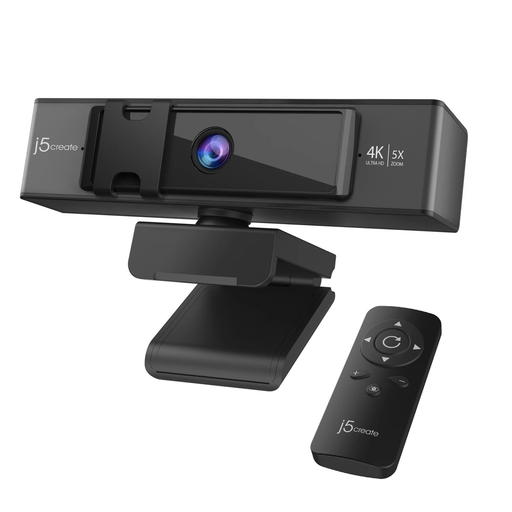
Consider this webcam if remote-controlled framing would help you show a desk-held map during a call.
Its name specifies 4K and 5x digital zoom. Check focus at your camera-to-map distance and whether your mount can hold the required angle.
 No image available
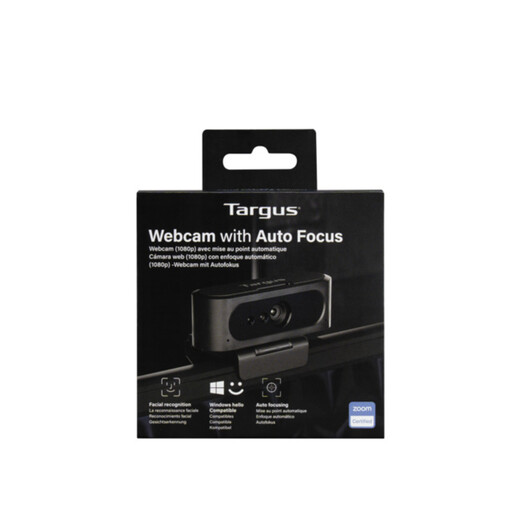
Consider autofocus if your map distance changes as you show different sections.
The product name says 2K; check its stated capture mode for your intended app, and confirm that your planned mount will hold a steady desk view.
 No image available
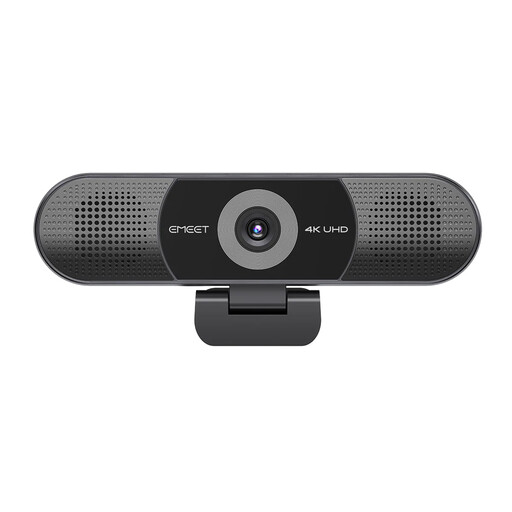
Consider this model for a general webcam setup that also needs an occasional map view.
Its name specifies 4K capture, fixed focus and an adjustable 98° field of view. Check whether the map is sharp at your planned distance and whether the camera can be positioned securely towards the desk.
Not automatically: the text also needs to be in focus, well lit and large enough in the frame delivered to viewers. Test the smallest labels at your usual camera height in the actual calling or streaming app.
Choose a visualiser when the physical map is the main subject and a stable desk-facing view matters more than face video. For example, IPEVO specifies a maximum shooting area of 342 × 255 mm for its V4K; compare that area with the section you need viewers to see.
Camera permissions and app-specific settings can differ. Microsoft advises checking Windows camera access, including desktop-app access, while the calling app’s own camera selection and image settings also need checking.