What matters when choosing home Wi-Fi?
Start by locating the bottleneck. Once the broadband connection and basic router placement have been checked, the number of affected rooms, simultaneous activity and installation requirements can guide the hardware choice.
Mesh Wi-Fi
Consider when: Work or study needs coverage across several rooms or floors after basic connection checks.
Allow for: Wireless links between nodes still depend on their placement and the walls and floors between them; check whether Ethernet backhaul is practical.
Wi-Fi extender
Consider when: One limited area is weak and there is a suitable position where the extender can still receive the router’s signal.
Allow for: Repeating Wi-Fi cannot fix a weak broadband service or a location with no usable source signal; Ofcom notes that extenders can affect speed and responsiveness.
Replacement router
Consider when: The existing router is the suspected limitation and the provider cannot address the need with its supported equipment.
Allow for: The replacement must suit the access type and provider settings, and third-party equipment may change the support available from the provider.
| Concern |
What to check when buying |
Who this matters to |
| Locate the bottleneck |
Where possible, compare an Ethernet-connected test at the router with Wi-Fi in affected rooms; check the provider’s outage information. |
If my connection struggles even beside the router, I want to know whether coverage equipment would address the problem before choosing it. Around 36% of consumers put that diagnosis first. |
| Reach several rooms |
Map weak rooms and barriers, then check mesh-node positions and whether a wired connection can reach a remote node. |
Calls work near my router but fail in other work or study rooms, so reaching those rooms is my main concern. Around 29% of consumers prioritise multi-room coverage. |
| Handle simultaneous use |
Consider the broadband service, activities that overlap and whether call-critical devices or remote nodes can use Ethernet. |
When calls, study and large downloads happen together, I need to work out which part of the connection is slowing us down. For around 21% of consumers, shared-use capacity is the primary concern. |
| Fit the existing connection |
Confirm the access type, existing ONT or modem, available ports and the provider’s required router settings before replacement. |
I want new equipment to connect correctly without losing functions I rely on from the supplied hub. Compatibility and installation come first for around 14% of consumers. |
Joybuy products for home Wi-Fi
These choices include mesh systems for coverage across several rooms and an extender for one limited weak area. Check the layout and connection requirements before deciding whether to add equipment to the existing router or replace it.
 No image available
TP-Link Deco BE65 BE9300 Wi-Fi 7 (3-pack)
Consider this three-unit mesh system when work or study needs coverage in several rooms and you can plan positions for the nodes.
Tri-band Wi-Fi 7. TP-Link specifies four 2.5 Gbps ports and combined wired and wireless backhaul for the BE65 model.
Check your provider connection and the effect of walls and floors on the planned node positions.
View on Joybuy
 No image available
TP-Link Deco BE22 BE3600 Wi-Fi 7 (3-pack)
This three-unit mesh option is relevant when several work or study rooms need Wi-Fi coverage.
Check the available node positions and the connection mode required for your existing router and service.
View on Joybuy
 No image available
NETGEAR Orbi 370 RBE373 BE3600 Wi-Fi 7 (3-pack)
Consider the three-unit mesh format when coverage is needed beyond the router’s room.
Dual-band Wi-Fi 7 and 2.5 Gbps Ethernet are identified in the product title. Check the existing modem or gateway arrangement and place the units around the rooms you need to reach.
View on Joybuy
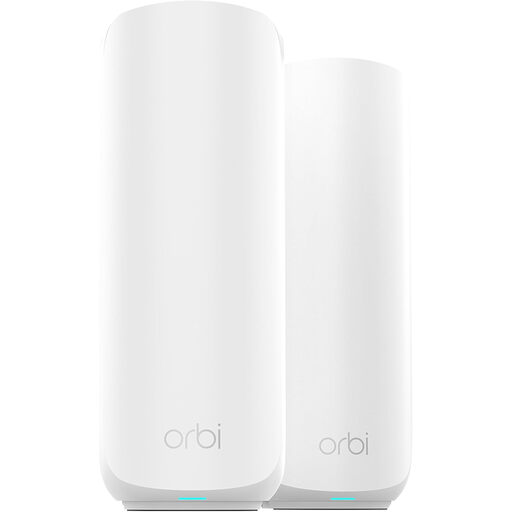 No image available
ORBI3 RBE372 Wi-Fi 7 (2-pack)
This two-unit bundle is worth considering if a router-and-satellite layout matches the rooms needing coverage.
Check its port and connection requirements against your equipment before using it in place of an existing router.
View on Joybuy
 No image available
TP-Link RE220BE BE3600 Wi-Fi 7 Range Extender
Consider an extender for one limited weak area, provided it can be placed where the existing router’s signal remains usable.
If you want EasyMesh roaming with your current router, check their compatibility before purchase. An extender will not address a weak broadband service.
View on Joybuy
Frequently asked questions
Do I need better broadband or better Wi-Fi equipment?
Check the service and the in-home connection separately before buying Wi-Fi equipment. Look for a provider outage and overlapping high-data-use activity, then, where possible, compare an Ethernet-connected test at the router with Wi-Fi in the affected rooms. Ofcom notes that Wi-Fi can slow the signal; if the wired connection is also performing poorly against your service information, contact the provider before buying coverage hardware.
When should I choose mesh rather than an extender?
Consider mesh when several rooms or floors need coverage; an extender is more suited to one limited weak area where it can still receive the router’s signal. Ofcom describes mesh units placed around the home to improve coverage and notes that extenders can affect speed and responsiveness. Whichever route you choose, placement still matters.
What should I check before replacing my provider router?
Confirm your access type and obtain the connection settings and support policy from your provider before ordering. For an Openreach FTTP installation, the ONT connects to the router by Ethernet and should not be removed. EE’s guidance illustrates why requirements differ: its FTTP service needs Ethernet WAN, FTTC/SOGEA needs VDSL support and VLAN tagging, and ADSL/SOADSL needs an integrated ADSL modem; your provider’s requirements may differ.
Can I keep the supplied hub and add mesh?
You may be able to connect a suitable mesh system to the existing hub rather than replace the equipment that connects to the broadband service. BT says its Whole Home Wi-Fi products work with hubs and routers that have an RJ45 Ethernet port. Check the particular mesh system’s operating mode and port requirements, and confirm that any additional units belong to a compatible product family.


