What to check before buying
Decide whether the main obstacle is room coverage, a demanding connection between rooms, provider compatibility or restrictions on installation.
Ethernet-fed mesh
Consider it when: Several rooms need one mesh network and cable can reach a satellite location.
Allow for: Cable routing and model-specific wiring rules; permanent work in a rented home may require permission.
Wireless mesh
Consider it when: Several rooms need coverage but running Ethernet between them is impractical.
Allow for: Each satellite still needs a usable wireless connection, which walls and placement can affect.
Wired access point
Consider it when: Ethernet already reaches one or two rooms where Wi-Fi is weak.
Allow for: Mounting and power requirements vary; Ubiquiti's UAP-AC-PRO, for example, supports 802.3af/802.3at Power over Ethernet.
Provider extender or pod
Consider it when: A limited weak area can be served by an extender supported for your existing hub.
Allow for: Compatibility and available features depend on the provider, hub and service arrangement.
| Concern |
What to check |
Who this matters to |
| Coverage across rooms |
Locate the weak rooms and check where a router or mesh satellite could receive a usable signal. |
If Wi-Fi works by the router but drops away across walls or floors, reaching those rooms comes first; about 36% of consumers put coverage across their home ahead of other needs. |
| Connection to distant rooms |
Check whether Ethernet can reach the room and whether the chosen units support the intended wired connection. |
For video calls or gaming in a remote room, an obstructed wireless hop is a particular concern; roughly 29% of consumers make that connection their primary priority. |
| Provider compatibility |
Identify the provider and exact hub model; confirm router mode and any voice or managed-Wi-Fi requirements. |
If changing the provider router could affect a service I use, I need a setup that works with that equipment; about 21% of consumers put compatibility first. |
| Reversible installation |
Read the tenancy agreement and seek written permission before permanent alterations. |
When drilling or fixed cabling is not an option, I need equipment I can move or remove; approximately 14% of consumers prioritise a low-alteration setup. |
Mesh systems on Joybuy
These multi-unit mesh systems are options for extending Wi-Fi across rooms. Choose between them using your intended node positions and connection method; a mesh purchase does not itself establish compatibility with a provider router or solve a weak broadband service.
 Image unavailable
NETGEAR Orbi 370 RBE373 Wi-Fi 7, 3-pack
A three-unit mesh option when Wi-Fi needs to reach several rooms. The listed variant is dual-band BE3600 with 2.5Gbps Ethernet; check the port layout and wired-backhaul arrangement if you plan to cable the units. Coverage will depend on placement and the home's layout.
View on Joybuy
 Image unavailable
TP-Link Deco BE22 BE3600 Wi-Fi 7, 3-pack
A three-unit mesh option for rooms beyond the main router. If you intend to connect the units by Ethernet, check this model's ports and wiring instructions for the operating mode you will use; wireless placement still matters where units are not cabled.
View on Joybuy
 Image unavailable
TP-Link Deco BE25 Wi-Fi 7, 3-pack
A three-unit mesh system to consider when several rooms need coverage. Check the BE25's port layout and model-specific wiring options before planning Ethernet between units; do not treat a stated coverage area as a result guaranteed for your home.
View on Joybuy
 Image unavailable
TP-Link Deco BE65 BE9300 tri-band Wi-Fi 7, 3-pack
A three-unit mesh choice for extending coverage across several areas. The listed variant is tri-band BE9300; confirm its Ethernet ports and wired-backhaul instructions if cabling between rooms is central to your plan.
View on Joybuy
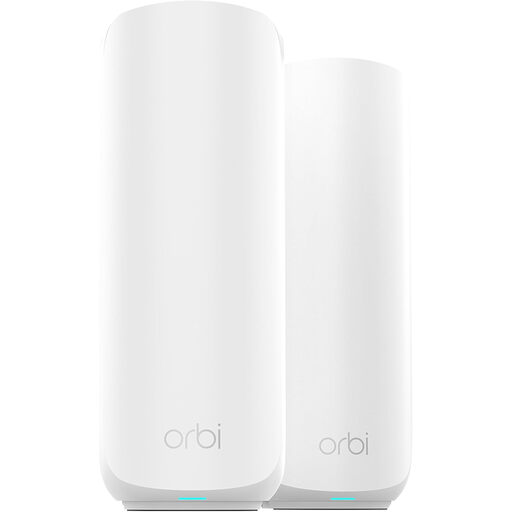 Image unavailable
NETGEAR Orbi RBE372 Wi-Fi 7, 2-pack
A two-unit mesh bundle to consider when you have a suitable location for a second unit. Check the RBE372 bundle's Ethernet ports and backhaul options before relying on a wired connection between rooms.
View on Joybuy
Common questions
Must the router stay beside the full-fibre connection box?
Not necessarily: an Ethernet run can allow a compatible router to sit elsewhere, provided the connection and your provider's requirements are met. Openreach says its optical network terminal, or ONT, and power supply must not be removed; plan the router position around the installed connection rather than moving that equipment yourself.
Can I run Ethernet between rooms in a rented home?
Check the tenancy terms before making alterations. For rented homes in England, Shelter England advises getting the landlord's agreement in writing before improvements; if you live elsewhere in the UK, check the applicable local guidance as well as your agreement before drilling or installing a permanent route.
Can I use my own router instead of the provider's?
Use the instructions for your exact provider and service rather than assuming a router can be swapped directly. EE says a third-party router on its broadband network must support PPPoE; Virgin Media documents a modem-mode route for its Hub, while BT Business documents bridge mode for its Smart Hub 2. Those arrangements do not establish support for other hubs or providers.
What should I check before using Virgin Media modem mode?
Check how your particular Hub, Wi-Fi equipment and any managed features will work after the change. Virgin Media describes modem mode as turning the Hub into a cable modem for your own Wi-Fi kit, so plan which device will provide the home network before switching modes.
Will mesh fix a slow full-fibre connection?
Mesh can address weak Wi-Fi coverage, but it cannot fix a problem with the broadband service itself. Ofcom distinguishes broadband from in-home Wi-Fi problems: compare a connection close to the router or over Ethernet with the weak room, and check the provider's service status if performance is poor in both places.


