Keep the existing broadband hub if sensible placement and a connection check resolve the problem. If several housemates are online but the lesson room has a reasonable signal, a dual-band Wi-Fi 6 router is a route to consider; if that room remains a weak-signal area, consider mesh for coverage instead. Neither purchase can make an inadequate broadband connection faster, so check the service and your provider’s equipment requirements before replacing the hub.
Who this is for
Shared-house video learners
If a lesson takes place while housemates are streaming or downloading, assess the broadband connection as well as how the router handles several active devices. Ofcom advises checking whether others are using the connection for data-heavy tasks when diagnosing Wi-Fi problems.
Learners in weak-signal bedrooms
If the regular lesson room is separated from the router by floors or substantial walls, coverage may matter more than the router’s headline wireless rate. Ofcom identifies mesh as a way to improve signal strength and coverage.
Low-maintenance shared houses
If nobody wants to manage a complicated network, check how a replacement connects to the provider’s equipment and how its security updates are delivered. Keeping the existing hub may be simpler if it already covers the rooms used for lessons.
What matters when choosing
Test the existing connection near the hub and in the usual lesson room before deciding whether the problem is shared capacity, wireless coverage or the broadband service itself.
Single Wi-Fi 6 router
Consider it when: The lesson room has a reasonable signal from a centrally placed router, but several residents need to use Wi-Fi at once.
Bear in mind: Walls, distance and interference can still leave a distant room poorly covered.
Wi-Fi mesh system
Consider it when: The regular lesson room remains a weak-signal area after improving the main router’s position.
Bear in mind: Nodes need suitable positions, and improved coverage does not increase the speed of the broadband line.
Existing provider hub
Keep it for now when: You have yet to test a sensible hub position or establish whether busy household use is the real bottleneck.
Bear in mind: Placement alone may not reach a room blocked by floors or substantial walls.
| Concern |
What to check |
Who this matters to |
| Capacity during shared use |
Check the broadband service at the address and whether a prospective router lists multi-device features such as OFDMA and MU-MIMO. |
If housemates stream or download during my lesson, I need to know whether the connection copes with simultaneous use. Around 42% of consumers making this choice put shared-use capacity first. |
| Coverage in the lesson room |
Test the usual lesson location after improving router placement; if it remains weak, check where compatible mesh nodes could go. |
A bedroom across a floor or substantial walls needs a usable signal where I actually join the lesson. For around 33% of consumers, that room’s coverage is the primary concern. |
| Setup and security support |
Confirm the provider’s connection requirements, equipment compatibility and the stated security-update support period. |
When nobody in the house wants to troubleshoot a replacement hub, I need equipment we can connect and maintain. Straightforward setup and support come first for around 25% of consumers. |
Buying pitfalls
-
Choosing by headline Wi-Fi speed alone
A router’s advertised wireless rate is not the speed delivered by the broadband service. Distance, obstructions and other household activity can also affect a lesson.
Check broadband availability for the address and test the current connection near the router before deciding that a higher wireless rating will solve the problem. Ofcom notes that service availability and speeds received can differ at a property.
-
Replacing one router without checking the lesson room
If the regular study space is behind floors or substantial walls, another single router may still leave it with weak coverage.
Try a central, raised router position away from likely interference. If the room remains weak, assess compatible mesh equipment and possible node positions.
-
Assuming security support needs no further attention
A named security feature does not tell you how long a router will receive important updates or how those updates are installed.
Check the manufacturer’s stated minimum security-update period and update method for the exact model. The National Cyber Security Centre highlights the importance of a stated minimum period for important security updates.
-
Mixing mesh equipment without checking compatibility
Units from different mesh families or generations may not work together. BT states that its different Whole Home Wi-Fi generations are not mutually compatible.
Check the exact range of any existing units and whether the new system can connect to the current hub through the required Ethernet port.
Brands to consider
These brands offer relevant router or mesh ranges; compare exact models and connection requirements rather than treating a brand name as a fit for the house.
TP-Link
Its Archer router range is relevant to a house considering one Wi-Fi 6 router with a possible later coverage extension.
- TP-Link lists Wi-Fi 6, OFDMA, MU-MIMO, three gigabit LAN ports and EasyMesh expansion for the UK Archer AX18.
- Those model specifications do not establish lesson performance in a particular house; confirm the exact router’s compatibility with the broadband connection.
ASUS
The RT-AX57 is a Wi-Fi 6 router to consider where later AiMesh expansion is of interest.
- ASUS lists OFDMA, MU-MIMO and AiMesh support for the RT-AX57.
- Its advertised wireless rates do not establish the speed available in the lesson room or from the broadband service.
NETGEAR
Its Nighthawk router and Orbi mesh ranges represent different approaches to a shared house’s capacity and coverage needs.
- NETGEAR lists four LAN ports for the RAX9 router and a dedicated router-to-satellite connection for the Orbi RBK762S mesh package.
- Check the exact package and its security-service terms rather than assuming features or coverage are identical across the two ranges.
BT
Whole Home Wi-Fi 6 is a mesh route for extending coverage while using an existing broadband hub or router.
- BT states that Whole Home Wi-Fi 6 works with hubs and routers that have an RJ45 Ethernet port.
- BT says different Whole Home Wi-Fi generations are not mutually compatible; identify any existing units before adding more.
Joybuy product choices
These choices include mesh packs for a lesson room with persistent weak coverage and single-router options for a house considering one access point. Check the broadband connection, room layout and exact model features before choosing; the products do not all address the same problem.
 No image available
NETGEAR Orbi 370 RBE373 Wi-Fi 7 Mesh System, 3-Pack
Consider this three-unit mesh set if the regular lesson room needs coverage beyond one router; plan where the units would sit and check the existing modem or gateway requirements.
The named variant is dual-band BE3600 with 2.5Gbps Ethernet. Those specifications do not establish the speed or coverage achievable in the house.
Joybuy
 No image available
TP-Link Deco BE25 Wi-Fi 7 Mesh System, 3-Pack
This three-pack is a mesh option when lessons take place across rooms that one router does not cover reliably. Check unit placement and the provider’s modem or gateway requirements.
The product is identified as a whole-home mesh system; coverage in a particular building still needs assessing.
Joybuy
 No image available
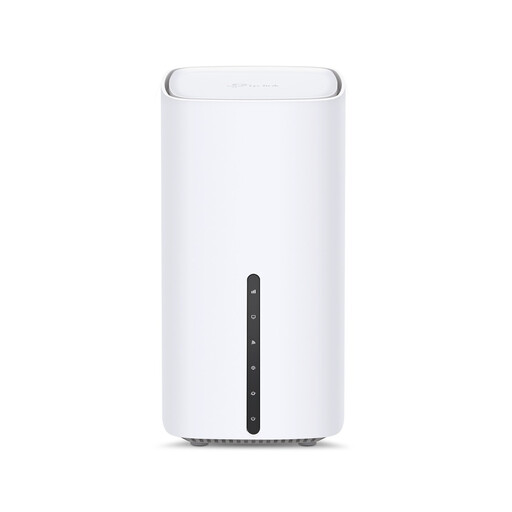
TP-Link Archer NX500 5G AX3000 Dual-Band Router
Consider this single-router route if the lesson room already has reasonable coverage and the house wants to check either wired-broadband or mobile-broadband use. Confirm the provider’s connection method; mobile use also depends on a suitable SIM and coverage.
The name identifies dual-band operation and gigabit networking. Check support for any specific multi-device features you intend to use.
Joybuy
 No image available
TP-Link Deco BE65 BE9300 Tri-Band Wi-Fi 7 Mesh System, 3-Pack
This three-pack is a coverage-extension option if the usual lesson room remains weak after repositioning the main router. Check the connection and setup requirements, port configuration and suitable unit positions before buying.
The named variant is a tri-band Wi-Fi 7 mesh system; its wireless designation does not guarantee performance in the house.
Joybuy
 No image available
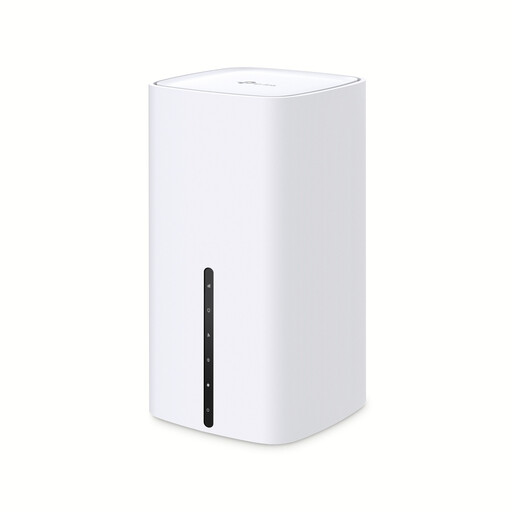
TP-Link Archer NX200 Dual-Band Gigabit Router
This single-router option is worth checking if the lesson room does not have a persistent coverage gap and the house is considering a wired or mobile connection. Confirm the provider’s modem requirements or, for mobile use, SIM compatibility and coverage.
The name identifies dual-band operation and gigabit networking. Check the exact features and security-update support period needed for the household.
Joybuy
Frequently asked questions
Will a new router fix a disrupted language lesson?
Not by itself if the broadband service or competing household use is the bottleneck. Ofcom advises checking what others are doing on the connection; compare performance near the hub with performance in the lesson room before replacing equipment.
When is mesh worth considering instead of one router?
Consider mesh when the regular lesson room still has a weak signal after improving the main router’s position. Ofcom says mesh can improve Wi-Fi signal strength and coverage, but it cannot increase the speed of the underlying broadband service.
Can I connect a lesson laptop by Ethernet?
Yes, if the router or mesh unit has an available LAN port and a cable can be routed safely to the laptop. A wired connection avoids relying on the local Wi-Fi signal for that device; check the exact model’s ports before buying.
Can a student house use its own router with its broadband provider?
It may be possible, but confirm the provider’s connection method and whether its modem, fibre ONT or hub must remain in use. Also ask what troubleshooting help the provider offers when independently purchased equipment is connected.


