Check whether the broadband service or the flat’s Wi-Fi is disrupting lessons before buying: a new router cannot add capacity to the broadband service, and Ofcom recommends Ethernet where a cable is practical. If several devices share Wi-Fi, consider a dual-band Wi-Fi 6 router with multi-client features; if the lesson room has a weak signal, check placement and a compatible mesh expansion route before choosing a router for its headline speed.
Who this is for
Learners sharing a busy connection
If flatmates stream, game or take calls during your lesson, you need to distinguish Wi-Fi contention from limits on the broadband service. A practical Ethernet connection is worth considering alongside router features.
Learners with a weak bedroom signal
If lessons work near the router but falter in your room, its position and the route between rooms matter. Check whether a different placement helps before deciding whether you need compatible mesh equipment.
Flat sharers with fast broadband
If the flat already has a fast service and several newer devices, a multi-gigabit internet port or Wi-Fi 7 may be relevant. Check what the service and lesson device can use before choosing on those specifications.
What matters when buying
Start with the connection available during lesson times, then assess Wi-Fi sharing and coverage in the room where you study. Ofcom advises testing the broadband connection and using Ethernet for a more reliable link where practical.
| Concern |
What to check |
Who this matters to |
| Shared Wi-Fi use |
Look for dual-band Wi-Fi 6 and documented multi-client features. Check whether the lesson device can use an Ethernet port. |
When flatmates are online at the same time, I need my lesson’s audio and video to remain responsive; around 36% of consumers put shared-network responsiveness first. |
| Connection reliability |
Test the broadband connection at lesson times and confirm how a new router would connect to the existing ISP equipment. |
Before replacing the router, I want to know whether the broadband service or my laptop’s Wi-Fi link is the problem; for around 36% of consumers, that diagnosis is the primary concern. |
| Lesson-room coverage |
Try a clear, elevated router position. If the signal remains weak, confirm compatibility and placement for any mesh nodes. |
My lesson room needs a usable connection even though it is away from the router; coverage is the leading need for around 28% of consumers. |
Buying pitfalls
-
Reading the Wi-Fi speed class as your lesson speed
An AX or BE rating does not tell you what a particular laptop will receive through walls or a busy connection. More importantly, a router cannot increase the capacity delivered by the broadband service.
Test the connection during lessons and try Ethernet where practical before choosing a higher Wi-Fi generation for its headline rating.
-
Assuming any router can replace the ISP equipment
A router with an Ethernet internet port is not automatically a direct replacement for every DSL, cable or fibre arrangement.
Identify the flat’s service, modem or fibre termination equipment, and any ISP setup requirements. Decide whether the new device would be the main router or an access point.
An incompatible arrangement may call for additional equipment or a different setup.
-
Replacing the router before checking its position
Floor-level placement and nearby electrical or wireless devices can affect the signal reaching a lesson room. Ofcom advises placing a router on a table or shelf and away from potential interference.
Try a clearer position first, then check the connection in the room used for lessons. Use Ethernet for the lesson device if a cable is practical.
-
Assuming security extras remain included
Optional service terms can change after an included period. NETGEAR says Armor for the Nighthawk RS300 becomes a subscription service after its included year.
Check the terms for the exact router and decide whether you need the optional service for your setup.
Brands to consider for this setup
TP-Link
The Archer AX55 is one Wi-Fi 6 example for a shared flat considering multi-client features and later mesh expansion.
- TP-Link lists OFDMA, Gigabit ports and EasyMesh compatibility for the Archer AX55.
- Those model specifications do not establish coverage in your lesson room or compatibility with the flat’s ISP setup.
ASUS
The RT-AX58U is a Wi-Fi 6 example for consumers who want controls for sharing their existing connection.
- ASUS lists Adaptive QoS, bandwidth monitoring, a bandwidth limiter and AiMesh roles for this model.
- Traffic controls do not increase the broadband capacity supplied to the flat; confirm the features on the exact version offered.
NETGEAR
The Nighthawk RS300 is a Wi-Fi 7 example to assess when the service and devices can make use of newer connections.
- NETGEAR lists a 2.5 Gig internet port and a maximum Wi-Fi rate of 9.3 Gbps for the RS300; the rate is a manufacturer specification, not a lesson-speed promise.
- Check the lesson device and broadband service before choosing it for those specifications. NETGEAR says its Armor service becomes a subscription after the included year.
Joybuy product choices
These choices include standalone routers and three-unit mesh systems relevant to shared-flat lessons. Compare the flat’s broadband equipment, the lesson room and any need for a wired connection before choosing between them.
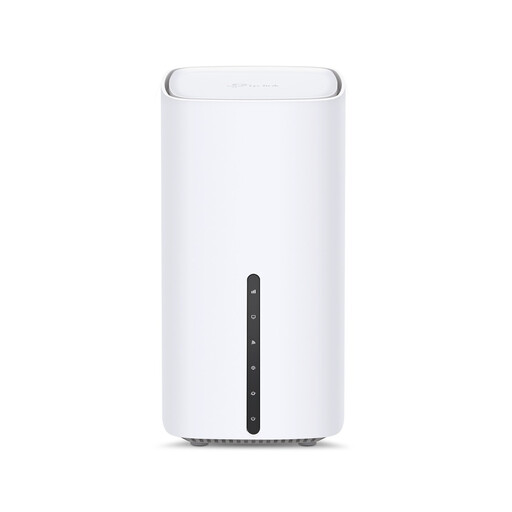 Image unavailable
TP-Link Archer NX500 5G AX3000 Router
Consider this model if you want a dual-band router and can confirm how it would connect to the flat’s broadband equipment.
The product name identifies 5G, AX3000 and Gigabit connectivity. If you intend to use mobile broadband, check service availability and plan terms at the flat.
View on Joybuy
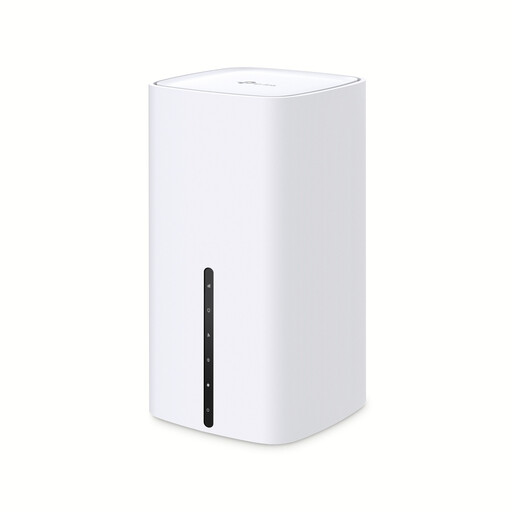 Image unavailable
TP-Link Archer NX200 Dual-Band Gigabit Router
Consider the NX200 if its connection options suit the flat’s existing broadband arrangement.
Its product name specifies dual-band and Gigabit connectivity. TP-Link describes connecting an existing modem for traditional wired broadband; confirm the ISP setup before ordering.
View on Joybuy
 Image unavailable
NETGEAR Orbi 370 RBE373 WiFi 7 Mesh System, 3-Pack
Consider a three-unit mesh setup if a change of router position does not give the lesson room a usable connection and you have places for the additional units.
The named variant is dual-band BE3600 with 2.5Gbps Ethernet. Check the existing modem or gateway arrangement and the path between mesh units; the rating does not establish the speed in your room.
View on Joybuy
 Image unavailable
TP-Link Deco BE25 WiFi 7 Mesh System, 3-Pack
This three-pack is relevant when the lesson room needs coverage beyond a single router position.
Check where each unit could sit and how the system would connect to the flat’s modem. If you need a particular wired arrangement, confirm the Ethernet port count and roles for this variant.
View on Joybuy
 Image unavailable
TP-Link Deco BE22 BE3600 Wi-Fi 7 Mesh System, 3-Pack
Consider this three-unit system if room-to-room coverage is the main difficulty and suitable positions are available for its units.
Check the flat’s broadband connection arrangement. If the lesson device needs Ethernet, confirm the exact variant’s port speed and roles before buying.
View on Joybuy
Common questions
Will a new router fix lessons that falter when flatmates are online?
Not if the broadband service is the limiting factor. Ofcom notes that more devices using Wi-Fi can reduce the speed available; test the connection at different times and try Ethernet for the lesson laptop where practical before deciding that a router replacement is needed.
What broadband speed should a busy shared flat consider?
Check the service available at the flat’s address and the connection during busy lesson times, rather than treating a router’s Wi-Fi rating as broadband speed. Ofcom describes services of 300 Mbit/s or more as better suited to several people being online at once; that category is not a guarantee of lesson performance.
Is a mesh router worth considering for one weak bedroom?
Consider mesh if moving the main router to a clearer position still leaves the lesson room with a weak signal. Confirm that the units use a compatible mesh system and can be placed where the connection between them remains usable.
What should I check after setting up the router?
Check the connection from the room used for lessons, including at lesson times. Ofcom advises keeping the router away from potential interference and off the floor; use the manufacturer’s instructions for security and firmware settings, and contact the ISP if the broadband line remains unstable.


