Households with solid walls or several floors
Rooms separated from the router by thick walls or floors need a placement plan, not just a newer Wi-Fi label. Ofcom notes that Wi-Fi signals weaken as they pass through objects.


Test a device connected by Ethernet at the router before buying Wi-Fi equipment: a slow connection in a distant room does not, by itself, identify a broadband fault. Where cabling is practical, consider wired access points or mesh with wired backhaul for a remote workroom; where several rooms need coverage but cabling is impractical, consider wireless mesh. An extender needs a usable signal between the router and one dead zone, while powerline depends on the electrical circuit; whichever route you choose, check how it handles your 2.4 GHz smart-home devices.
Rooms separated from the router by thick walls or floors need a placement plan, not just a newer Wi-Fi label. Ofcom notes that Wi-Fi signals weaken as they pass through objects.
If calls or work access are unreliable away from the router, check whether an existing Ethernet socket or a feasible cable route could serve that room before relying on another wireless hop.
When switches, cameras or doorbells need 2.4 GHz for setup, check the replacement system’s band settings and the devices’ connection instructions before changing the network.
Start with a wired test at the router, then map the problem rooms, possible cable routes and devices that will need reconnecting.
| Concern | What to check | Who this matters to |
|---|---|---|
| Broadband or Wi-Fi fault | Compare an Ethernet test at the router with Wi-Fi results in problem rooms; repeat tests at different times. | If every room seems slow, I need to establish whether new Wi-Fi equipment would address the problem. About 23% of consumers put connection diagnosis first. |
| Remote-room reliability | Map walls, floors and cable routes; check Ethernet-backhaul support on the exact mesh system if wiring is possible. | For work in a distant room, I need a connection that does not rely on a weak link through walls or floors. Reliable remote-room access comes first for about 31% of consumers. |
| 2.4 GHz device setup | Confirm that 2.4 GHz is broadcast and check the system’s setup controls against each smart device’s instructions. | Before changing the network, I need my existing smart devices to connect or be set up again. About 23% of consumers prioritise that compatibility. |
| One difficult area | For an extender, test signal between the router and dead zone; for powerline, check the adapter sockets’ electrical circuit. | If just one area needs attention, I would rather avoid new cabling or replacing the whole network where a smaller change will work. About 23% of consumers put that limited intervention first. |
Ofcom warns that a slow Wi-Fi result does not necessarily mean the broadband line is at fault. Equally, mesh nodes cannot repair a fault in the service reaching the router.
Test a suitable device by Ethernet at the router and compare the result with the service you expect. Contact your provider if the wired connection is also persistently poor.
An extender must receive a usable router signal before it can repeat it. TP-Link advises positioning one between the router and the weak area, rather than at the point with the poorest reception.
Check signal at the proposed position and use the extender’s placement guidance during setup.
TP-Link’s powerline guidance requires both adapters to be on the same electrical circuit. Floors or room locations alone do not establish whether that condition is met.
Check the intended sockets before choosing powerline as the route to a remote room.
Some setup procedures require a 2.4 GHz broadcast. Google also notes that changing network credentials or replacing a router can require its Nest or Home devices to be reconnected.
List the devices that must move to the new network, check their setup instructions and confirm the new router’s or mesh system’s band controls.
Its Deco mesh, extender and powerline lines offer different ways to address coverage, depending on the home’s cabling, wireless signal and electrical layout.
A mesh line to assess when several rooms need coverage and the network’s wired connections or backhaul matter to the plan.
A mesh option for households considering app-led network management alongside smart-home equipment.
Relevant when a household can plan a cabled access point rather than relying on a plug-in wireless relay.
These mesh kits address coverage across several rooms; the powerline kits address a remote connection where the required electrical-circuit conditions are met. Choose between them using the layout and device checks above.
 Image unavailable
Consider this three-unit mesh kit when several rooms need Wi-Fi and you can position the units where they can connect effectively. Confirm its backhaul arrangement and 2.4 GHz device-setup controls for your home before choosing it.
 Image unavailable
This dual-band BE3600 kit is an option for Wi-Fi across several rooms; its name also specifies 2.5Gbps Ethernet. Check the exact kit’s backhaul and smart-device setup controls, and confirm the RBE373-100EUS variant is suitable for your installation.
 Image unavailable
This three-unit system fits a plan to place mesh nodes around several problem areas. If you intend to wire the nodes or reconnect 2.4 GHz smart devices, check this exact model’s backhaul and setup controls first.
 Image unavailable
This powerline Wi-Fi kit is a route to consider for a difficult room when running Ethernet is impractical. TP-Link requires the adapter sockets to share an electrical circuit; if OneMesh integration matters, check that your router is compatible.
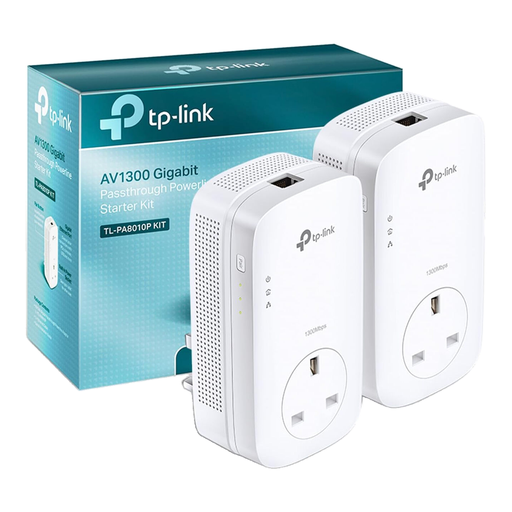 Image unavailable
Consider this passthrough adapter kit for a fixed device needing a remote Ethernet connection rather than for extending Wi-Fi coverage. Confirm that the intended sockets share an electrical circuit; the AV1300 designation is not a measured speed in your home.
Connect a suitable device directly to the router by Ethernet and test at different times, then compare those results with Wi-Fi in the problem rooms. Ofcom explains that a slow Wi-Fi test alone does not establish a broadband-line fault; if the wired connection is also persistently poor, contact your provider.
It can, but confirm the exact device’s setup instructions and keep 2.4 GHz available. Google describes a single network name across the active bands of its mesh systems, while its camera setup guidance says certain devices need a 2.4 GHz broadcast to find the network.
Possibly; the floor count does not tell you whether the intended sockets meet the product’s electrical requirements. TP-Link says its powerline adapters need to be on the same electrical circuit, so check that condition before relying on them.
Some devices will need attention when the router or Wi-Fi credentials change. Google says its Nest or Home devices must be connected to the new network in that situation, so make a list of devices and check each maker’s reconnection instructions before switching over.