Households seeking coverage across several rooms
If Wi-Fi is weak on multiple floors or in distant rooms, compare a multi-unit mesh system with targeted alternatives. Which? distinguishes whole-home mesh from an extender aimed at a particular area.


For one weak room, consider a Wi-Fi extender if it can still receive a usable signal from your router; when several rooms or floors need coverage, a mesh system offers a route designed for wider coverage. If walls or floors make a wireless link unreliable, compare Ethernet or powerline options, and consider a new router when the router itself appears to be the limitation. Check provider-hub features and compatibility before changing your network setup.
If Wi-Fi is weak on multiple floors or in distant rooms, compare a multi-unit mesh system with targeted alternatives. Which? distinguishes whole-home mesh from an extender aimed at a particular area.
If the rest of the network works well, a targeted extender may be worth considering before replacing the whole setup. Check that the proposed position still receives a usable connection from the router.
If an obstruction disrupts a wireless link, compare a wired access point with powerline equipment and check the route into the room. Ofcom notes that brick internal walls can make Wi-Fi harder to spread throughout a home.
Consider it when: one room is weak and an intermediate position still gets a usable signal from the router.
Trade-off: it cannot fix a poor connection at the extender’s own position; check its mode and compatibility with your router.
Consider it when: several rooms or floors need coverage and there are suitable positions for multiple units.
Trade-off: nodes need suitable links to one another; walls can constrain wireless backhaul, while Ethernet backhaul requires a cable route.
Consider it when: the existing router itself appears to be the problem, rather than one distant-room obstruction.
Trade-off: check the provider connection and any hub-dependent phone or Wi-Fi features before replacing or changing the hub’s mode.
Consider it when: a cable can reach the room, or a wireless hop through an obstruction is unreliable.
Trade-off: Ethernet needs a cable route; powerline results depend on the home’s wiring, so check the kit’s circuit requirements and connection at the intended sockets.
The table breaks down the main buying priorities for households choosing how to address weak Wi-Fi in a larger home.
| Concern | What to check when buying | Who this matters to |
|---|---|---|
| Coverage across rooms or floors | Map weak areas and possible node positions; check support for Ethernet backhaul and the intended provider-router mode. | If I need Wi-Fi across several rooms or floors, I want nodes and backhaul planned around where I use devices. Around 36% of consumers put multi-room coverage first. |
| One-room coverage | Check the signal where an extender would sit, plus its operating mode and compatibility with your router. | If the rest of my network works, I want to address one bedroom, office or other regularly used room without replacing everything. Around 29% of consumers prioritise one-room coverage. |
| Connection through walls or floors | Check whether Ethernet can reach the room; for powerline, confirm the circuit requirements and assess the connection at the intended sockets. | If walls or floors obstruct the wireless route, I want to compare a cable with powerline rather than rely on a wireless hop. Around 21% of consumers prioritise a route past an obstruction. |
| Replacing an ageing router | Identify the exact provider hub and any phone or Wi-Fi features in use; check the proposed router’s connection requirements. | If I suspect the router itself is the limitation, I want a replacement that fits my provider setup and does not disrupt features I use. Around 14% of consumers put router replacement first. |
The extender still needs a workable connection to the original network, and walls or floors can obstruct that link.
Check the connection at an intermediate position first. If the wireless path remains poor, compare a wired access point or powerline at the intended sockets.
Building materials and the connection between units affect coverage in a particular layout.
Plan node positions around the rooms you use and check the system’s backhaul options before choosing a pack.
TP-Link explains that a stated powerline rate is a physical-layer maximum, not actual throughput; wiring and interference affect results.
Check the kit’s circuit requirements and assess the connection at the sockets and devices you intend to use.
Provider support and hub features can vary, so replacing a hub or changing its mode may affect services tied to that equipment.
Identify your exact hub, phone arrangement and provider Wi-Fi features before changing modes or buying a replacement router.
Its RE705X extender, Deco mesh equipment and TL-WPA7517 powerline kit illustrate different ways to extend coverage.
Its eero 6+ packs illustrate a multi-unit mesh option for planning coverage across rooms.
The RT-AX58U illustrates a third-party router route for households considering a router upgrade.
Its Magic powerline equipment illustrates a route that carries a connection over household electrical wiring to another room.
These options cover mesh Wi-Fi, targeted extension, powerline Wi-Fi and router upgrades for households addressing weak coverage in a larger home.
 No image available
Consider this three-pack mesh system when planning coverage across several rooms; it requires a high-speed internet connection and an existing modem or gateway.
Dual-Band BE3600; 2.5Gbps Ethernet.
 No image available
Consider this range extender for a targeted weak room; in range-extender mode, place it within range of the existing router.
Access-point mode is also offered. EasyMesh roaming features depend on a compatible router.
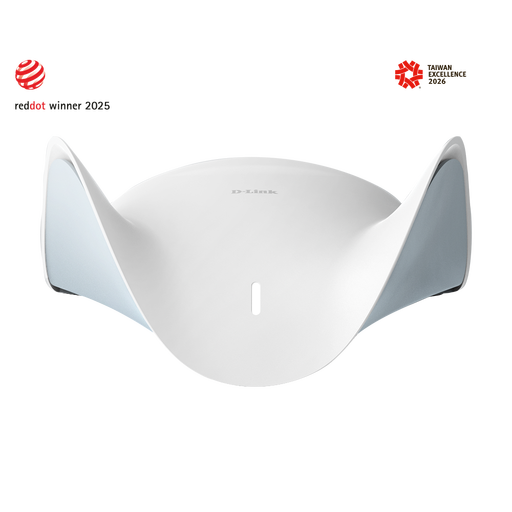 No image available
Consider this mesh router when planning coverage beyond one room; expanding the mesh depends on adding AQUILA PRO AI routers or extenders.
One WAN and three LAN ports, each rated at 2.5 Gigabit.
 No image available
Consider this powerline Wi-Fi kit for a room where you are weighing a connection carried over household wiring; check the connection at the intended sockets.
Three Gigabit Ethernet ports; dual-band Wi-Fi. OneMesh operation depends on a compatible router.
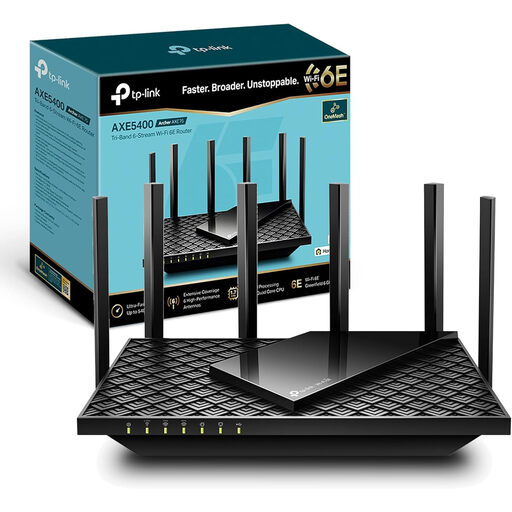 No image available
Consider this router when the existing router may be the limitation; check provider connection requirements before replacing a hub.
Whole-home mesh expansion depends on a compatible TP-Link OneMesh extender.
Place a wireless unit where it can still connect adequately to the existing network, rather than assuming a socket in the dead zone provides a usable link. Check the connection in the rooms where you use devices; for a compatible Deco system, its app can identify whether a satellite is using wired or wireless backhaul.
Some systems can work with an existing router, but the connection method depends on the system. TP-Link says Deco can operate in access-point or router mode with an existing router, with the main unit connected by Ethernet; it cannot wirelessly repeat an unrelated router. Check the chosen system and provider hub before buying.
No: TP-Link describes a stated powerline rate as a physical-layer maximum, not actual throughput, and says wiring and interference affect results. For its TL-WPA7517 KIT, TP-Link also specifies at least two adapters on the same electrical circuit.
Check your exact hub and any features you use before switching modes. Virgin Media says modem mode lets you connect your own Wi-Fi equipment; its guidance also identifies Hub 5x as not currently supporting modem mode and lists functions affected on specified other hubs, including Plume Pod compatibility and Connect app features.
Check the placement and connection feeding the extender or mesh node, then contact your provider if a service fault may be involved. Ofcom advises reporting persistent service faults to the provider and explaining the checks already made.