Who needs to assess their router?
The useful starting point is where and when the connection falters, not how many devices the household owns.
Households online at the same time
When video calls, lessons, streaming and downloads overlap, check whether slowdowns occur during busy periods or also when demand is light. Ofcom identifies household use and the number of connected devices as factors that can affect performance.
Homes with wired work or gaming devices
Desktop PCs, consoles and network storage can make Ethernet connections and port capacity important. A faster port is useful only if the connected equipment and relevant broadband or local-network connection can use it.
Homes with weak Wi-Fi across several areas
If upstairs workspaces or distant rooms struggle while devices near the router work well, investigate placement and coverage. Ofcom notes that distance, walls and interference can affect Wi-Fi independently of the broadband line.
What should you check before choosing?
Compare performance close to the router, over a wired connection where practical, and in the rooms where people use Wi-Fi. Ofcom advises distinguishing in-home Wi-Fi problems from broadband-line problems; repeat checks at different times before attributing every slowdown to the hub.
Keep the ISP hub
Choose it when: The supplied hub provides adequate coverage and handles the household’s usual simultaneous use.
Consider: If the broadband line itself is the limit, changing routers will not increase the speed delivered to the home.
Use a standalone router
Choose it when: One central location already reaches the rooms you use, but you need different capacity, wired connections or controls.
Consider: The replacement must suit your exact broadband connection and any services you need to retain.
Use mesh Wi-Fi
Choose it when: Several busy rooms or floors need better reach as well as support for simultaneous use.
Consider: Nodes need suitable positions and connections to one another; mesh does not speed up the broadband line.
| Priority |
What to check |
Your needs |
| Source of slowdowns |
Compare wired and Wi-Fi performance where practical; repeat checks at different times; note whether heavy household use coincides with a slowdown. |
I want to know whether a new router would address the problem before replacing a working hub. |
| Simultaneous use |
Check how the current hub behaves with several active devices; compare relevant Wi-Fi bands and features against the devices you own; do not treat a headline Wi-Fi rate as internet speed. |
Calls, games and streams may run at once in my household, so performance during those overlaps matters more than an advertised maximum rate. |
| Coverage |
Test near the router and in affected rooms; consider walls, interference and node locations; check whether Ethernet is available between proposed mesh nodes. |
Wi-Fi needs to reach the rooms we actually use, including spaces away from the main router. |
| Wired connections |
Count the WAN and LAN connections you need; check port speeds at both ends; confirm whether a modem or other provider equipment must remain connected. |
I want fixed work or gaming equipment connected by cable where practical, without choosing port speeds my setup cannot use. |
| Provider setup |
Confirm requirements for your provider, connection type and hub model; check WAN or modem arrangements and any voice or other services you must retain. |
Before changing the hub, I need to know how the new equipment will connect and which existing services will still work. |
| Controls and updates |
Check firmware-update support, the controls available on the exact model and any account or subscription terms. The National Cyber Security Centre explains that software patches close identified security holes. |
I want controls the household can maintain after setup. Broadband.co.uk reports that 47% of 3,242 Broadband Genie users surveyed in 2025 had never adjusted their router factory settings; that measures past settings changes, not router-buying priorities. |
Which brands offer relevant options?
These examples illustrate different router and mesh features; a brand’s specifications apply to the named models, not every product it makes.
TP-Link
TP-Link offers both standalone Archer routers and multi-node Deco mesh systems, allowing a choice based on whether the household needs capacity in one location or reach across several areas.
- TP-Link lists the Archer BE550 as a tri-band Wi-Fi 7 router and the Deco BE65 as a whole-home mesh system.
- TP-Link’s advertised Deco BE65 device capacity is a manufacturer claim, not a guaranteed result for a particular home.
ASUS
The ASUS RT-BE88U is a standalone-router reference for households assessing substantial wired-network requirements.
- ASUS lists two 10Gbps ports and four 2.5Gbps ports on the RT-BE88U.
- Its dual-band, single-router design does not itself provide a multi-node coverage plan for distant rooms.
NETGEAR
NETGEAR’s Orbi 970 is a mesh reference for households considering multiple nodes and high-speed wired connectivity.
- NETGEAR advertises up to 200 concurrent devices and 10Gbps internet and LAN ports for the Orbi 970; the device figure is a manufacturer claim.
- Those specifications do not establish what a different Orbi model or a particular home will achieve.
eero
The eero Max 7 is a mesh reference for households comparing network management with smart-home functions.
- eero lists Thread, Matter and Zigbee controller functions for the Max 7.
- eero describes Advanced Security and Parental Controls as part of the optional eero Plus subscription; check its current terms if those functions matter.
Joybuy router and mesh options
These Joybuy options include multi-unit mesh systems for households with coverage and simultaneous-use needs, plus a standalone router to consider where one location already provides adequate reach. Check connection compatibility with your provider before replacing its hub.
 No image available
TP-Link Deco BE65 BE9300 Tri-Band Wi-Fi 7 Mesh System (3-Pack)
Consider this three-pack when several busy rooms need Wi-Fi coverage. TP-Link describes the Deco BE65 as a tri-band mesh system; its advertised device capacity is not a guarantee for your home. Check node placement and your provider’s connection requirements.
View on Joybuy
 No image available
TP-Link Deco BE22 BE3600 Wi-Fi 7 Mesh System (3-Pack)
This three-unit mesh option is relevant when use is spread across several rooms rather than concentrated near one router. Its title identifies Wi-Fi 7 and BE3600; check the connection between proposed node locations, the exact ports you need and provider compatibility.
View on Joybuy
 No image available
NETGEAR Orbi 370 RBE373 WiFi 7 Mesh System, 3-Pack, Dual-Band BE3600, 2.5Gbps Ethernet, White
This three-pack offers a mesh route for rooms beyond the main router, with 2.5Gbps Ethernet identified in the product name. Check which connections your wired devices require, where the units could go and how the system would connect to your provider’s equipment.
View on Joybuy
 No image available
TP-Link Deco BE25 WiFi 7 Mesh System (3-Pack)
Consider this three-pack if Wi-Fi needs to reach several parts of a busy home. Its mesh layout calls for suitable positions for all three units; confirm the Ethernet connections and household-control terms you need, as well as provider compatibility.
View on Joybuy
 No image available
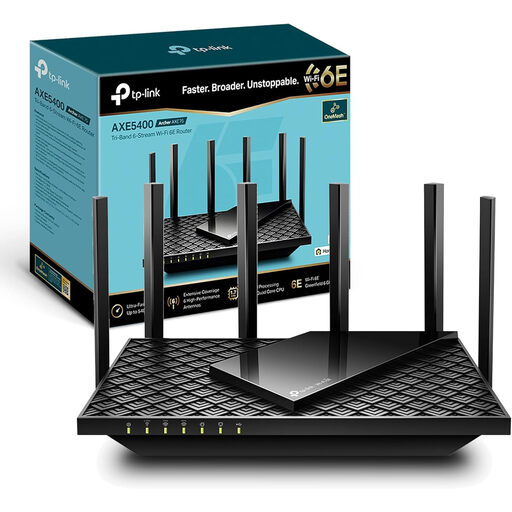
TP-Link Archer AXE75 AX5400 Tri-Band Wi-Fi 6E Router
This standalone router is worth assessing when one central router position already gives the household adequate reach. Check which devices can use its Wi-Fi 6E features, whether its connections suit your setup and what your broadband provider requires for a replacement router.
View on Joybuy
Common questions
Do I need a new router or a different broadband service?
Check the broadband connection before buying a router. Compare performance at different times, close to the hub and over Ethernet where practical. Ofcom notes that a slow Wi-Fi test does not necessarily mean the broadband line is faulty; persistent problems on a wired connection warrant investigating the line or service with your provider.
Can I replace my UK broadband provider’s router?
It depends on the provider, connection type and services you use. BT Business says your own equipment must be compatible with its broadband service, while Virgin Media describes modem mode for connecting your own Wi-Fi kit. Check the instructions for your exact household service, hub and WAN or modem arrangement before purchasing; do not assume one provider’s setup applies to another.
Will mesh make my broadband package faster?
No: mesh cannot raise the speed delivered to your home. It is a choice to consider when several rooms or floors have weak Wi-Fi as well as simultaneous users. Node placement and the connection between nodes still matter.
Are parental controls and security features always included?
No. Features and subscription terms depend on the exact model and service. eero, for example, lists Advanced Security and Parental Controls in its optional eero Plus subscription. Check what works without a plan before choosing a system for those controls.
What should I do after setting up a new router?
Keep its firmware and management app updated, and test both wired and wireless connections in the rooms that prompted the change. The National Cyber Security Centre explains that software patches address identified security holes. Retain the supplied hub if your provider needs it for troubleshooting.


