What to check before buying
Start with the place where calls will happen most often, then confirm physical support and the account setup before choosing a tablet model.
| Priority |
What to check |
Your needs |
| Connection at the call location |
Confirm permitted Wi-Fi access for the chosen app; make a real call from the usual chair or room; check provider coverage at the postcode before relying on 4G or 5G. |
I want calls to work where the tablet will actually be used, not only near a router or outdoors. |
| Hands-free positioning |
Check for a landscape-friendly camera view, audible sound at normal seating distance, and a protective case or stand compatible with the exact tablet size. |
The caller should not have to hold a small phone or balance an unprotected tablet during a conversation. |
| Simple call path |
Test the chosen calling app, incoming-call flow and home-screen shortcuts. Check Assistive Access or Action Blocks requirements on the exact device and account. |
I want the necessary calling choices to be easy to find without navigating a full standard interface. |
| Account and ongoing support |
Use the recipient’s own account where possible; confirm sign-in and recovery arrangements; test calls before the tablet is left in place. |
Family members need a setup that remains manageable without leaving another person’s personal account permanently signed in. |
Joybuy tablet options
Joybuy tablet options for fixed-location Wi-Fi calls and cellular calling arrangements where a mobile-data connection is needed.
 No image available
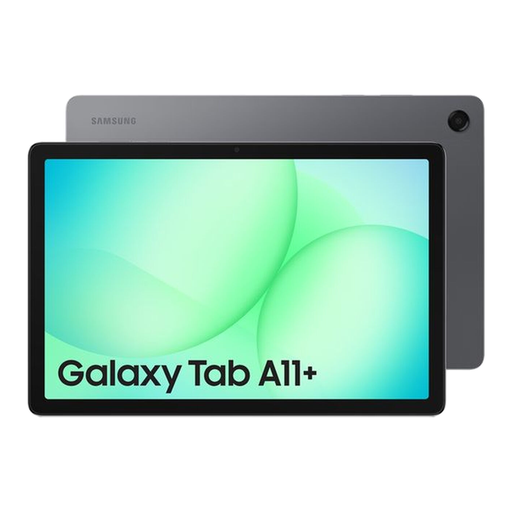
Samsung Galaxy Tab A11+ 8GB 256GB WiFi
A Wi-Fi option for calls from one usual room after the local connection has been tested.
Stated 11-inch 1920 × 1200 display, 5MP front camera, speaker, microphone and Wi-Fi. Check a tablet-specific protective case and stable stand; verify Action Blocks requirements before relying on a simplified shortcut.
Joybuy
 No image available
TABWEE W90 11-inch 4G LTE Tablet 256GB
A cellular-capable option for calls that may take place away from residence Wi-Fi.
Stated 11-inch 1920 × 1200 display, 8MP front camera, Wi-Fi and dual-SIM 4G LTE. A SIM and data plan are required for mobile use; check provider coverage and stand compatibility.
Joybuy
 No image available
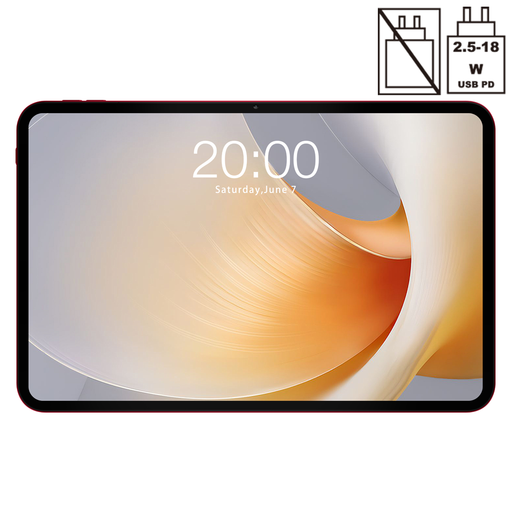
TECLAST T65 Plus 13.4-inch 4G LTE Tablet
Its larger stated display may suit a fixed calling position where a robust stand is available.
Stated 13.4-inch 1920 × 1200 display, 8MP front camera, Wi-Fi and dual-SIM 4G LTE. At 720 g, it needs stable tablet-specific support; mobile calling depends on a data plan and local coverage.
Joybuy
 No image available
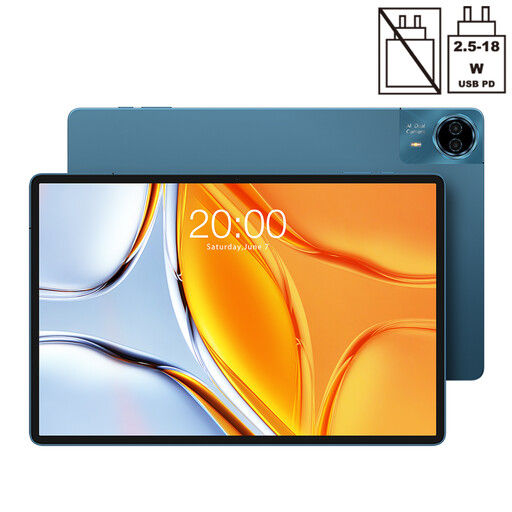
TECLAST T70 14-inch 4G LTE Tablet 256GB
A large-screen cellular option for a permanent, well-supported calling position.
Stated 14-inch 1920 × 1200 display, 8MP front camera, Wi-Fi and dual-SIM 4G LTE. The stated 960 g weight makes a compatible stand important; verify the installed Android version before purchase.
Joybuy
 No image available
Xiaomi Pad 8 8GB 128GB Wi-Fi
A Wi-Fi route for regular calls from a location with confirmed in-room connectivity.
Stated 11.2-inch 2136 × 3200 display, Wi-Fi and four speakers. Confirm that the stated secondary 8MP camera suits the intended calling arrangement, plus compatible case, stand and accessibility options.
Joybuy
Frequently asked questions
When is a Wi-Fi-only tablet enough for family video calls?
A Wi-Fi-only tablet can suit a device that normally stays in a home or care setting with confirmed Wi-Fi access for the chosen app. Test a real call in the room where it will be used; Ofcom’s checker can show local broadband availability but cannot replace an in-room test.
When should I choose a cellular tablet?
Choose cellular when calls need to happen without Wi-Fi, such as on outings or at a residence without dependable Wi-Fi. Check coverage by provider at the actual postcode before choosing a plan, as local indoor conditions can affect performance.
What account setup is needed for FaceTime on an iPad?
FaceTime on iPad requires an Apple Account sign-in. Set up the tablet with the recipient’s account rather than leaving a family member’s account in place, then test both incoming and outgoing calls before handover.
Can an iPad or Android tablet be simplified for someone who finds normal app screens difficult?
Yes, provided the feature’s requirements are met. Apple describes Assistive Access as a more focused interface with larger onscreen items, while Google Action Blocks can add named or photo-labelled actions on Android; check account, software, Assistant and internet requirements first.
What should a family ask a care home before sending a tablet?
Ask whether the resident can use the home’s Wi-Fi for the chosen app, whether a personal device is permitted, whether staff can assist with initial setup or positioning, and when calls are convenient. These arrangements should be confirmed with the individual residence.


