Who this setup can suit

Families setting up regular scheduled calls

For relatives who can set up the calling account, contact list, charging routine and accessibility settings, then provide support during visits or remotely. The key decision is Wi-Fi versus cellular after checking the individual care home’s device and connection rules.

Residents needing a simple, visible call setup

For someone who may prefer a room-based tablet to holding a phone, with a stable stand, clear audio and display or accessibility adjustments demonstrated in advance. This does not mean that the same settings will suit every resident.

Families replacing an older communication device

For buyers comparing an 11-inch Wi-Fi tablet with a cellular model while checking practical essentials such as a compatible charger, case, stand, data plan and supported calling app.

What to check before buying

Wi-Fi tablet setup

Choose it when: The home confirms permitted Wi-Fi or guest-network access in the intended room and someone can complete the initial account, app and charging setup.

Consider: Network sign-in, room coverage, local device rules and the exact fit of the stand and case all need checking before relying on this route.

Cellular tablet setup

Choose it when: The home permits a resident-owned SIM or eSIM device and workable Wi-Fi is unavailable or unsuitable for the regular call routine.

Consider: Cellular hardware does not confirm indoor signal, sufficient data allowance, calling-app compatibility or permission to use mobile service.

Priority What to check Your needs
Connection in the calling room Confirm personal-device permission, the available Wi-Fi or guest network, sign-in steps and signal where calls will take place. For cellular, check local permission, indoor signal and data-plan management. I need the tablet to connect where the resident will actually use it, rather than merely somewhere else in the building.
Ease of seeing, hearing and operating Test display and font size, contrast, volume, the call-app layout and the exact steps for answering and ending a call. Try spoken feedback or voice controls only if the resident can practise with them. I want a repeatable calling routine that the resident can follow with the support available.
Hands-free positioning Choose a stand and protective case made for the exact tablet model and fitted case. Check that they leave the front camera, microphones, speakers, buttons and charging port clear. I need the screen to stay visible during a call without the resident having to keep holding the tablet.
Charging and family support Check the package contents, cable type and compatible charger. Agree where the device will charge and who can reconnect it after an update, power loss or misplaced cable. I need a charging routine that can be maintained between family visits.

Common buying mistakes

  • Buying a Wi-Fi-only tablet before checking the home’s network

    Internet access somewhere on site does not establish that a resident can connect a personal tablet in their room. Network access, sign-in, coverage and personal-device rules are specific to the location.

    Confirm the arrangement with the individual care home before choosing Wi-Fi-only or cellular hardware, then test the calling platform in the intended room where possible.

    If permitted Wi-Fi cannot support the routine, a cellular-capable tablet and a managed mobile-data plan may be required.

  • Assuming a large screen automatically makes the tablet easy to use

    Digital-confidence and accessibility barriers can remain after the device is connected. Display, spoken-feedback, voice and switch settings may help in some situations, but they need setup and practice.

    Practise a short call flow together: wake the device, open the app, identify the caller, adjust volume and end the call. Keep the home-screen layout and settings that the resident can use successfully.

  • Choosing a generic stand or case without exact-model compatibility

    The tablet needs to remain positioned during calls while its front camera, audio components, controls and charging port stay accessible. Dimensions and camera placement vary by model.

    Buy accessories explicitly compatible with the exact tablet model and test the tablet, case and stand together before leaving the setup for routine use.

    An unsuitable case, stand or charger can mean replacing an accessory that blocks a camera, speaker, port or button, or does not fit over the protective case.

  • Assuming a charger is supplied

    A regular calling routine depends on consistent charging at the care home. Lenovo’s UK listing for the Tab M11 standard configuration states that a USB-A-to-USB-C cable is included, but no charging adapter is supplied.

    Check the exact box contents, use a compatible charger and agree who will connect, check and replace charging equipment if needed.

Relevant brand references

Apple

Relevant for an iPad-based calling setup, particularly where FaceTime is already the agreed family platform or Apple accessibility features can be configured and supported.

  • Apple UK lists a landscape 12MP Centre Stage front camera, landscape stereo speakers, dual microphones and Wi-Fi 6 for the iPad 11-inch (A16); Wi-Fi + Cellular versions add 5G and eSIM.
  • Apple documents VoiceOver and Voice Control accessibility features.
  • Features and camera specifications do not establish that a resident can independently open or answer a call, and mobile data still depends on local permission and a managed plan.

Samsung

Relevant for an Android and Google Play tablet route with a current UK 11-inch Wi-Fi model and manufacturer-documented accessibility settings.

  • Samsung’s UK Galaxy Tab A11+ WiFi listing specifies an 11-inch display, 5MP front camera, quad speakers, 3.5mm headphone jack and 7,040mAh battery.
  • Samsung and Google document TalkBack, display-size, magnification, contrast and voice-control options for supported Android devices.
  • The listed A11+ Wi-Fi model requires workable Wi-Fi, and accessibility feature availability can vary by model and software version.

Lenovo

Relevant for an Android 11-inch option where the buyer wants a stated UK configuration, anti-glare display and a separately managed accessory setup.

  • Lenovo’s UK Tab M11 listing specifies an 11-inch 1920 x 1200 anti-glare display, 8MP front camera, Wi-Fi, 128GB storage and a one-year courier-service warranty for the listed configuration.
  • The stated configuration can suit a family prepared to organise its charger, protective case and stand separately.
  • The standard package includes a USB-A-to-USB-C cable but no charging adapter, so a suitable charger is required separately.

Joybuy tablet options

Joybuy product options for a family-managed video-call setup, including Wi-Fi tablets and one cellular-capable route. Confirm the care home’s connection rules, the chosen calling app and accessory compatibility before choosing a model.
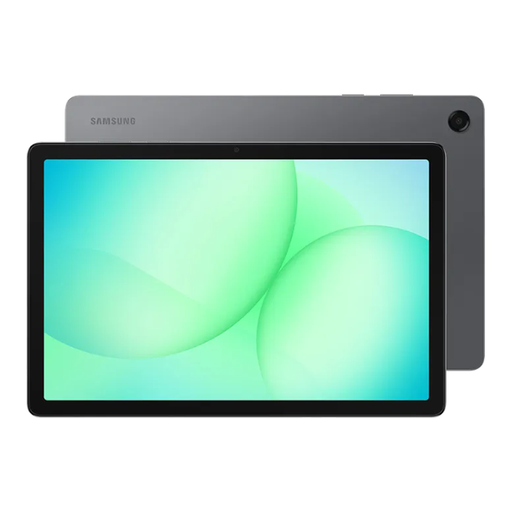
Samsung Galaxy Tab A11+ 11-inch 128GB WiFi Grey tablet

Samsung Galaxy Tab A11+ 11-inch 128GB WiFi Grey

A Wi-Fi option for regular room-based calls after the care home confirms network access and sign-in arrangements.

Stated features include an 11-inch 1920 x 1200 display, 5MP front camera, quad speakers, 3.5mm headphone jack, USB-C and 7,040mAh battery.

Check charger inclusion, exact case and stand fit, the family calling app and the resident’s usable accessibility settings before relying on it for routine calls.

Joybuy
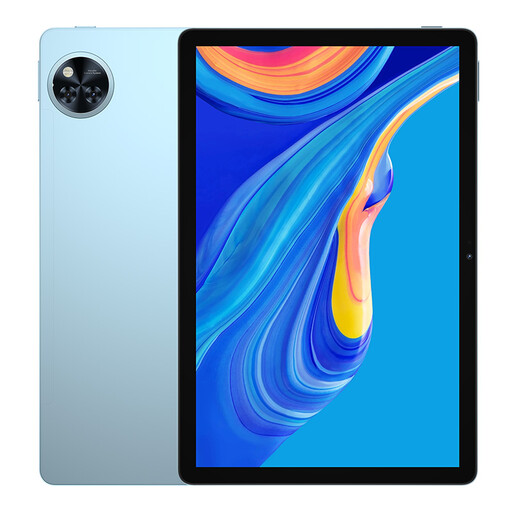
DOOGEE U11 11-inch 128GB Wi-Fi tablet

DOOGEE U11 11-inch 128GB Wi-Fi Tablet

For a family-managed Android calling setup in a room with confirmed, permitted Wi-Fi.

The listing states an 11-inch display, 5MP front camera, dual speakers, dual-band Wi-Fi, USB-C, 128GB storage and a 3.5mm headphone jack.

Verify the final processor configuration if that detail matters, plus charger inclusion, accessory fit and the chosen calling-app workflow.

Joybuy

TABWEE W90 11-inch dual 4G SIM 256GB tablet

TABWEE W90 11-inch Dual 4G SIM 256GB Tablet

A conditional option where a personal SIM-based tablet is permitted and the family will manage connectivity and the device account.

The listing states dual-SIM 4G LTE, dual-band Wi-Fi, an 11-inch 1920 x 1200 display, 8MP front camera, 256GB storage and USB-C.

Confirm indoor signal, data-plan suitability and care-home permission. The listing has conflicting Android-version and battery details, and states that the charger is sold separately.

Joybuy
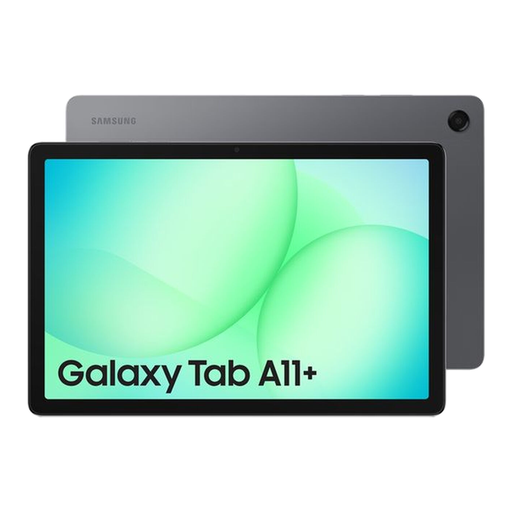
Samsung Galaxy Tab A11+ 8GB 256GB WiFi Grey tablet

Samsung Galaxy Tab A11+ 8GB 256GB WiFi Grey

A Wi-Fi tablet for a family-supported Android call routine after local network access is confirmed.

The listing states an 11-inch 1920 x 1200 display, 5MP front camera, built-in microphone and speaker, USB-C, 256GB storage and microSD expansion.

Check adapter inclusion and the exact audio arrangement for this 256GB configuration, then test a compatible protective case and stable stand.

Joybuy

Samsung Galaxy Tab S11 12GB 128GB WiFi Silver tablet

Samsung Galaxy Tab S11 12GB 128GB WiFi Silver

A Wi-Fi option for room-based calls where the family plans a fixed charging and support routine.

The listing states an 11-inch 2560 x 1600 display, Wi-Fi 6, 12MP front camera, USB-C, 128GB storage and a 469g weight.

The listing identifies a certified 45W charger as sold separately. Confirm the exact speaker and microphone layout, Wi-Fi access and stand or case compatibility.

Joybuy

Frequently asked questions

Should you buy a Wi-Fi or cellular tablet for a care-home resident?

Start with Wi-Fi only when the individual care home confirms that a personal tablet can connect to the relevant network in the intended room and any sign-in can be completed. Consider cellular only where it is permitted and Wi-Fi cannot support the planned calls; the family must also manage signal, a SIM or eSIM, data plan and device account. NHS Scotland notes that video calls can use Wi-Fi or mobile data, although its technical guidance is for its own consultation service rather than a guarantee for a particular calling app.

What should be checked with the care home before buying?

Ask whether personal tablets are permitted, whether resident or guest Wi-Fi works in the room, whether sign-in portals apply, and what support is available for charging and initial setup. Also check any local rules for mobile-data devices, calls in shared spaces and privacy.

Which features matter most for room-based video calls?

Verify the exact model’s front camera, microphone and speakers, then select a compatible stand and protective case that do not block them or the charging port. A landscape front camera can be useful for a tablet placed horizontally in a stand, but screen size alone does not confirm that the calling app will be easy to use.

Can accessibility settings make a mainstream tablet easier to use?

They can provide options, not a guaranteed solution. Apple documents VoiceOver and Voice Control, while Android documents display and font-size adjustments, magnification, TalkBack, Voice Access and Switch Access; Samsung also documents TalkBack and display or contrast settings. Configure only the settings the resident can practise successfully, as some options change ordinary touchscreen interaction.

Will the tablet include everything needed to charge it?

Do not assume so. Lenovo’s UK Tab M11 standard listing states that it includes a USB-A-to-USB-C cable but no charging adapter. Check the exact package, cable type, compatible charger and planned charging location before purchase.