Families using the care home’s Wi-Fi
A tablet used mainly in one room may not need a separate mobile connection. Ask the home whether a personal device can join its network, how it signs in and whether the signal reaches the usual calling spot.


Start with the care home: a Wi-Fi tablet is the simpler choice if the resident can connect reliably where calls happen and the connection process is manageable. Consider cellular if that Wi-Fi is unusable or calls must work away from the home, but test the intended mobile network indoors before relying on it. Whichever connection you choose, try the calling routine with the resident and check that the stand, case and charging arrangement work in their usual space.
A tablet used mainly in one room may not need a separate mobile connection. Ask the home whether a personal device can join its network, how it signs in and whether the signal reaches the usual calling spot.
If recognising the app or handling the tablet is difficult, try a complete call with the resident. Check whether they can see and hear relatives, use the controls and return the device to its stand and charger.
A cellular tablet offers another connection route, but indoor reception still needs testing. Ofcom’s coverage guidance notes that building materials can affect the signal inside.
Settle where and how the resident will connect before choosing a tablet. Then test the controls and physical setup together: a working connection alone will not make a call easy to start.
Choose when: The home permits a stable connection in the usual calling location without repeated difficult sign-ins.
Trade-off: Calls depend on that network and on someone being able to restore the connection if it drops.
Choose when: In-room Wi-Fi is unusable or calls also need to work away from the home.
Trade-off: It needs a suitable data arrangement, and outdoor coverage does not establish reception in the resident’s room.
| Concern | What to check | Who this matters to |
|---|---|---|
| Connection at the calling spot | Ask about Wi-Fi access and repeat sign-ins; if considering cellular, test the intended network indoors. | If calls will happen in one particular room, I need the connection to work there rather than just elsewhere in the building. Roughly 29% of consumers put that connection first. |
| Repeatable call controls | Try unlocking, finding a contact, answering and ending a call with the resident. | When several screen steps are hard to remember, being able to repeat the calling routine matters more to me than extra tablet functions; around 29% of consumers prioritise simple controls. |
| Positioning and charging | Test a model-compatible case and stand on the intended surface, with access to the camera and charging port. | I do not want the resident to hold the tablet throughout a call or struggle to put it back afterwards. For roughly 24% of consumers, stable handling and charging come first. |
| Picture and sound | Make a call in the usual seat and lighting; check framing, volume and any intended listening accessory. | Once the connection and controls are manageable, I want us to see and hear each other comfortably during the conversation. Around 18% of consumers place call picture and sound first. |
A mobile signal shown for the area may be weak in the resident’s room. Ofcom notes that indoor coverage predictions are guides and that building materials can affect reception.
Check coverage for the postcode, then make a video call in the intended room using the network you plan to use.
A cellular setup also means arranging and maintaining a data plan.
A tablet that is easier to view may still be awkward to hold or charge. Accessibility settings can also change how touch controls behave.
Ask the resident to wake the screen, start and finish a call, adjust the volume and return the tablet to its charging place before settling on the setup.
Camera, button and connector positions vary by model. An ill-fitting accessory may obstruct them or leave the tablet unstable.
Match accessories to the full model identifier and check framing, controls, cable access and stability on the surface where calls will happen.
Charging, reconnecting and account recovery can become difficult if the family and home expect different people to handle them.
Agree with the home who may help with the device, where it can be kept and which family member will handle account and support requests.
Apple is relevant to families considering an iPad and its built-in accessibility controls; features and connection options depend on the exact model.
Samsung is relevant to families comparing Android tablets, including models with different screen sizes and connection variants.
Lenovo’s tablet range offers further Android models to compare for a family calling setup.
These Joybuy tablets cover Wi-Fi calling choices and one model listing both Wi-Fi and 4G LTE. Choose a connection route with the care home first, then compare the exact tablet and accessories for the resident’s calling space.
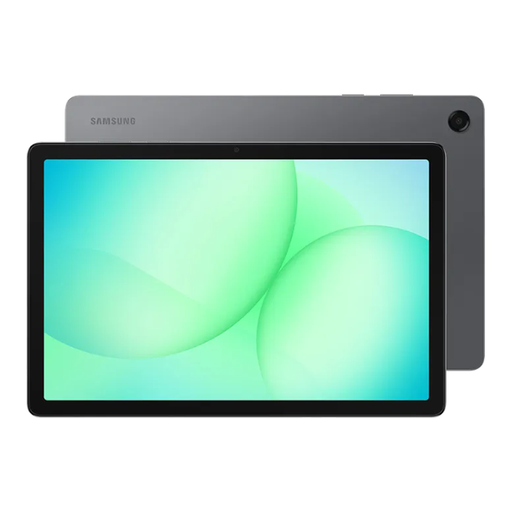 No image available
Consider this variant for calls where the home’s Wi-Fi works in the resident’s usual spot. The named variant has an 11-inch display and 128GB storage; check stand and case fit and try the calling app with the resident.
 No image available
Consider the T20 for a Wi-Fi calling setup after checking that the resident can use its controls. Its title identifies a 10.1-inch display and 256GB storage; confirm the supplied stand and other bundle items before planning how it will sit during calls.
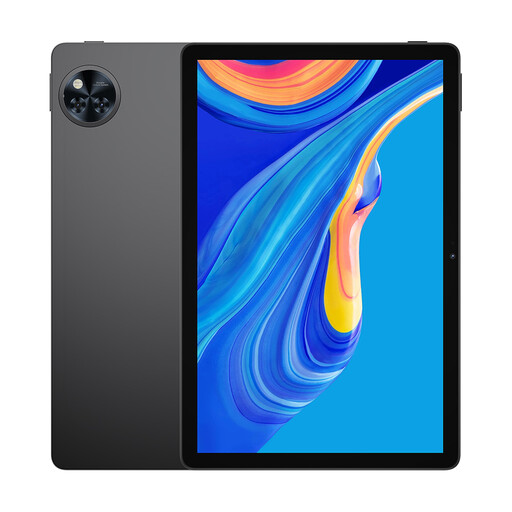 No image available
This is another tablet to assess for calling over the home’s Wi-Fi. Its title identifies an 11-inch display, 256GB storage and a 3.5mm headphone jack; check any intended stand or case against the exact model and try the call controls with the resident.
 No image available
Consider this specific Wi-Fi variant only where the calling location has a usable Wi-Fi connection. Before choosing it for the resident, check compatible stand and case options and test the intended calling app; specifications for the different 11-inch iPad (A16) should not be assumed to apply.
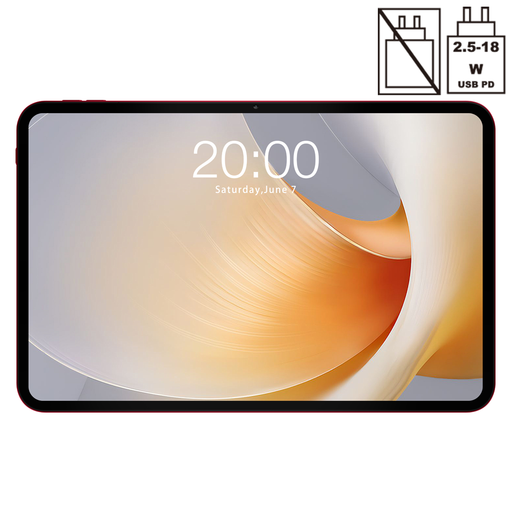 No image available
Consider its 4G LTE option if the home’s Wi-Fi cannot support the intended calls, but test the chosen mobile network in the resident’s room first. The title also lists a 13.4-inch display, Android 15 and 256GB storage; check stand fit and whether the resident can handle the full calling routine.
Not if the home permits usable Wi-Fi where the resident makes calls and joining it is manageable. If Wi-Fi is unavailable or calls also need to work away from the home, consider cellular after checking the plan arrangements and testing the intended network indoors.
Ask whether a personal tablet can use the Wi-Fi in the resident’s room, whether sign-in needs repeating and where a stand may be placed. Agree who can help with charging or reconnection and which family member will manage the account and support requests.
Try each setting with the resident before leaving it on. Google Accessibility Help explains that Android TalkBack provides spoken feedback but changes touch interaction; a supervised call will show whether a particular setting helps the resident start, answer and end calls.