What matters when choosing?
Establish where the resident can get a usable connection before choosing the tablet. Then try the calling interface and check the complete hands-free arrangement, not just the screen size.
| Concern | What to check | Who this matters to |
|---|
| Connection for calls |
Ask whether personal devices and the calling app can use the home’s Wi-Fi. If considering cellular, check the provider’s predicted indoor coverage and test a call in the intended location. |
If calls will take place in a room with uncertain Wi-Fi or mobile reception, I need a connection that works there. Around 31% of consumers put connection reliability first. |
| Interface and account access |
Try the preferred calling app with the intended accessibility settings, and decide who will manage the account and recovery details. |
When answering a call involves too many steps, I need a screen the resident can use or a trusted supporter can maintain. Roughly 25% of consumers prioritise manageable calling and account access. |
| Hands-free viewing and protection |
Check case fit for the exact model and confirm that the stand supports the cased tablet on the permitted surface without obstructing calls or charging. |
If holding a tablet is uncomfortable, I need it positioned for a call without blocking its camera or controls. Around 25% of consumers make hands-free positioning and protection their main concern. |
| Refurbished condition and lifespan |
For a refurbished tablet, check its exact model, operating-system version, battery condition, account-reset status and accessory compatibility. |
If I am considering an older or refurbished tablet, I need the calling app and accessories to remain usable. Approximately 19% of consumers put device condition and continued usability first. |
Joybuy tablets for this setup
These tablets include Wi-Fi choices and models listing 4G cellular connectivity. Match the connection to the care home’s calling location, then check the preferred app, case and stand for the exact model.
 No image available
TABWEE W90 11-inch tablet, dual 4G SIM
Consider its listed 4G option if the home’s Wi-Fi is unsuitable and a provider works in the resident’s calling location.
The title specifies an 11-inch screen, dual 4G SIM and 5G Wi-Fi. Check the preferred calling app, compatible case and stand; 4G capability alone does not establish indoor reception.
View on Joybuy
 No image available
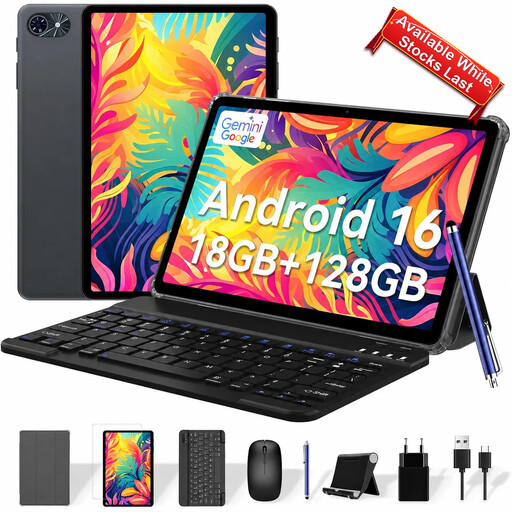
TABWEE T80 10-inch tablet with keyboard
Consider this model for calls where the care home permits a usable Wi-Fi connection.
The title lists a 10-inch screen, 5G Wi-Fi and a keyboard bundle. Check calling-app use and case and stand fit; confirm cellular capability separately if the setup requires it.
View on Joybuy
 No image available
Alldocube Kido 8-inch tablet with blue case
Consider the smaller screen only if it gives the resident a comfortable call view and the intended Wi-Fi connection works.
The title specifies an 8-inch screen, 5G Wi-Fi, a 2MP front camera and an included protective case, but says no adapter is included. Check the calling app and a compatible stand; confirm cellular capability if needed.
View on Joybuy
 No image available
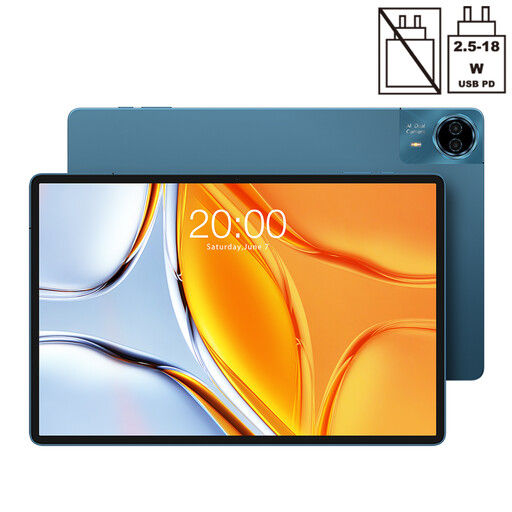
TECLAST T70 2025 Edition, 14-inch tablet
Consider its large screen and listed cellular connection only if there is room for a stable hands-free position.
The title specifies a 14-inch 1920 × 1200 display and dual SIM 4G LTE. Confirm the Android version and preferred calling app before buying, as the supplied product information gives conflicting software versions. Check stand fit and indoor mobile reception.
View on Joybuy
 No image available
TECLAST ArtPad Pro 2025 Edition, 12.7-inch tablet
Consider this larger model if the resident’s viewing position and the available surface can accommodate it.
The title lists a 12.7-inch display, dual SIM 4G LTE and 5G Wi-Fi. Try the preferred calling app, and check case and stand fit and indoor reception before relying on the cellular connection.
View on Joybuy
Questions about care-home video calls
Should I choose a Wi-Fi-only or cellular tablet?
Choose Wi-Fi if the care home permits the device and calling app on a connection that works where calls take place. Consider cellular if that route is unsuitable, but check the network at the exact address and test it indoors; Ofcom notes that buildings can affect reception.
What should I ask the care home before buying?
Ask how a personal tablet joins Wi-Fi, whether the intended calling app can be used, and where the resident may place and charge the device. Also establish whether a stand is permitted and who can help if the tablet needs reconnecting or updating.
Can accessibility settings make answering calls easier?
They may help if the resident can use the chosen app within the configured interface. Apple Support describes a focused Assistive Access interface on supported iPads; Android and Samsung offer accessibility options that vary by device and software. Try an incoming call with the resident.
How do I choose a case and stand that fit?
Start with the exact tablet model and generation, rather than screen size alone. Check that the case leaves the camera, sound components, controls and charging port accessible, then confirm the stand supports the tablet with its case fitted on the intended surface.
Does a rugged tablet remove the need for careful placement?
No. Samsung’s stated IP68, MIL-STD-810H and covered-device drop-test claims for the Galaxy Tab Active5 have specific conditions; Samsung also says water or dust damage is not covered by its warranty. A stable calling position remains important.


