Mouse-only hot-desk users
If the laptop has a suitable spare USB data port, the wired mouse can connect directly. A compact hub is worth considering when the desk also needs connections for a display, charging or Ethernet.


If a shared desk only needs a wired mouse, use a spare, compatible USB data port on the laptop rather than buying a full dock. A hub or dock becomes useful when the same connection must also handle displays, charging, Ethernet or other peripherals; for a desk used by different laptops, check each laptop’s connection and feature support before choosing one setup.
If the laptop has a suitable spare USB data port, the wired mouse can connect directly. A compact hub is worth considering when the desk also needs connections for a display, charging or Ethernet.
If moving between desks means reconnecting a mouse, monitor, power and possibly wired Ethernet, a hub or dock can keep those desk connections together. Check that the laptop supports every feature you intend to use.
For desks used by different laptop models, check the required connection protocols, charging and firmware features across the actual fleet. Lenovo notes that some dock management features available with ThinkPad systems may not work on other laptops.
Start with the mouse connection, then decide whether the rest of the desk needs to connect through one laptop cable.
Choose when: The wired mouse is the only desk device to connect, and the laptop has a suitable data port or needs only a USB-C-to-USB-A adapter.
Trade-off: Other desk devices still need their own connections.
Choose when: You need the mouse plus a few other connections and want a portable setup.
Trade-off: Charging may need a separate power adapter, while display output depends on the laptop’s capabilities.
Choose when: A fixed desk needs one connection for the mouse, displays, power, networking or other peripherals.
Trade-off: Laptop compatibility and management features still need checking across a shared fleet.
| Concern | What to check | Who this matters to |
|---|---|---|
| A simple mouse connection | Match the mouse plug to a spare laptop USB data port or a suitable adapter. | If I only need my wired mouse at the shared desk, I would rather connect it without adding another powered device. Around 40% of consumers put that straightforward connection first. |
| One-cable desk setup | Count the required USB and display connections; check the laptop’s display support and the power delivered to it. | When I move between desks, I want to reconnect my mouse and other desk equipment with one laptop cable. That is the main concern for around 30% of consumers. |
| Mixed-laptop compatibility | Check each laptop’s required USB-C, Thunderbolt or DisplayLink pathway and any IT features the office will use. | If several laptop models share a dock, I need the intended connections and managed features to work on each one. Around 30% of consumers prioritise that fleet-wide fit. |
A compatible laptop USB data port, or a simple adapter for a different plug shape, can meet a mouse-only need. A full dock is useful for the additional desk connections it brings, not for the mouse alone.
List what will remain connected at the shared desk before choosing between a direct port, adapter, hub and dock.
The connector shape alone does not establish display or other feature support. Lenovo conditions operation of its USB-C and Thunderbolt docks on the host supporting the required USB-C Alt Mode, DisplayLink or Thunderbolt protocol.
Check each laptop model against the intended dock features and test the complete desk setup before equipping multiple desks.
Anker states that its 555 hub can accept up to 100W pass-through charging but uses 15W for hub operation; it does not include a wall charger. Dell lists different delivered power figures for Dell and non-Dell systems on its Pro Dock WD25.
Compare the laptop’s charging requirement with the power it will receive, and check which power adapter is included.
A separate compatible charger may be needed for a hub supplied without one.
A display arrangement that relies on DisplayLink also relies on its software. DisplayLink’s installation guidance includes software setup and a restart for the described process.
Confirm whether the intended displays need DisplayLink, then check installation permissions and updates with IT before deployment.
Software deployment, restarts and ongoing support add work to a shared-desk rollout.
Its USB-C hubs are relevant when a portable desk setup needs a mouse connection alongside other ports.
Its Pro Dock WD25 is a fixed-desk option for connecting several peripherals rather than a mouse alone.
Its ThinkPad Universal USB-C Dock is relevant to desks where Ethernet, multiple peripherals and supported firmware features matter.
These options add USB connections for desks that need more than a direct mouse connection. The compact hubs suit additional ports; the larger docking stations are for desks with more equipment to connect. Check the mouse plug and laptop compatibility for the particular setup you plan to use.
 No image available
Consider this for a shared desk that needs a mouse connection alongside displays and other peripherals.
The model name specifies dual HDMI 4K and 100W Power Delivery pass-through. Check the laptop’s USB-C display support, the mouse plug, the power adapter supplied and the power delivered to the laptop.
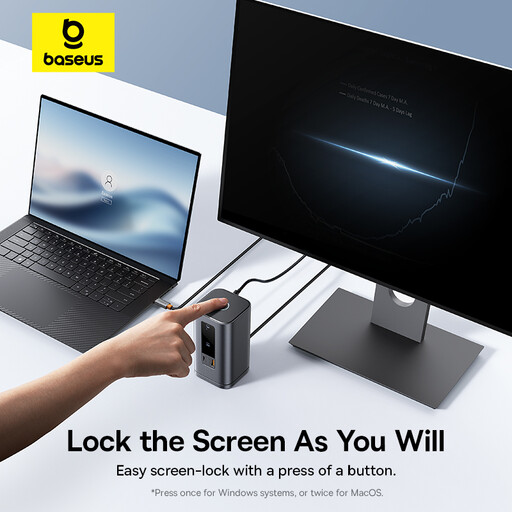 No image available
Consider this workstation-style option when the shared desk needs connections for a mouse and other equipment.
The product name identifies an 11-in-1 WIN variant. Before planning a display or charging setup around it, confirm the intended laptop’s compatibility and the power delivered to that laptop.
 No image available
This compact option is relevant when a wired mouse is one of several devices needing a connection.
Its name lists HDMI up to 4K at 60Hz, USB-A 10Gbps and 5Gbps connections, SD/TF slots and 3.5mm audio. Check the laptop’s support for the intended display setup and whether it needs charging through the hub.
 No image available
Consider this hub if the desk needs mouse access plus several other types of connection.
The product name lists two HDMI connections, DisplayPort, two USB 3.0 and two USB 2.0 connections, RJ45, PD, SD/TF and audio. Match the mouse plug to a port and check which display features the laptop can drive.
 No image available
This hub is relevant when the desk needs USB ports for a wired mouse and another peripheral.
The product name also lists a USB-C 3.0 connection, SD/TF slots and HDMI 4K at 60Hz. Check the laptop’s docking and display support and whether charging or Ethernet is needed at the desk.
No, provided the laptop has a spare USB data port that fits the mouse. If a USB-A mouse must connect to a USB-C laptop, a suitable adapter may be enough; consider a hub or dock when other desk equipment also needs connecting.
Check the actual laptop models and operating systems against the intended mouse, display, charging and network setup. Lenovo specifies host-protocol requirements for its USB-C and Thunderbolt docks, while Dell lists different WD25 charging figures for Dell and non-Dell systems; test the complete setup before a wider rollout.
No: a USB-C connector alone does not guarantee the display features a dock needs. Apple specifies DisplayPort Alt Mode or supported Thunderbolt connections for relevant Mac display adapters; check both the laptop and the chosen dock for the intended monitor arrangement.
It can if the required DisplayLink software is permitted and supported on the laptops using that desk. DisplayLink’s installation guidance includes software setup and a restart, so confirm deployment permissions and updates with IT before choosing that display arrangement.