Socket-limited desk learners
If your mains sockets are occupied, wireless typing can avoid a permanently connected keyboard cable during study. You still need a workable plan for charging or replacing batteries, depending on the model.


If your computer uses a UK input layout, look for a wireless keyboard whose physical layout and printed symbols match it; predictable access to punctuation matters when practising regular expressions. Bluetooth can leave the keyboard untethered during study, but rechargeable models still need charging. Choose a compact layout if desk space is tight, or give more room to dedicated keys and your wider workstation setup if those matter more.
If your mains sockets are occupied, wireless typing can avoid a permanently connected keyboard cable during study. You still need a workable plan for charging or replacing batteries, depending on the model.
Brackets, backslashes, pipes and other symbols are easier to find consistently when the printed keys agree with your computer’s input layout.
For extended coding or note-taking sessions, weigh the space a keyboard occupies against the keys you use and the room available to position the rest of your workstation.
Decide how the keyboard will connect and receive power, then check its printed symbols against your computer’s input layout before settling on a size.
| Concern | What to check | Who this matters to |
|---|---|---|
| Wireless use and power | Check Bluetooth compatibility, whether a receiver needs a USB port, and how the keyboard is charged or powered. | If sockets are occupied, I want to type without keeping a keyboard cable connected, while allowing for charging or battery changes. Around 42% of consumers put this power-and-connection need first. |
| Layout and punctuation | Inspect the exact physical variant and printed symbols; match them to your computer’s input setting. Microsoft Support explains how to change input layouts in Windows. | When practising regex, I need the symbols on the keys to produce the characters I expect without interrupting each exercise. For around 33% of consumers, dependable punctuation access is the primary concern. |
| Typing setup | Compare keyboard dimensions and key arrangement with your desk space; consider where the keyboard and mouse will sit. | During a longer study session, I need enough room to position my hands and mouse without giving up keys I use often. A workable typing setup comes first for around 25% of consumers. |
A physical layout that differs from your computer’s input setting can make punctuation practice needlessly confusing.
Inspect the exact UK-ISO or English UK variant if you use a UK input layout. Check the computer’s setting before deciding that the keyboard itself needs replacing.
A rechargeable keyboard still needs occasional charging, while a 2.4 GHz connection may occupy a USB port with its receiver.
Choose Bluetooth if your computer supports it and preserving a USB port matters. Otherwise, check the receiver, cable and power requirements for the connection you intend to use.
A smaller board may move functions you use to key combinations or layers. Keychron also specifies a cable connection for its web-configuration process on the relevant models.
Check the exact key arrangement and whether you can use your preferred punctuation, navigation and number-entry workflow before relying on remapping.
Wrist support or a compact footprint does not, by itself, determine how comfortably the screen, chair, keyboard and mouse fit together.
The Health and Safety Executive advises positioning the keyboard just below elbow height. Leave enough desk room to position the screen and keyboard centrally.
Keychron’s K3 Max and V1 Max are relevant if you want a selectable UK-ISO variant and configurable keys.
The MX Keys for Business suits consideration when a full-size English UK QWERTY option and a number pad matter.
The Pro Type Ultra is relevant if a supplied wrist rest and a choice of connection modes matter to your setup.
These wireless keyboard choices address the socket-limited study setup. Check each listing’s exact layout and power requirements against your computer and the punctuation keys you use.
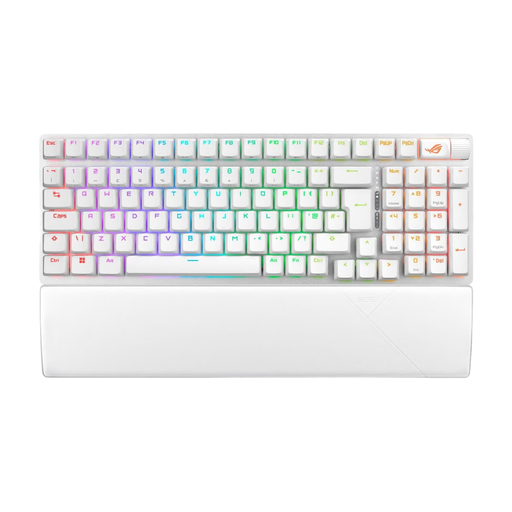 No image available
Consider this UK-layout wireless model if you want to study without a keyboard cable permanently connected. Check its printed punctuation keys against your input setting and confirm how you would charge it.
 No image available
Consider this wireless model if desk placement is important alongside cable-free typing. Inspect the exact printed keys before relying on its UK designation for punctuation practice, and confirm its charging arrangements.
 No image available
This Bluetooth model is worth considering if you want normal study use without a permanently attached keyboard cable. Check that your computer supports the connection, confirm the printed punctuation layout and plan when you can charge it.
 No image available
Consider this full-size wireless model if you have room for a larger keyboard while avoiding a permanent cable during use. Check its printed symbol positions and how its batteries are replaced before choosing it for regular study.
No; you need dependable access to the symbols used in your exercises, not a keyboard made specifically for regex. Match the physical keys to your configured input layout. Microsoft Support explains how to add and change keyboard input layouts in Windows.
It can remove the need for a continuously connected keyboard cable during normal use, but it does not remove power requirements. Plan for charging or battery replacement, and check whether your chosen connection uses a USB receiver.
Choose by the keys you use and the room on your desk: a compact layout may place some functions on layers, while a full-size layout is relevant if you also want a number pad. Inspect the exact key arrangement rather than assuming either size gives you your preferred punctuation positions.
No; its size and features are only part of the workstation setup. The Health and Safety Executive advises placing the keyboard just below elbow height and positioning the screen and keyboard centrally, so check that your desk allows for both.